
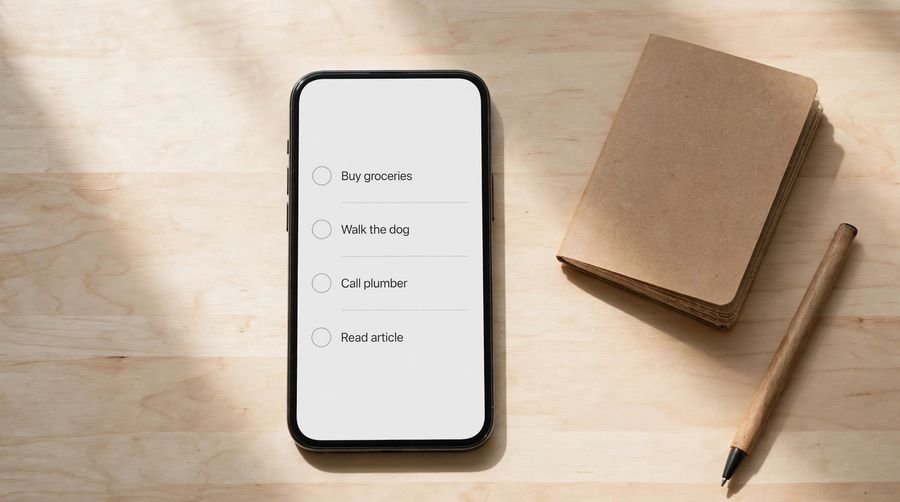
How to use Apple Reminders app when your to-do list lives in your head, on sticky notes, and in three different apps at once?
Open the Reminders app, tap New Reminder, type the task, and tap Done — then add a date, a time, or a place so your iPhone tells you about it instead of you having to remember. It is free, built into every iPhone, iPad, Mac and Apple Watch, and it syncs through iCloud, so a task you add on your phone is waiting on your Mac too.
The app looks plain, which is why most people use about a tenth of it. Under that plain surface are location alerts, shared family lists, a grocery list that sorts itself, and Siri shortcuts that take five seconds. This guide walks through all of it, step by step.
What does the Apple Reminders app do?
Reminders is Apple’s built-in to-do app. You write a task, and the app nudges you at the right time, in the right place, or when you message the right person. You can also break big jobs into subtasks, flag the important ones, attach photos or documents, and set priorities.
It works on iPhone, iPad, iPod touch, Mac, Apple Watch and on the web at iCloud.com. Everything is free — there is no paid tier, no subscription, and no in-app purchase. The only thing that costs anything is an iCloud storage plan if you attach very large files, and for most people the free 5 GB is plenty.
Reminders is not a notes app and it is not a calendar, though it works closely with both. The comparison table later in this guide shows exactly where each one fits.
How do you set up Reminders and sync it with iCloud?
Reminders works on one device with no setup at all. But without iCloud it will not follow you to your other devices, and the grocery list and shared lists need iCloud switched on. Set it up once and forget about it.
- Open Settings and tap your name at the top.
- Tap iCloud, then tap See All under Saved to iCloud.
- Turn on Reminders.
- Open the Reminders app — your lists now appear under the iCloud section.
Do the same on every device, signed in to the same Apple Account. On a Mac, go to System Settings, click your name, click iCloud, then turn on Reminders the same way. On the web, sign in at iCloud.com/reminders. If a reminder you made on your phone never shows up on your Mac, this setting is almost always the cause.
How do you create your first reminder?
Creating a reminder takes about five seconds. The quick toolbar above the keyboard is where the power lives — it is how you add a date, a place or a flag without opening a separate screen.
- Open the Reminders app and pick a list, or tap Add List to make a new one.
- Tap New Reminder and type the task in plain words, like “Call the dentist”.
- Use the quick toolbar above the keyboard to add a date, time, location or flag.
- Tap Done.
To add more detail, tap the reminder, then tap the Info button. There you can add a note, a web link, a priority (low, medium or high), an attachment such as a photo or a scanned document, and move the reminder to a different list.
Tap the empty circle next to a reminder to mark it complete. Completed items stay in the list until you clear them, so you can look back at what you finished.
How do you schedule a reminder for a date and time?
A reminder with no date is just a note. A date and time turn it into a nudge that actually arrives. Tap a reminder, tap the Date and Time button, and pick one of the quick options — Today, Tomorrow, This Weekend or Next Week — or tap Custom to choose your own day and time.
If you set a date but no time, the notification appears by default at 9:00 AM. You can change that default in Settings > Apps > Reminders. You can also ask for an early warning, so a reminder due at 4 PM can ping you at 3 PM instead.
To make a task repeat, set its date first, then tap Repeat and choose a schedule — daily, weekly, monthly, or a custom pattern such as every second Tuesday. The reminder comes back on its own after you complete it, which is ideal for bills, bin day, and medication.
On iOS 26.2 and later, you can also mark a reminder as urgent: open the reminder, tap the Info button, and turn on Urgent under Date & Time. Reminders then schedules an alarm when it is due, so it breaks through where a quiet notification might not. For the alarm to work, turn on Alarms in Settings > Apps > Reminders.
How do you set a location-based reminder?
Some tasks belong to a place, not a time. “Buy milk” matters when you are at the store, not at 3 PM when you are at your desk. Location reminders handle exactly that.
- Tap the reminder, then tap the Location button.
- Choose Arriving or Leaving, then pick a place — home, work, the supermarket, or any address.
- Save it. Your iPhone alerts you when you arrive or leave that place.
For this to work, Location Services must be on: go to Settings > Privacy & Security > Location Services and turn it on. Set your home and work addresses in your own contact card first, and Siri and Reminders will both understand “when I get home” without you typing an address.
One honest limit: location reminders depend on your phone knowing where you are, so they can be late in buildings with weak GPS, and they do nothing if Location Services is off.
How do you get reminded when messaging someone?
Apple has a quieter trick that most people never find: a reminder that appears the next time you message a specific person. It is perfect for the “tell Sarah about the car” tasks that have no sensible date.
Tap the reminder, tap the Info button, turn on Remind me when messaging, then choose the person from your contacts. The next time you open a conversation with them in Messages, the reminder pops up at the top of the screen.
It only fires in Apple’s Messages app, and only for the person you chose. It will not appear for group chats or for other messaging apps.
How do you organise reminders with lists, tags and smart lists?
One long list becomes useless fast. Reminders gives you four ways to keep things tidy, and they work best together.
Lists are the big buckets: Work, Home, Groceries, Holiday. Tap Add List at the bottom of the main screen, give it a name, and pick a colour and an icon so you can spot it at a glance. You can also group lists together — for example, a “Home” group holding Groceries, Chores and Repairs.
Tags let you slice across lists. Tap the Tag button on a reminder and add a word like #urgent or #waiting. Tap a tag later and you see every matching reminder from every list.
Smart lists are built in and update themselves: Today shows everything due today, Scheduled shows everything with a date, Flagged shows everything you flagged, and All shows every open reminder. Flag a reminder with the Flag button and it appears in the Flagged smart list automatically.
Since iOS 17, any list can also have sections. Open a list, tap the three-dot menu, and tap New Section to split it — for example, a Work list split into This Week and Later. Drag reminders between sections to move them.
How do you use the grocery list that sorts itself?
This is the single most useful Reminders feature for most households, and it is the one people miss most often. Since iOS 17, a Groceries list automatically sorts items into store sections as you type them.
- Open Reminders and tap Add List.
- Under List Type, choose Groceries, then name the list and tap Done.
- Add items as normal. Apples go to Produce, milk to Dairy, Eggs & Cheese, bread to Breads & Cereals, and so on.
If an item lands in the wrong section, drag it to the right one — the app remembers your choice next time. You can also create your own sections for anything the built-in categories miss. The list remembers your sorting preferences, so it gets more accurate the more you use it.
You can convert an existing shopping list instead of starting over: open the list, tap the three-dot menu, tap Show List Info, then change List Type to Groceries.
How do you share a list and assign tasks?
Reminders is genuinely useful for families and housemates, because a shared list updates for everyone in real time. One person adds milk at work, and the other sees it at the store.
- Open the list you want to share and tap the More button (three dots).
- Tap Share List and add people from your contacts.
- Everyone you invite can add, complete and edit items, and you can see who added what.
In a shared list, you can also assign a task to one person: tap the reminder, tap the Assignment button in the quick toolbar, and pick a name. That person gets the reminder, and everyone else sees who owns it. It is the simplest way to split chores without a group chat argument.
Sharing needs iCloud — everyone involved must be signed in to iCloud and have Reminders turned on. If someone cannot see the list, that setting is the first thing to check.
How do you use Reminders with Siri?
Siri is the fastest way to capture a task, because you never open the app. Just say it while you are driving, cooking, or carrying shopping.
- “Hey Siri, remind me to water the plants tomorrow at 9 AM.”
- “Hey Siri, add artichokes to my groceries list.”
- “Hey Siri, remind me to call Mum when I get home.”
- “Hey Siri, remind me about this” — while looking at a web page, email or note, and Siri attaches it to the reminder.
Siri adds tasks to your default list unless you name another one. To change the default, go to Settings > Apps > Reminders > Default List. You can also create reminders without opening the app at all: in iOS 26, add the Reminders control to Control Center, or assign Reminders to the Action button on a supported iPhone, then press and hold it to dictate a task.
On Apple Intelligence-capable iPhones — iPhone 15 Pro and later — you can also type a natural-language request like “Feed the cat every evening at 5” and Reminders fills in the timing for you.
How do you use Reminders on Mac, Apple Watch and widgets?
Reminders is the same app on every Apple device, so the habits carry over. On a Mac, open Reminders from the Dock or Launchpad; lists, tags and smart lists all work the same way, and the extra screen space makes the column view genuinely useful for planning a week.
On Apple Watch, open Reminders, dictate a task with Siri, or tap one complete. It is the fastest way to clear a shopping list while your hands are full.
Add the Reminders widget to your Home Screen or Lock Screen and you can check tasks off without opening the app at all. The widget is interactive since iOS 17, so tapping a circle marks the task done right there. You can also add reminders from another app: open a web page, email or note, tap Share, then choose Reminders.
Two small habits make the widget worth it. First, put the Today smart list in the widget, not a single list — that way you see everything due, whatever list it lives in. Second, check your Scheduled list every Sunday evening for five minutes; anything with no date gets one, or gets deleted.
Should you use Reminders, Notes or Calendar?
Apple gives you three apps that look similar, and using the wrong one is the most common reason a system falls apart. The difference is simple: Notes holds information, Calendar holds events, Reminders holds tasks.
| App | Best for | Alerts you | Example |
|---|---|---|---|
| Reminders | Tasks with a due date, place or person | Yes — time, location, messaging | Buy milk when you reach the store |
| Notes | Writing, checklists and reference material | No | Packing list, meeting notes, recipes |
| Calendar | Events that happen at a fixed time | Yes — before the event | Dentist appointment, Tuesday 10 AM |
If it has a time and a place and other people are coming, it belongs in Calendar. If it is something to write down and keep, it belongs in Notes — our guide to Apple Notes as a productivity app shows how far Notes goes beyond simple writing. If it is something to do, and you want a nudge when it is due, it belongs in Reminders.
You can also create a reminder from inside Calendar: tap Add, choose Reminder, type the task, and set a date. And if you want a broader system for capturing everything, our best note-taking methods guide compares the approaches that actually stick.
Is Apple Reminders better than paid to-do apps?
For most people, yes — because it is free, private, and already on every device you own. The main paid rival is Todoist, whose Pro plan costs $5 a month billed yearly ($60 a year) or $7 a month billed monthly, and whose free Beginner plan keeps reminders behind the paywall.
Todoist earns its price if you work on Windows and Android as well as Apple devices, need 300 projects, or want calendar layouts and heavy filtering. Reminders wins if you live inside Apple’s ecosystem, because its location alerts, Siri capture, grocery sorting and shared lists cost nothing and sync through iCloud without a second account.
Before paying for any to-do app, try Reminders properly for two weeks: one list per area of life, every task with a date, and the Today smart list as your daily view. Most people who do that never need the paid app.
What are the best tips for using Apple Reminders every day?
The app is simple; the system around it is what makes it work. Five habits cover most of it.
First, keep tasks short and verb-led — “Call the plumber”, not “plumber stuff”. Second, give every task a date, even a vague one. A task with no date is a task you will forget, and Next Week is better than nothing. Third, use the Today smart list as your daily dashboard and ignore everything else until the day arrives.
Fourth, save lists you reuse as templates. A packing list, a weekly shop, or a project checklist can be saved as a template and reused instead of rebuilt each time. Fifth, review once a week: open the Scheduled list, move overdue items to a real date or delete them, and clear completed tasks. A weekly review takes five minutes and stops the list turning into a graveyard of old intentions.
One last habit: if you delete a reminder by accident, open the main screen, tap Recently Deleted, and recover it. Deleted reminders stay there for 30 days before they are gone for good.
Frequently asked questions about using Apple Reminders
Is the Apple Reminders app free?
Yes. Reminders is free and built into every iPhone, iPad, Mac and Apple Watch, with no subscription or in-app purchase. It syncs through iCloud at no extra cost, and you can also use it free on the web at iCloud.com.
How do I make a reminder repeat every day or every week?
Tap the reminder, tap the Date and Time button, set a date, then tap Repeat and choose daily, weekly, monthly or a custom pattern. The reminder comes back automatically after you mark it complete.
Why is my reminder not alerting me?
Check four things in order: the reminder has a date and time set, not just a date; notifications are allowed for Reminders in Settings; Do Not Disturb or a Focus mode is not silencing it; and for location reminders, Location Services is on. An urgent reminder on iOS 26.2 or later also needs Alarms turned on in Settings > Apps > Reminders.
Can I share a Reminders list with someone who does not have an iPhone?
No — shared lists need iCloud, so everyone involved needs an Apple device with Reminders turned on. For a mixed household, a shared grocery list still works if one person runs it and reads it out, but real-time sharing is Apple-only.
What is the difference between Reminders and Notes?
Reminders is for tasks you need to do, with alerts at a time, place, or when messaging someone. Notes is for writing things down and keeping them — lists without alerts, documents, and reference material. Use Reminders when you need a nudge; use Notes when you need to keep information.
Apple Reminders works best when you stop treating it as a notepad and start treating it as a nudge machine: every task gets a date, a place, or a person, and the Today smart list becomes the one screen you check each morning. Set up iCloud sync once, build one list per area of your life, and let the app do the remembering.