
How to schedule a text on iPhone?
To schedule a text on iPhone, open Messages, go to an iMessage conversation, tap the plus button beside the text field, tap More if you see it, then tap Send Later, choose the date and time, type your message, and tap the send arrow. It will sit in the conversation with a dashed border until the time you chose, then send on its own. You need iOS 18 or later, and it works only in iMessage conversations, the ones with blue bubbles.
That one feature solves a problem almost every iPhone owner has felt. You remember a birthday at midnight, you think of a work message on a Sunday evening, or you want to wish a friend good luck before an early exam. Sending it right away would wake someone up, and waiting until morning means you will probably forget.
This guide gives the exact steps for iOS 27, released on 14 September 2026, with the current build iOS 27.2.1 arriving on 9 November 2026 for iPhone 11 and later. It also covers editing, rescheduling, cancelling, and the Android case, so you can use the feature with confidence.
What do you need before you schedule a text on iPhone?
You need an iPhone running iOS 18 or later, because Apple added Send Later to Messages with iOS 18. If your iPhone runs iOS 27, the feature is already there. If your iPhone runs an older version, update it first if your model supports it, and our guide on how to install iOS 27 walks through the update step by step.
You also need an iMessage conversation. Send Later is an iMessage feature, so the conversation must show blue bubbles, which means the other person is using an Apple device with iMessage turned on. If the conversation shows green bubbles, it is an SMS, MMS, or RCS conversation, and Send Later will not appear. Most people who cannot find Send Later are looking in a green-bubble conversation.
Finally, you need to be online when you create the scheduled message, and again if you later want to edit, reschedule, or delete it. Apple says scheduled messages are encrypted and stored on Apple servers only until they are sent, and a message is delivered even if all your devices are offline at the delivery time.
How do you schedule a text on iPhone with Send Later in iOS 27?
Follow these steps exactly. They match the iPhone User Guide for iOS 27 published by Apple Support, and the whole process takes less than a minute.
- Open the Messages app on your iPhone.
- Go to the conversation where you want to schedule the message, or start a new conversation with the person you want to text.
- Tap the plus button, which is the plus sign in a circle to the left of the text field, then tap More if it appears, then tap Send Later.
- Tap the time shown above the text field to open the scheduler, then choose the date and time you want the message to send.
- Type your message in the text field, which now has a dashed border.
- Tap the send arrow to schedule the message.
When you tap the time in step four, Apple shows a default of tomorrow at 9 in the morning, so check it before you confirm. You can schedule a message up to 14 days ahead, which covers a birthday next week or a reminder the day before a flight. For longer, use Shortcuts, covered below.
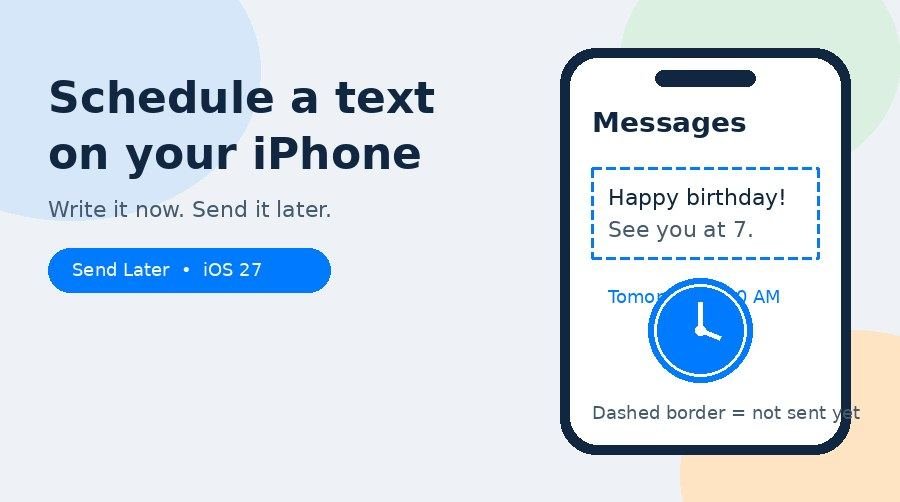
After you tap Send Later, the text field border turns into a dashed line, and the scheduled time appears at the top of the message area. That dashed border confirms the message is scheduled rather than sent, and it stays dashed until the delivery time arrives.
How do you know a text is scheduled and not sent yet?
A scheduled text appears at the bottom of the conversation in a bubble with a dashed outline, and the date and time you chose appear above it, along with the words Send Later. The bubble looks different from your sent messages on purpose, so you can tell at a glance which messages are still waiting.
If you cannot see your scheduled message, scroll down to the bottom of the conversation, because Apple notes that scheduled messages may appear below sent messages. When the time arrives, the message sends, the balloon becomes a solid colour, and the dashed line disappears. The other person will not know you scheduled it, because Apple states this in its support guide.
How do you edit a scheduled text on iPhone?
You can edit a scheduled text at any time before its delivery time, which is handy when you spot a typo or want to add a detail. You need to be online to make the change, so connect to Wi-Fi or mobile data first. If your Wi-Fi is not working, our guide on how to share your Wi-Fi password can help someone nearby get you connected.
To edit the wording, open Messages, go to the conversation with the scheduled message, and touch and hold the message bubble. Tap Edit, make your changes, and then tap the send button to resend it with your edits, or tap the revert button to leave it as it was. The scheduled time does not change when you edit the wording.
How do you reschedule a scheduled text on iPhone?
Rescheduling is separate from editing the wording. Open Messages, go to the conversation with the scheduled message, and tap Edit beside the date shown above it. Tap Edit Time, choose the new date and time, and then tap away from the scheduler to confirm it. The same 14-day limit applies to the new time.
How do you cancel a scheduled text on iPhone?
To cancel a scheduled text, open Messages, go to the conversation with the scheduled message, touch and hold the message bubble, and then tap Delete. Apple states that when you delete a message before its scheduled time, it is cancelled and not delivered to the recipient. You need to be online to delete it, so do not leave it until the last minute.
How do you send a scheduled text right now?
Sometimes you schedule a message and then realise it should go out immediately, because the person has already replied or the news has changed. Open Messages, go to the conversation, tap Edit beside the date above your scheduled message, and then tap Send Message. The message sends straight away as a normal sent message, with the dashed border gone.
Why can you not schedule a text to an Android phone?
You cannot use Send Later for a text to an Android phone, because Send Later works only with iMessage, and Android phones do not use iMessage. When you text an Android phone from an iPhone, the conversation uses SMS or RCS instead, which shows green bubbles, and Apple describes no scheduling for those message types. That is the most common reason people think Send Later is broken, when the feature is working as Apple designed it.
The same limit applies to group conversations with even one Android user, because the whole conversation switches away from iMessage when not every participant uses an Apple device. If Send Later is missing in a group chat, check the bubbles first: a single green bubble is enough to remove the option.
How do you schedule a text on iPhone with Shortcuts?
Shortcuts is the built-in app that fills every gap Send Later leaves behind. It works on older iPhones that cannot run iOS 18, it can send a text to an Android phone, it can schedule a message more than 14 days ahead, and it can repeat a message every day, week, or month. It takes more steps to set up, and a time-based automation repeats unless you turn it off or delete it after it runs.
To create a scheduled text with Shortcuts, open the Shortcuts app, tap Automation at the bottom, and tap New Automation or the plus button. Choose Time of Day, set the date and time, and tap Next. Tap Add Action, search for Send Message, add it, type your message, choose your recipient, and tap Done. Set it to run immediately rather than asking for confirmation first, or the message will wait for you at the scheduled time.
Shortcuts also handles repeating messages, which Send Later cannot do. A weekly reminder to a parent or a monthly note to a housemate can run from one automation, as long as you delete or disable it when the messages are no longer needed. For a fuller walkthrough, see the MakeUseOf guide to sending scheduled text messages on iPhone with Shortcuts. One more fallback: the Reminders app can hold the message text and alert you at the right time, and then you copy it into Messages and send it yourself.
Which method should you use to schedule a text on iPhone?
The best method depends on your iOS version, the recipient phone, and how far ahead you need to schedule. Send Later is best whenever it is available, because it is built into Messages, it sends even if your phone is offline, and it is easy to edit or cancel. Shortcuts is best when Send Later is not available, and Reminders is best when you want a final check before sending.
| Situation | Best method | Sends on its own | Main limit |
|---|---|---|---|
| iPhone on iOS 18 or later, texting another iPhone | Send Later in Messages | Yes, even if your phone is offline | Up to 14 days ahead, iMessage only |
| Texting an Android phone | Shortcuts automation | Yes, if set to run immediately | Repeats unless you delete or disable it |
| iPhone on iOS 17 or earlier | Shortcuts automation | Yes, if set to run immediately | Takes longer to set up than Send Later |
| Message needed more than 14 days ahead | Shortcuts automation | Yes, if set to run immediately | You must remember to delete it after it sends |
| Same message every week or month | Shortcuts automation | Yes, if set to run immediately | Repeats until you turn it off |
| You want to check the message before it sends | Reminders app | No, you send it yourself | You must be free at the scheduled time |
Most people will use Send Later for almost everything. If you are unsure, ask one question: is the recipient on iMessage, and is the message due within 14 days? If the answer to both parts is yes, use Send Later; if the answer to either part is no, use Shortcuts.
What should you do when Send Later is missing or a scheduled text does not send?
Start with the simplest check first. Look at the bubbles: if they are green, the conversation is SMS or RCS, not iMessage, and Send Later will not appear. Open a conversation with another iPhone user instead. If the bubbles are blue and Send Later is still missing, check your iOS version in Settings, then General, then Software Update, because the feature needs iOS 18 or later.
If your iPhone is up to date and Send Later is still missing in a blue-bubble conversation, check that iMessage is turned on in Settings, then Apps, then Messages, and restart your iPhone to clear temporary glitches. If a scheduled message does not send, check for the dashed bubble: if it is gone, the message may already have sent. If it is still there with a past time on it, delete it and schedule it again, and check your iPhone storage first, because a full phone can stop background tasks from working.
How to schedule a text on iPhone: the bottom line
Learning how to schedule a text on iPhone takes less than a minute, and it saves you from missed birthdays and midnight texts you wish you had waited to send. Use Send Later whenever the conversation is iMessage and the message is due within 14 days. Use Shortcuts when the recipient uses Android, when your iPhone runs an older iOS version, or when the message is due further ahead or needs to repeat. For the official steps, see Apple Support on scheduling a text message on iPhone to send later, and for the general Messages guide, see Apple Support on using Messages on your iPhone or iPad.
Frequently asked questions about scheduling a text on iPhone
Can you schedule a text on iPhone?
Yes, with Send Later in Messages, if your iPhone runs iOS 18 or later and the conversation uses iMessage. Open the conversation, tap the plus button, tap More if it appears, tap Send Later, choose the date and time, type your message, and tap the send arrow.
How far ahead can you schedule a text on iPhone?
You can schedule a text up to 14 days ahead with Send Later. If you need longer than 14 days, use a Shortcuts automation instead, and delete it after it sends if you only want it to send once.
Can you schedule a text to an Android phone from an iPhone?
No, because Send Later works only with iMessage. Use a Shortcuts automation with the Send Message action instead, set it to run immediately, and test it first so you know it sends at the right time.
Will a scheduled text send if my iPhone is off?
Yes, even if all your devices are offline at the delivery time, because Apple encrypts scheduled messages and stores them on Apple servers only until they are sent. You only need to be online to create, edit, reschedule, or delete the message.
Can the other person tell that I scheduled a text?
No, because Apple says the recipient will not know the message was scheduled. It arrives looking like an ordinary message, with no label or sign that you wrote it earlier.