
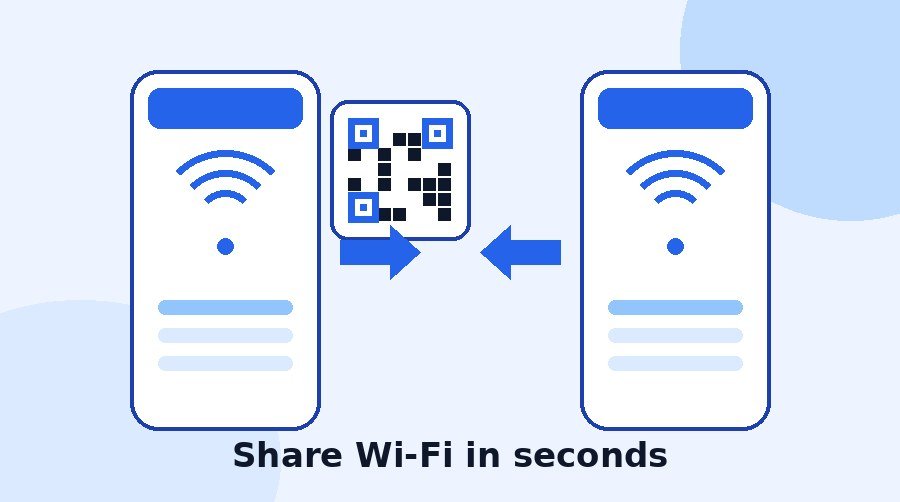
How to share wifi password?
To share a Wi-Fi password from an iPhone to another iPhone, make sure both phones have Wi-Fi and Bluetooth turned on, each person is signed in to their own Apple Account, and each person has the other person saved in Contacts with the Apple Account email address or phone number. Then ask the guest to tap the same Wi-Fi network name in Settings, and tap Share Password when the prompt appears on your iPhone. To share a Wi-Fi password with an Android phone, open the Passwords app, tap Wi-Fi, choose the network, tap Show Network QR Code, and let the guest scan the code with their camera.
A guest should not have to wait while you hunt for a password written on a sticker under the router. Most phones can share it in a few seconds, without you reading a long string out loud. The trick is picking the method that matches the two phones in front of you.
The steps below were checked against Apple Support on 25 November 2026, and the menu names match iOS 27, the current version on supported iPhones. The Passwords app route needs iOS 18 or later. If you have not updated yet, our guide to how to install iOS 27 walks through the update, and the current build is 27.2.1.
Which method should you use first?
The fastest method depends on the guest phone, not on your phone alone. If both phones are Apple devices and the two people are saved in each other contacts, the tap-to-share prompt is quickest, because nobody has to type anything. If the guest has an Android phone, the QR code is quickest, because Apple automatic sharing does not work across to Android. If the guest is not nearby, look up the password and send it in a secure message.
| Your situation | Best method | What the guest needs |
|---|---|---|
| Guest has an iPhone, iPad, or Mac and is next to you | Tap Share Password when the prompt appears | Wi-Fi and Bluetooth on, and your Apple Account saved in their contacts |
| Guest has an Android phone and is next to you | Show the network QR code from the Passwords app | A camera or QR scanner to scan the code |
| Guest has an Android phone and you are sharing from Android | Share the network from Android Wi-Fi settings | A camera or QR scanner, or Nearby Share on Android 12 and later |
| Guest is not nearby, or the prompt will not appear | Look up the password and send it in a secure message | The network name and the exact password, typed with care |
How do I share a Wi-Fi password from one iPhone to another?
Apple built-in sharing is the easiest method when both phones are Apple devices. It uses Wi-Fi and Bluetooth together, and it checks the contacts on both phones before it offers to share. That check is the reason it feels safe, and it is also the reason it fails when the contacts are not set up. Fix the checklist below first, because it saves several minutes of tapping later.
Both devices need a recent version of iOS, iPadOS, or macOS. Turn on Wi-Fi and Bluetooth on both devices, and make sure each person is signed in to their own Apple Account. Turn off Personal Hotspot on both devices if it is on, because Apple Support lists that as a condition. Each person must have the other person Apple Account email address or phone number saved in Contacts. Keep the phones close together, and keep your iPhone unlocked and connected to the network.
- Unlock your iPhone, open Settings, tap Wi-Fi, and confirm you are connected to the network you want to share.
- Ask the guest to open Settings on their iPhone or iPad, tap Wi-Fi, and tap the same network name.
- Wait a few seconds with the phones near each other until a prompt appears on your iPhone.
- Tap Share Password, wait for the guest phone to join, and then tap Done.
The guest phone should join without typing anything, and the password is saved for the next visit. Apple designed this for contacts on purpose, so it will stay silent for a stranger. Add the person to Contacts first, or use the QR code method below.
How do I share a Wi-Fi password from an iPhone to an Android phone?
Apple automatic sharing does not work with Android, because Android does not use Apple Accounts or the same Bluetooth handshake. The QR code is the bridge between the two systems. On iOS 18 and later, including iOS 27, the built-in Passwords app can make that code in seconds. The guest only needs a camera, so this also works for a tablet or a Windows laptop with a camera.
- Open the Passwords app on your iPhone and unlock it with Face ID, Touch ID, or your passcode.
- Tap Wi-Fi to see the networks you have joined.
- Tap the network you want to share, then tap Show Network QR Code.
- Ask the guest to open the Camera app on their Android phone and point it at the code.
- When the guest sees a prompt to join, ask them to tap it, then tap Join or Connect.
The Android phone should connect without typing the password. If the camera does not recognise the code, ask the guest to try the QR scanner inside their Wi-Fi settings. On Samsung, that scanner is in Settings, then Connections, then Wi-Fi, behind the QR code icon. On Pixel, the camera usually offers the join prompt on its own. Brighten your screen if the room is dark, and hold the phones steady so the camera can focus.
If no QR code appears, the network may not be saved, or it may use a sign-in page instead of a simple password. Look up the password with the steps in the next section and type it on the guest phone. A screenshot can help when the guest is not with you, but send it only in a private message. On iOS 17 or earlier, there is no Passwords app. Our guide to how to get iOS 26 on your iPhone explains the update path that led to the current release.
How do I find a saved Wi-Fi password on my iPhone?
Finding the password is useful when the guest is not nearby, when the prompt will not appear, or when you need to connect a device that cannot scan a QR code, such as a smart TV or a games console. Apple lets you view a saved Wi-Fi password on iOS 16 and later, after you unlock with Face ID, Touch ID, or your passcode. You can view the password for the network you are on now, and for networks you joined in the past.
For the network you are on now, open Settings and tap Wi-Fi. Tap the Info button, the small letter i in a circle, next to the network name. Tap the Password field, unlock with Face ID, Touch ID, or your passcode, and the password appears in plain text. Tap Copy if you want to paste it into a secure message, and check you copied the right network first. Apple documents this route on its support page for finding saved Wi-Fi passwords.
For a network you joined before, open Settings, tap Wi-Fi, and tap Edit in the upper-right corner. Unlock to see known networks, then tap the Info button next to the network and tap the Password field. You can also use the Passwords app on iOS 18 and later: open Passwords, tap Wi-Fi, tap the network, and tap the Password field.
How do I share a Wi-Fi password from an Android phone?
Android has had built-in Wi-Fi sharing since Android 10, and it works much the same way on most brands, with only the menu names changing a little. The guest can be on Android or on an iPhone, because an iPhone camera can scan an Android QR code. You need to be connected to the network you want to share, and you need to unlock your phone when Android asks.
- Open Settings on your Android phone, then tap Network and internet.
- Tap Internet or Wi-Fi, depending on your phone, and tap the network you are connected to.
- Tap the gear icon next to the network name, if your phone shows one, to open its details.
- Tap Share, and unlock with your fingerprint, face, PIN, or pattern when asked.
- Show the QR code to the guest, and ask them to scan it with their camera or Wi-Fi scanner.
On most Pixel, Motorola, OnePlus, and Xiaomi phones, the password also appears in plain text below the QR code, so you can read it out if the scan fails. On Samsung, open Settings, tap Connections, tap Wi-Fi, tap the gear icon next to the connected network, and tap the QR code option at the bottom. Samsung does not always show the password below the code, so the scan is the main route on a Galaxy. An iPhone guest should open Camera, point it at the code, and tap Join Network.
Android 12 and later also offers Nearby Share, now called Quick Share, on the same screen. Tap it, make sure Bluetooth and location are on, and choose the nearby Android device. This only works between Android devices. If the guest runs Android 9 or earlier, read the password out or type it by hand. Our comparison of Wi-Fi 7 vs Wi-Fi 6 explains what changes when you upgrade your router.
What should I do when the share prompt does not appear?
The missing prompt is the most common problem in Wi-Fi sharing, and it almost always has a simple cause. Work through the checks below in order, and test again after each one, because Apple Support suggests testing after each step. Start with the checks that take seconds, and leave the restart until the end.
- Confirm your iPhone is unlocked and on the exact network the guest is trying to join, not a similar name.
- Turn on Wi-Fi and Bluetooth on both phones, and turn off Personal Hotspot and Airplane Mode.
- Check Contacts and confirm each person has the other person Apple Account email or phone number saved, with no typo.
- Move the phones closer together and wait a few seconds after the guest taps the network name.
- Check both phones are signed in to their own Apple Accounts, and update both to the latest software.
- Restart both phones, then try the same steps again from the start.
If the prompt still does not appear, use the QR code method instead, because it does not need the contacts check or the Bluetooth handshake. Open Passwords, tap Wi-Fi, choose the network, and tap Show Network QR Code. If that also fails, look up the password in Settings and type it on the guest phone. Turn off any VPN for the test, because it can interfere with the local connection.
Frequently asked questions
Can I share a Wi-Fi password from an iPhone to an Android phone?
Yes, you can share a Wi-Fi password from an iPhone to an Android phone with a QR code. Open the Passwords app on iOS 18 or later, tap Wi-Fi, choose the network, tap Show Network QR Code, and ask the guest to scan the code with their Android camera. Apple automatic tap-to-share does not work with Android, so the QR code is the method to use.
Why is my iPhone not showing the share Wi-Fi password prompt?
The prompt usually fails because one of the Apple conditions is not met. Check that Wi-Fi and Bluetooth are on for both phones, Personal Hotspot is off, each person is signed in to their own Apple Account, and each person has the other person Apple Account email address or phone number saved in Contacts. Move the phones closer together and restart both phones if the prompt still does not appear.
How do I find my Wi-Fi password on my iPhone without asking anyone?
Open Settings, tap Wi-Fi, tap the Info button next to the network you are connected to, tap the Password field, and unlock with Face ID, Touch ID, or your passcode to see the password. For a network you joined before, tap Edit on the Wi-Fi screen first, then tap the Info button next to that network. You can also open the Passwords app, tap Wi-Fi, choose the network, and tap the Password field.
Can I share a Wi-Fi password without telling the guest the actual password?
Yes, both the Apple tap-to-share prompt and a QR code let a guest join without seeing or typing the password. The prompt fills the password in on the guest phone, and the QR code does the same when the guest scans it. The guest phone still saves the password for later visits, so only use these methods with people you trust on your network.
Does sharing a Wi-Fi password work when the guest is in another room?
The Apple tap-to-share prompt needs the two phones to be close together, because it uses Bluetooth as well as Wi-Fi. If the guest is in another room, use the QR code method and send a screenshot in a private message, or look up the password and send it in a secure message with the network name. The guest can then join when they arrive, without you being in the same room.
Sharing a Wi-Fi password should take seconds once you know which method fits the two phones in front of you. Start with tap-to-share for Apple guests, use the QR code for Android guests, and keep the password lookup as your backup. Check contacts and Bluetooth first when the prompt fails, and share a QR screenshot only in a private message. For more detail, see the MakeUseOf guide to the easiest and fastest ways to share your Wi-Fi password, and Apple Support on how to share your Wi-Fi password from your iPhone or iPad and how to find your saved Wi-Fi passwords on iPhone or iPad.