
How to close apps on iPhone?
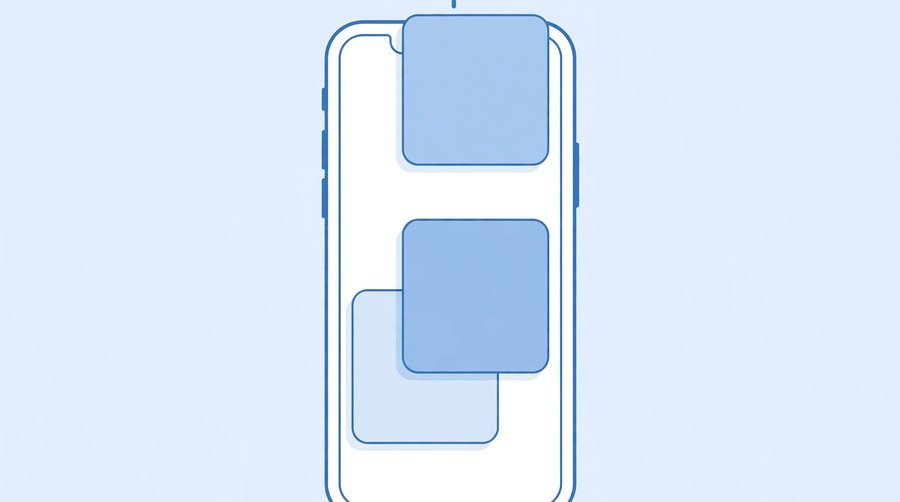
To close apps on iPhone, open the App Switcher and swipe the app’s card up and off the screen. On an iPhone with Face ID, swipe up from the bottom edge and pause in the middle until the cards appear, then swipe left or right to find the app and flick its card upward. On an iPhone with a Home button, double-click the Home button to open the App Switcher, then swipe up on the app’s preview the same way. The steps below match iOS 27, released on 14 September 2026, with current build 27.2.1 released on 9 November 2026.
What does closing an app actually do?
Closing an app and leaving an app are different things. When you leave an app by swiping up to the Home Screen or pressing the Home button once, it stays in the App Switcher as a recent app. iOS suspends it in memory, so it stops using the processor until you return, and tapping its card resumes it almost instantly. Closing an app, which Apple calls quitting an app, removes it from the App Switcher altogether, so the next launch is a cold start: the app reloads its files, reconnects to its servers, and rebuilds the screen. That fresh start is why closing can fix a frozen app, and why doing it to every app is wasted effort. The cards are previews of recently used apps, not apps all actively running, so a long row of cards does not mean your iPhone is working hard, and clearing them does not make it faster.
How do you close apps on an iPhone with Face ID?
Face ID iPhones have no Home button: iPhone X and every newer model, including the iPhone 11 through iPhone 17 families, the iPhone Air, and Face ID models of the iPhone SE. The gesture is the same on all of them.
- From the Home Screen or inside any app, place your finger on the bottom edge of the screen, on the thin Home bar.
- Swipe up slowly and pause in the middle until the App Switcher appears, then lift your finger.
- Swipe left or right to find the app you want to close.
- Swipe up on its preview card. The card slides off the top of the screen, and the app is closed.
- Tap the empty space around the cards to return to the Home Screen, or tap a card to open that app.
The pause is the step most people miss. A fast swipe takes you to the Home Screen instead, leaving the app running. If the switcher does not appear, slow down and hold your finger mid-screen until the cards appear. To reopen an app, tap its icon on the Home Screen or in the App Library. It launches fresh, though anything you had not saved inside it may be gone.
How do you close apps on an iPhone with a Home button?
Home button iPhones are the iPhone SE in all generations, the iPhone 8 and earlier, and the iPod touch. There is no swipe-up gesture here, because the Home button does the job.
- Double-click the Home button quickly to open the App Switcher.
- Swipe left or right to find the app you want to close.
- Swipe up on its preview card to close it.
- Press the Home button once to return to the Home Screen.
The double-click must be two presses in quick succession. Press too slowly, and the first press takes you to the Home Screen. If double-clicking is difficult, open Settings, tap Accessibility, tap Home Button, and choose Slow or Slowest under Click Speed. A single press only leaves the app running in the background; only the double-click plus a swipe up actually closes it.
How do you close multiple apps at once?
There is no close-all button on the iPhone, and Apple has never added one, because Apple expects you to close apps only when one misbehaves.
Place two or three fingers on neighbouring app cards in the App Switcher, then swipe them upward at the same time. Each card you touch flies off the screen, and all of those apps close together. Repeat across the row until only the apps you want to keep remain. Start with two fingers, since it takes practice to land a finger on each card without tapping one open.
No third-party app can add a close-all button, because iOS gives no app that power over other apps. And closing apps you use daily, such as Messages or Safari, only forces them to reload from scratch next time.
How do you force-close a frozen app?
Force-closing is the same gesture as closing an app. The difference is the reason: you force-close because an app has stopped responding. Apple says you should only close an app if it is unresponsive, and a frozen app is the textbook case.
Open the App Switcher, find the frozen app’s card, and swipe it up. Then tap the app’s icon to open it again. Most frozen apps come back working normally, because the fresh launch clears whatever jammed the previous session.
If the card will not swipe away, or the screen ignores the App Switcher gesture, lock the screen with the Side button, wake it again, and retry. If the whole screen is still dead, restart the iPhone instead, using the steps below. Save your work first if the app still responds enough to let you, since unsaved work can be lost. If the app freezes again right after reopening, the fault is deeper than one bad session.
Does closing apps save battery?
No, closing apps does not save battery, and routinely closing them can use more battery instead. Apple’s guide to quitting apps states that the iPhone automatically manages how apps run in the background, so quitting apps you are not using does not prolong battery life. In 2016, Apple’s software chief Craig Federighi confirmed the same point publicly: quitting apps does not extend battery life.
When you leave an app, iOS suspends it, so it uses no processor power while it waits in memory. Close it and reopen it later, and the iPhone must reload the whole app from storage, reconnect to its servers, and rebuild the screen, which uses more energy than waking a suspended app. The How-To Geek guide to force quitting apps on an iPhone or iPad makes the same point: force quitting is a fix for a misbehaving app, not a battery routine.
Two exceptions exist. A navigation app that keeps using your location after the trip, or a video call app that stays connected, can drain the battery in the background; closing that one app stops it, and Settings, then Battery, shows how much power each app used. Background App Refresh can also be turned off for a greedy app in Settings, under General, then Background App Refresh. For a fast-draining battery, lower the brightness, limit Background App Refresh, and use Low Power Mode, not the App Switcher.
When does closing an app actually help?
Closing an app gives one app a fresh start. It helps when the problem lives inside that app’s session, and does nothing when the problem is your network or storage.
| Situation | Should you close the app? | What works better |
|---|---|---|
| The app is frozen and ignores your taps | Yes, close it and reopen it | If it freezes again at once, restart the iPhone |
| The app shows old content and will not refresh | Yes, a fresh launch often fixes it | Check Wi-Fi or mobile data if every app is stale |
| The app crashes every time you open it | Close it once, then update it | Update the app in the App Store, then restart |
| The app drains the battery in the background | Yes, close that one app | Check Settings, then Battery, and turn off its Background App Refresh |
| Pages and videos load slowly in one app | Probably not, the network is the suspect | Test another app and switch between Wi-Fi and mobile data |
| The whole iPhone is frozen, not just one app | No, closing one app cannot help | Force restart the iPhone with the button sequence below |
| You want better battery life or speed | No, closing apps does not help | Leave apps suspended and use Low Power Mode |
An app that will not show new content is a good candidate, since a fresh launch makes it fetch everything again. A battery-draining app is worth closing on the spot, then checking Settings, then Battery. But if every app loads slowly, the connection is the problem, and if the whole phone is frozen, the App Switcher may not even open.
How can you tell if an app is frozen or just slow?
A frozen app and a slow network look alike: the screen does not change, and taps seem to do nothing. Treating a network problem as a frozen app wastes time, because the app opens fresh and stalls in the same place. Check first.
Test another app. If Safari or Messages respond normally and only one app is stuck, the problem is that app, and closing it is right. If every app is sluggish, the phone or connection is at fault. Also watch the stuck app itself: a frozen app ignores every tap, while a slow app still responds, letting you go back or open menus, even though content arrives late.
Check the connection directly. Load a web page in Safari: if it loads, the app is at fault. If it fails too, toggle Airplane Mode on and off to force a reconnect. If the app works on mobile data but not Wi-Fi, the fault is in that connection, and our guide to reset your network settings covers the deeper fix.
What should you do when closing the app does not fix it?
When closing and reopening does not help, work through the next fixes in order, testing the app after each one. Apple gives the same order: quit and reopen, then restart the iPhone, then look at updates.
Restart the iPhone first. On a Face ID iPhone, press and hold the Side button and either Volume button until the power-off slider appears, drag the slider, wait 30 seconds, then hold the Side button until the Apple logo appears. On a Home button iPhone, hold the Side button, or the Top button on older models, until the slider appears, then drag it and turn the phone back on. A restart is also the better fix when several apps misbehave at once.
If the slider never appears, force restart instead. On iPhone 8 and later, quickly press and release Volume Up, quickly press and release Volume Down, then hold the Side button until the Apple logo appears. On iPhone 7, hold Volume Down and the Side button together. On iPhone 6s and earlier, hold the Home button and the Side button, or Top button, together. A force restart deletes nothing.
Next, update the app in the App Store, and check your iPhone is on the current iOS version too: our guide to update your iPhone to iOS 27 walks through it. Then check storage, since a nearly full iPhone makes apps crash and refuse to update; our guide to check your iPhone storage explains how to free space.
If it still fails, delete the app and download it again, but only after making sure anything important inside it is saved or synced, since deleting removes the app and all its data. If the problem survives a reinstall, contact the developer through the App Store listing.
What if the App Switcher will not open?
On a Face ID iPhone, start the swipe from the very bottom edge, below the Home bar, and move slowly. Lift your finger too early and you land on the Home Screen. Hold still mid-screen until the cards appear.
On a Home button iPhone, the usual fault is double-click timing: press twice in under half a second, or slow the speed in Settings, under Accessibility, then Home Button. If a single press does not take you home either, the button may be dirty or failing.
AssistiveTouch is the on-screen alternative. Open Settings, tap Accessibility, tap Touch, then tap AssistiveTouch and turn it on. Tap the floating button, then Device, More, and App Switcher. You can also ask Siri to turn on AssistiveTouch.
Frequently asked questions about closing apps on iPhone
Does closing apps on iPhone save battery?
No. Apple states that the iPhone automatically manages how apps run in the background, so quitting apps does not prolong battery life. Suspended apps use no processor power, and reopening a closed app uses more energy than waking a suspended one.
How do I close all apps at once on iPhone?
You cannot close all apps at once, because there is no close-all button. Open the App Switcher and swipe up on two or three cards at the same time with two or three fingers, then repeat across the row.
Is force-closing an app the same as deleting it?
No. Closing an app removes it from the App Switcher and memory, but the app, its icon, and its saved data stay on your iPhone. Deleting removes the app and all its data, so close for a fresh start and delete only when you no longer want it.
Why does the app freeze again right after I close and reopen it?
Update the app in the App Store, restart your iPhone, and check free storage, since a full phone makes apps crash. If it still freezes, delete and reinstall it after saving anything important, and contact the developer if the problem survives.
Should I close apps on iPhone every night?
No. iOS suspends unused apps, so they cost no battery or speed while waiting, and the system removes them from memory when it needs room. Close an app only when it is frozen, misbehaving, draining battery, or refusing to refresh.