
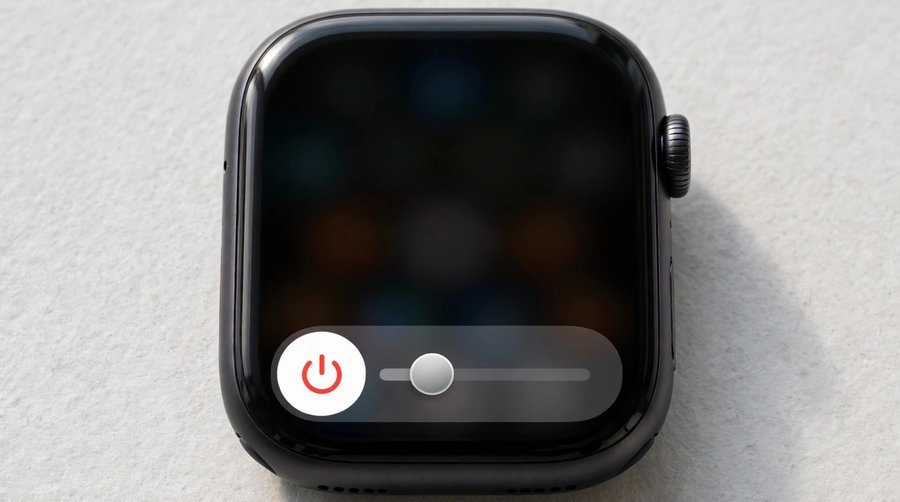
How to Restart Apple Watch?
To restart your Apple Watch, take it off the charger, press and hold the side button until the sliders appear, tap the power icon in the top-right corner, drag the Power Off slider to the right, wait for the screen to go dark, then hold the side button again until the Apple logo appears. That takes less than a minute. If the screen is frozen, hold the side button and the Digital Crown together for at least 10 seconds instead, releasing both when the Apple logo appears. A restart deletes nothing, so your watch face, apps, health data, and settings are still there when it turns back on.
A frozen screen or an app that keeps crashing can make a watch feel broken when it is only stuck. Apple lists a restart as the first thing to try when something is not working right. This guide covers the normal restart, the force restart for a frozen watch, the difference between a restart and a reset, and what to do when a restart does not fix the problem.
What Is the Difference Between Restarting and Resetting Your Apple Watch?
Restarting and resetting sound similar, but they do very different things. A restart turns your Apple Watch off and then back on again. It closes apps, clears temporary files, and reloads watchOS, but it keeps everything you own on the watch. Your watch face, apps, health history, and settings all stay exactly as you left them. A reset, which Apple calls erasing all content and settings, wipes the watch completely, unpairs it from your iPhone, and returns it to its out-of-the-box state.
So try a restart first: it is safe any time, because nothing is lost. A reset is a last resort, or a step for selling the watch or giving it away. If the same problem comes back after two or three restarts, a reset becomes worth considering. Our guide on how to reset your Apple Watch walks through the erase step in full, including how to back the watch up first so you can restore it afterward.
How Do You Restart an Apple Watch With the Side Button?
The normal restart works the same way on every current Apple Watch, including Series 9, Series 10, Series 11, Apple Watch SE 3, and Apple Watch Ultra 2 and Ultra 3, running watchOS 27. First, take the watch off its charger, because Apple states clearly that you cannot restart it while it is charging.
Press and hold the side button, the long flat button on the right edge of the case, just below the Digital Crown. Keep holding it for a couple of seconds until the power screen appears. On watchOS 27, that screen shows a power icon in the top-right corner. Tap that power icon, and the Power Off slider appears. Drag the slider all the way to the right, and the watch will shut down. Give it a few seconds to finish, then press and hold the same side button again until the Apple logo appears, and let go. The watch starts up in under a minute, and a passcode prompt afterward is normal. How-To Geek’s guide to restarting an Apple Watch walks through these same steps, and it agrees with Apple’s own instructions.
One detail catches people out: if you keep holding the side button after the power screen appears, the watch can start an Emergency SOS countdown, because the same button is used for that feature. Let go as soon as the power screen shows; if the countdown starts, releasing the button stops it. On older watchOS versions the Power Off slider appeared directly, so if your watch shows it straight away, just drag it.
Where Are the Side Button and Digital Crown on Your Apple Watch?
Every restart in this guide uses two controls on the right edge of the watch case. The Digital Crown is the round dial near the top of the right edge, and the side button is the long flat oval button just below it. The side button opens the power screen and turns the watch back on, while the Digital Crown is only needed for the force restart, where you hold both together. Apple Watch Ultra models add an Action button on the left edge, which is not used for restarting, so leave it alone.
How Do You Force Restart an Apple Watch When It Is Frozen?
Use a force restart when the normal restart cannot work: the screen is frozen, touch does not respond, or the power screen will not open. Apple says to use it only if you cannot turn the watch off normally, or if the problem continues after a normal restart. It is not a reset, and it erases nothing, but it cuts power instead of shutting the software down cleanly, so save it for when the gentle method has failed.
To force restart, press and hold the side button and the Digital Crown together for at least 10 seconds. Do not let go early, even if the screen goes dark partway through, and release both buttons as soon as the Apple logo appears. The watch then starts up in the usual way.
Never force restart during a watchOS update. If the watch is showing the Apple logo with a progress ring, leave it alone until the update finishes and the watch restarts itself, because interrupting an update can corrupt the software. Do not use it as a routine habit either: needing a force restart every day points to a deeper problem. After a force restart, check what caused the freeze and make sure watchOS is up to date. The current version is watchOS 27.2.1, released on 9 Nov 2026 with security fixes for Apple Watch Series 9 and later, and you can check yours in Settings, then General, then About.
When Should You Restart Your Apple Watch?
Try a restart whenever the watch behaves strangely but is not physically damaged. The most common reason is an app that freezes, crashes, or refuses to open: a restart closes it completely and lets it load fresh. The same applies to a watch face that will not update, complications showing old data, or notifications arriving late. These all mean a background process has stalled, and a restart is the fastest way to get it moving again.
Connection problems are another good reason: if the watch will not connect to your iPhone, Bluetooth seems unreliable, or calls will not come through, a restart often fixes the link. Apple also suggests restarting the paired iPhone at the same time, because the problem can sit on either side. A restart is also sensible after a watchOS update or a long workout. Some people restart once a week as maintenance, ideally while charging during the day so it does not interrupt the night. Our guide on how to track sleep on your Apple Watch explains how to set up sleep tracking so a restart does not cost you a night of data.
What Should You Do If Your Apple Watch Will Not Restart?
If the normal restart does not work, work through the fixes in order, simplest first. The first check is the charger: a normal restart will not work at all while the watch is charging. Lift it off, wait a few seconds, and try the side button again. If the battery is very low, charge it for at least 15 minutes first, then take it off and try again.
If the screen is frozen, use the force restart, holding both buttons together for at least 10 seconds until the Apple logo appears. If it fails, try once more, pressing both buttons at exactly the same time; a common mistake is releasing the Digital Crown a second too early, or pressing the Action button on an Ultra instead of the side button. If the watch is stuck on the Apple logo, check for a watchOS update in the Watch app with the paired iPhone nearby and charged. If it stays stuck, unpairing and pairing it again is the next step. If you are moving the watch to a different phone, our guide on how to pair your Apple Watch to a new phone covers that move without losing your data.
When none of these steps help, the problem may be hardware. A watch that will not turn on after charging, a screen that stays black after a force restart, or a watch that gets very hot in normal use should go to Apple Support or an Apple Store. Note which steps you have already tried, because the support team will ask, and do not open the watch or replace the battery yourself, as that can damage the water resistance and void any remaining cover.
Restart vs Force Restart vs Reset: Which One Should You Choose?
Choosing the wrong fix wastes time, and a reset costs you your data. Start at the top and work down: a normal restart first, a force restart only if the watch will not respond, and a reset only when both restarts have failed or you are handing the watch to someone else.
| Method | When to use it | What it deletes | How long it takes |
|---|---|---|---|
| Normal restart | App glitches, slow watch, notification or connection problems | Nothing | Under 1 minute |
| Force restart | Frozen screen, watch will not respond, normal restart fails | Nothing | Under 1 minute |
| Reset (erase) | Problem survives restarts, selling or giving away the watch | Everything on the watch | Several minutes, plus setup |
The key point is the third column: both restarts delete nothing, so they are safe to try first, while a reset deletes everything and always comes last. If you reach the reset stage, back the watch up first through the Watch app on your iPhone.
What Does Restarting Your Apple Watch Not Fix?
A restart is powerful, but it is not a cure for every problem. It will not fix a cracked screen, a swollen battery, a button that does not click, or a Digital Crown that will not turn, because those are hardware faults that need a repair. It will not fix a watch with no mobile signal because the plan is not active, or one that cannot connect to Wi-Fi because the password changed. It will not add features, increase battery capacity, or make an old watch run a watchOS version it does not support.
A restart also will not fix problems that live on the iPhone, such as notifications turned off for an app, wrong settings in the Watch app, or an iPhone out of storage; restarting the watch changes nothing there. The same applies to account problems, such as being signed out of your Apple Account. If the watch freezes every day or crashes in the same app every time, the cause is probably a corrupt app, a bad update, or a failing battery, so update watchOS, delete and reinstall the problem app from the Watch app on your iPhone, and if the pattern continues, contact Apple Support with a note of when the problem happens.
How Do You Restart Your Paired iPhone Too?
Apple pairs its restart advice for the watch with the same advice for the iPhone, because the two devices work as a team and a fault on one side can look like a fault on the other. If you have restarted the watch and the problem is still there, especially a connection or notification problem, restart the iPhone next. On an iPhone with Face ID, hold the side button and either volume button until the power slider appears, drag it right, then hold the side button until the Apple logo appears. Without Face ID, hold the side or top button instead. You can also use Settings, then General, then Shut Down.
Once the iPhone has started up and is connected to the internet, check the watch. It usually reconnects on its own within a minute or two, and the problem often clears once the iPhone has had its own fresh start. If it still will not connect, check Bluetooth on the iPhone, check that Airplane Mode is off on both devices, and make sure the watch is within range. Restarting both devices is also sensible after a major software update on either side.
Frequently Asked Questions About Restarting an Apple Watch
Does restarting an Apple Watch delete anything?
No, restarting an Apple Watch deletes nothing. A normal restart and a force restart both keep your apps, watch face, settings, and health data exactly as they were. Only a reset, which erases all content and settings, deletes data from the watch.
Can I restart my Apple Watch while it is charging?
No, you cannot restart your Apple Watch while it is charging. Apple states this directly in its support guide. Take the watch off the charger first, then press and hold the side button to open the power screen.
How long should I hold the buttons for a force restart?
Hold the side button and the Digital Crown together for at least 10 seconds, and release both buttons when the Apple logo appears. If you let go before the logo shows, the force restart may not complete, so keep holding until you see it.
Is it safe to force restart an Apple Watch every day?
It is safe when the watch is frozen, but it is not a good daily habit. Use the normal restart for routine glitches, and save the force restart for a frozen or unresponsive watch. If you need to force restart every day, update watchOS and contact Apple Support, because a daily freeze points to a deeper problem.
What should I do if a restart does not fix my Apple Watch?
Try a force restart next, then restart your paired iPhone as well, then check for a watchOS update in the Watch app. If the problem still survives, unpair and pair the watch again, or reset it from a backup. If the watch still will not work, contact Apple Support, because the fault may be hardware.