
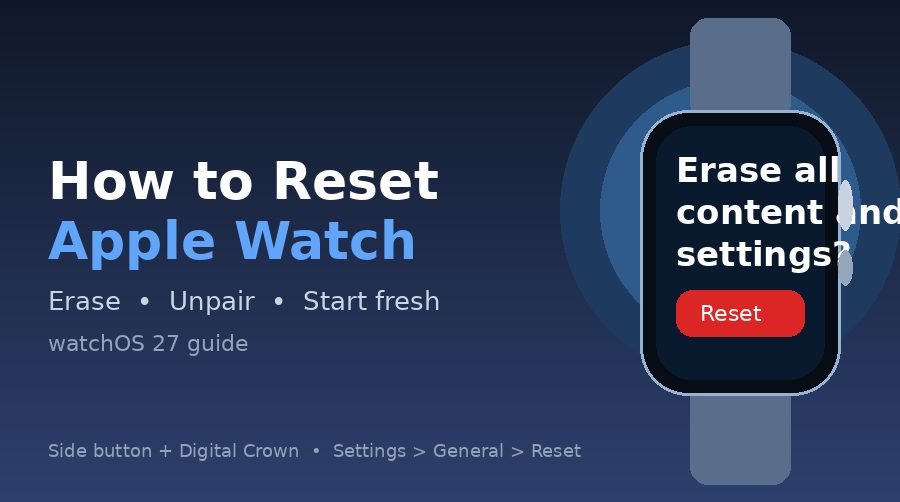
How to reset Apple Watch?
To reset an Apple Watch, unpair it from your iPhone if you plan to sell it or give it away, because unpairing erases the watch, creates a fresh backup, and removes Activation Lock. If you plan to keep the watch, erase it on the watch itself through Settings, then General, then Reset, then Erase All Content and Settings.
The method you choose decides whether your data is backed up, whether your cellular plan survives, and whether the next owner can set the watch up. The steps below follow Apple’s own guidance for watchOS 27.
What does resetting an Apple Watch actually do?
A factory reset, which Apple calls erasing, removes all media, data, and settings from your Apple Watch and returns it to factory condition. Watch faces, apps, health data stored only on the watch, Wi-Fi passwords, and Apple Pay cards are all removed. The software stays at its current version, so a reset does not roll watchOS back.
Unpairing goes further: the watch is erased, a fresh backup is created on the iPhone, and Activation Lock is removed. That lock links the watch to your Apple Account and stops anyone else from activating it. Erasing on the watch alone does not remove it.
Should you restart, force restart, or reset your Apple Watch?
A slow watch or a crashing app usually needs only a restart. A completely frozen watch may need a force restart. A watch you are selling needs a full erase, ideally an unpair first. A watch asking for a forgotten passcode needs the forgotten-passcode reset. Use the comparison below to decide.
| Option | What it does | Data kept? | Best when |
|---|---|---|---|
| Restart (soft reset) | Turns the watch off and back on | Yes, everything stays | The watch is slow or an app is misbehaving |
| Force restart | Forces the watch to restart when it will not respond | Yes, everything stays | The screen is frozen and normal controls do nothing |
| Erase on the watch | Wipes all content and settings on the watch | No, unless restored from a backup | You are keeping the watch and want a fresh start |
| Unpair from iPhone | Erases the watch, makes a backup, and removes Activation Lock | Yes, in a fresh backup on the iPhone | You are selling, giving away, or moving the watch to a new phone |
| Forgotten-passcode reset | Erases the watch from the charger or the paired iPhone | No fresh backup from the charger method | You cannot remember the passcode or the watch is disabled |
If you are unsure, start with a restart. It costs a minute, deletes nothing, and fixes many problems. If the same problem returns right after, an erase is more likely to fix it.
How do you restart an Apple Watch?
To turn the watch off, press and hold the side button, the flat button below the Digital Crown, until the power controls appear. Tap the power icon in the upper-right corner, then drag the Power Off slider to the right. To turn it back on, hold the side button again until the Apple logo appears.
You cannot restart while the watch is charging, so lift it off the charger first, and never force restart during a software update.
How do you force restart an Apple Watch?
Use a force restart only when you cannot restart normally, or when the problem continues after a normal restart. Press and hold the side button and the Digital Crown, the round dial above the side button, at the same time for at least 10 seconds, then release both when the Apple logo appears.
Do not use a force restart as a habit, and never use it during a software update. A freeze that repeats in the same place often points to a faulty app or a software problem an erase may fix.
What should you do before you reset your Apple Watch?
First, make sure you know your Apple Account password and your Apple Watch passcode. Unpairing asks for the first to turn off Activation Lock, and the on-watch erase asks for the second. If you have forgotten your Apple Account password, reset it before you begin.
Next, check your backup. Unpairing creates a fresh backup on the paired iPhone automatically, but erasing on the watch does not, so anything that changed since the last backup will be lost. Watch backups are created when you back up the iPhone with iCloud or a Mac, and a Mac backup must be encrypted for all watch data to be saved. Also remove transit cards through the Watch app under Wallet and Apple Pay, and charge the watch first.
How do you unpair and reset an Apple Watch from your iPhone?
Unpairing is the method Apple recommends when the watch is leaving your hands. It erases the watch, creates a backup on the iPhone, and removes Activation Lock in one process. Use it for selling, giving away, trading in, or moving the watch to a different iPhone.
Keep the watch and iPhone close together, then open the Watch app. Tap the My Watch tab, then All Watches. Tap the info button, the small circled letter i, next to the watch, then tap Unpair Apple Watch. Tap Unpair again to confirm. If the watch has a cellular plan, choose whether to keep or remove it. Then type your Apple Account password to turn off Activation Lock and tap Unpair. When it finishes, the watch shows the pairing screen.
How do you erase an Apple Watch from the watch itself?
Erase on the watch when you are keeping it, you do not have the iPhone nearby, or you want a fresh start on the same phone. Open Settings, tap General, then scroll down and tap Reset. Tap Erase All Content and Settings, type your passcode if prompted, choose whether to keep or remove a cellular plan, then tap Erase All to confirm.
This restores factory settings, but it does not remove Activation Lock or create a fresh backup. The watch stays linked to your Apple Account, so use this method for a clean watch for yourself, not for someone else.
How do you erase an Apple Watch from the Watch app without unpairing it?
The Watch app holds a second erase command that is easy to mistake for unpairing. Open the Watch app, tap the My Watch tab, then General, then Reset. Tap Erase Apple Watch Content and Settings, then tap it again to confirm. You may be asked for your Apple Account password. Apple is clear that this erases the watch but leaves it paired with your iPhone, with Activation Lock still enabled.
This suits a watch you plan to keep on the same iPhone. It is not a substitute for unpairing before a sale. After this erase, set the watch up again and restore from a backup when asked.
How do you reset an Apple Watch if you forgot the passcode?
If you cannot remember your Apple Watch passcode, there is no way to look it up or skip it. Apple says the only fix is to erase the watch and set it up again. The iPhone route is better when available: keep the watch and iPhone close, open the Watch app, tap the My Watch tab, then General, then Reset. Tap Erase Apple Watch Content and Settings, then tap it again to confirm, entering your Apple Account password if asked. For a cellular model, choose to keep or remove the plan. When it finishes, set the watch up again and restore from a backup.
To reset from the watch itself, put it on its charger and keep it there. Press and hold the side button until you see the power button in the upper-right corner, or the Power Off slider on earlier watchOS. Then press and hold the Digital Crown until you see Erase all content and settings. Tap Reset twice to confirm. If the red Reset button has not appeared, keep holding the Digital Crown. This erases everything, but it does not remove Activation Lock.
One more detail matters: if the Erase Data setting is turned on, the watch is erased automatically after 10 failed passcode attempts. If you are unsure of the passcode, stop guessing and use one of the erase routes above.
How do you reset an Apple Watch without the paired iPhone?
Without the paired iPhone, erase the watch through Settings, then General, then Reset, then Erase All Content and Settings, entering the passcode when prompted. If you have forgotten the passcode too, use the charger method above, holding the side button and then the Digital Crown until the reset screen appears.
The limit of both routes is Activation Lock. Apple states that without the paired iPhone, you can erase the watch, but Activation Lock will remain. The watch will ask for the original Apple Account and password before it can be paired again. If you bought the watch second-hand, only the previous owner can release it, by unpairing or by removing the watch at iCloud Find My.
Apple also warns that the watch has no SIM slot and no reset button. The holes in the case are for sound, and on Apple Watch Ultra they also allow water-depth measurement, so never insert any object into them. Erasing without the phone creates no new backup, so only the most recent existing backup can be restored.
What happens to your cellular plan when you reset an Apple Watch?
If your watch is a GPS plus Cellular model, every erase asks whether to keep or remove the cellular plan. Keep it if you will pair the watch with the same iPhone again, and remove it if you are pairing it with another iPhone or cancelling the subscription. Removing the plan from the watch does not cancel it with your carrier, so contact the carrier directly to cancel the line.
You can also remove a plan without erasing: in the Watch app, tap the My Watch tab, then Cellular, then the info button next to your plan, then Remove. For a GPS-only watch, no plan question appears.
What is Activation Lock, and why does it matter after a reset?
Activation Lock turns on automatically when Find My is set up on the paired iPhone, linking the watch to your Apple Account. Your Apple Account password is then required to unpair the watch, pair it with a new iPhone, or turn off Find My. That link survives an erase, so a stolen watch cannot be wiped and reused.
Only unpairing from the paired iPhone removes Activation Lock, because that step asks for your Apple Account password and releases the watch. Erasing on the watch, erasing from the Watch app, and the forgotten-passcode reset all leave the lock in place. That is fine when you are keeping the watch, but a buyer cannot finish setup on a locked watch, and sharing your password is never the answer. If you already sold a locked watch, remove it from your account at iCloud Find My.
What should you do after you reset your Apple Watch?
After the erase, the watch shows the pairing screen. Bring the iPhone near it and follow the onscreen steps. Point the iPhone camera at the animation until the pairing message appears, then choose to set up as new or restore from a backup. Restoring brings back your watch faces, apps, and settings, so choose the most recent backup.
Setup takes several minutes, and the watch must stay near the iPhone while data syncs. You will sign in with your Apple Account, confirm a passcode, and set up Apple Pay again, since payment cards are not restored from a backup. If the pairing animation stays on screen for several minutes, pairing may have stalled: hold the Digital Crown while the watch is in pairing mode, tap Reset when it appears, and pair again.
Finally, check the watch is on current software. This guide was checked against watchOS 27, released September 14, 2026, with the current point release 27.2.1 arriving November 9, 2026. watchOS 27 runs on Apple Watch Series 9 and later, Apple Watch SE 3, and Apple Watch Ultra 2 and later, and it requires an iPhone running iOS 27. If your iPhone is not yet on iOS 27, our guide to how to install iOS 27 covers that update first.
What if your Apple Watch will not reset or pair again?
First, check the battery and charger, because a reset can stall if the watch runs out of power, and the forgotten-passcode method only works on the charger. Second, check the watch and iPhone are close together with Bluetooth on. Third, restart the iPhone itself, since a frozen Watch app can look like a frozen watch.
If the watch erases but will not pair, read the screen: a passcode prompt means it is still paired to another iPhone, an Apple Account prompt means Activation Lock is still on, and an animation that never finishes means pairing has stalled. If the watch still will not reset, pair, or turn on, contact Apple Support. Before a service visit, Apple advises unpairing if you have the iPhone, or erasing if you do not, and removing the strap. If you are weighing repair against replacement, our roundup of the best Garmin smartwatches for women and men and our look at wearable technology innovations can help you compare alternatives.
For a second opinion, the MakeUseOf guide to resetting an Apple Watch and its passcode covers the same iPhone and charger methods. The official steps remain the authority: the unpair and erase guide, the forgot-passcode guide, and the restart guide all describe the current menus for watchOS 27.
Frequently asked questions about resetting an Apple Watch
Will resetting my Apple Watch erase everything?
Yes, erasing an Apple Watch removes all media, data, and settings from the watch and returns it to factory settings, so restore from a backup during setup if you want your watch faces, apps, and settings back.
Can I reset my Apple Watch without the paired iPhone?
Yes, you can erase the watch on the device through Settings, then General, then Reset, then Erase All Content and Settings, but Activation Lock stays on and no fresh backup is created, so you will need the original Apple Account to pair it again.
How do I reset my Apple Watch if I forgot the passcode?
Put the watch on its charger, press and hold the side button until the power button appears, then press and hold the Digital Crown until Erase all content and settings appears, tap Reset twice, and set the watch up again from a backup when asked.
Does unpairing my Apple Watch remove Activation Lock?
Yes, unpairing from the paired iPhone erases the watch, creates a fresh backup, and removes Activation Lock, which is why it is the only reset method to use before selling or giving the watch away.
Will I lose my cellular plan if I reset my Apple Watch?
Not necessarily, because the reset asks whether to keep or remove the plan, so keep it if you will pair the watch with the same iPhone again and remove it only if you are moving to another iPhone or cancelling the line with your carrier.