
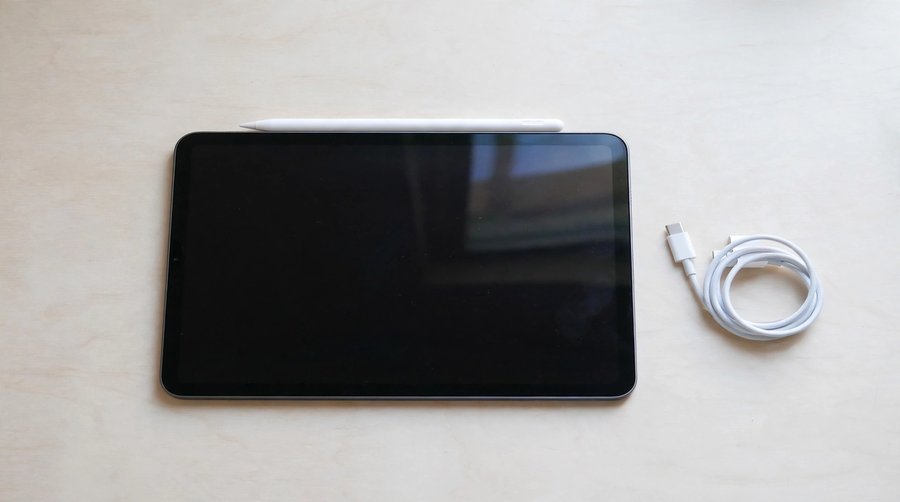
How to charge Apple Pencil?
To charge Apple Pencil, use the method that matches your model. Apple Pencil (1st generation) plugs into your iPad with its Lightning connector, Apple Pencil (2nd generation) and Apple Pencil Pro snap magnetically onto the side of your iPad, and Apple Pencil (USB-C) charges through a USB-C cable plugged into the port under its sliding cap. There is no single way to charge every Apple Pencil, so the first step is always to identify which one you own. The steps below match iPadOS 27, released on 14 September 2026, with current build 27.2.1 released on 9 November 2026.
How do you tell which Apple Pencil you have?
Look at the body of the pencil before you try to charge it, because plugging the wrong end into the wrong port is how most charging confusion starts. A 1st generation Apple Pencil is smooth, glossy, and completely round, with a removable silver cap at the end that hides a Lightning connector. A 2nd generation Apple Pencil and Apple Pencil Pro are both matte with one flat side, and neither has a cap or a port of any kind. Apple Pencil (USB-C) is matte and round like the 1st generation, but instead of a removable cap it has a sliding cap at the end that opens to reveal a USB-C port.
If the pencil is already paired, you can check the model on the iPad itself. Open Settings, tap Apple Pencil, and the model name appears at the top of the screen. You can also tell by how it behaves: a 1st generation pencil only works when plugged in, a 2nd generation pencil or Apple Pencil Pro snaps onto the side of the iPad, and a USB-C pencil only charges when a cable is connected. Once you know the model, follow only the section below that matches it.
How do you charge Apple Pencil (1st generation)?
Apple Pencil (1st generation) charges through the Lightning connector hidden under its cap, and it has two ways to get power. The direct way is to plug it into the iPad itself.
- Pull the cap off the end of the pencil to reveal the Lightning connector.
- Plug the connector straight into the Lightning port on your iPad.
- Leave it plugged in until the battery level in the Batteries widget shows enough charge, then pull it out and replace the cap.
The pencil sticks out from the end of the iPad while it charges this way, so it is awkward but it works, and it is also how the pencil pairs with the iPad the first time. If you would rather charge it away from the iPad, use the small Apple Pencil Charging Adapter that came in the box. Plug the pencil into one end of the adapter, plug a Lightning cable into the other end, and plug that cable into a USB power adapter or a computer. The pencil charges the same way, and you can keep using the iPad while it charges.
There is one exception. On iPad (10th generation) and iPad (A16), which have a USB-C port instead of a Lightning port, you cannot plug the pencil directly into the iPad. You need the USB-C to Apple Pencil Adapter: plug the pencil into one end of the adapter, then connect a USB-C cable from the adapter to the iPad. Apple includes this adapter in the box with a new 1st generation pencil. Our guide to connect your Apple Pencil to your iPad covers the pairing step for every model, including this one.
How do you charge Apple Pencil (2nd generation)?
Apple Pencil (2nd generation) is the simplest model to charge, because there is no cable, no cap, and no port. It charges wirelessly from the iPad itself.
- Make sure Bluetooth is turned on in Settings, then Bluetooth, because the pencil will not charge with Bluetooth off.
- Hold the iPad in landscape, with the volume buttons on the top edge, and find the magnetic connector on the right side.
- Place the flat side of the pencil against that magnetic strip. It snaps into place, and a small banner appears at the top of the screen showing the pencil and its battery level.
- Leave the pencil attached until it has enough charge. It keeps charging for as long as it sits on the iPad.
The pencil stays attached while you carry the iPad around, so the easiest habit is to leave it snapped on whenever you are not writing. That way it is almost always charged when you pick it up. If the banner does not appear, check that the flat side is facing the iPad and that the pencil is centred on the magnetic strip, since it only charges on the one side with the connector. A thick case can also hold the pencil just far enough away from the magnets to stop it charging, so take the case off and try again.
How do you charge Apple Pencil (USB-C)?
Apple Pencil (USB-C) charges with a cable, like a phone, and it is the only Apple Pencil that can charge from a wall charger without the iPad involved.
- Slide the cap at the end of the pencil open to reveal the USB-C port underneath.
- Plug one end of a USB-C cable into the pencil.
- Plug the other end into the USB-C port on your iPad, or into a USB-C power adapter plugged into a wall outlet.
- Leave it connected until the Batteries widget shows enough charge, then unplug the cable and slide the cap closed.
The USB-C model looks like it should charge magnetically, because its body is flat on one side and it does stick to the side of some iPads, but the magnet only holds it in place for storage. It never charges that way, and leaving it attached to the side of the iPad without a cable does nothing. You must plug in a cable every time. The MakeUseOf guide to using the Apple Pencil with an iPad shows the same steps for all four models, including the sliding cap on this one.
How do you charge Apple Pencil Pro?
Apple Pencil Pro charges exactly the same way as Apple Pencil (2nd generation): magnetically, on the side of a compatible iPad, with no cable and no port.
- Make sure Bluetooth is turned on in Settings, then Bluetooth.
- Make sure your iPad is running iPadOS 17.5 or later, since Apple Pencil Pro does not work on earlier versions.
- Place the flat side of the pencil against the magnetic connector on the right side of the iPad. It snaps into place and a banner shows the battery level.
- Leave it attached until it has enough charge.
Apple Pencil Pro works with iPad Pro models with the M4 chip, iPad Air models with the M2 chip and later, and iPad mini with the A17 Pro chip. If your iPad is not on that list, the pencil will not pair or charge with it, no matter how you hold it against the side. The squeeze gesture, barrel roll, and haptic feedback that set the Pro apart from the 2nd generation model change nothing about charging: the method, the magnetic strip, and the Bluetooth requirement are identical.
Which charging method does each Apple Pencil use?
The four models look similar at a glance, but each one charges in exactly one way, and the wrong method does nothing. Use this table to match your pencil to its charger before you try anything.
| Apple Pencil model | How it charges | What you need | Full-charge time |
|---|---|---|---|
| Apple Pencil (1st generation) | Plug the Lightning connector into the iPad, or use the Charging Adapter with a Lightning cable | Lightning iPad, or the adapter and a Lightning cable; on iPad (10th generation) and iPad (A16), the USB-C to Apple Pencil Adapter | Apple does not publish a full-charge time |
| Apple Pencil (2nd generation) | Attach magnetically to the side of the iPad | A compatible iPad with a magnetic connector, and Bluetooth on | Apple does not publish a full-charge time |
| Apple Pencil (USB-C) | Plug a USB-C cable into the port under the sliding cap | A USB-C cable and the iPad, or a USB-C power adapter | Apple does not publish a full-charge time |
| Apple Pencil Pro | Attach magnetically to the side of the iPad | A compatible iPad with a magnetic connector, Bluetooth on, and iPadOS 17.5 or later | Apple does not publish a full-charge time |
Only the 2nd generation model and Apple Pencil Pro charge magnetically. The 1st generation and USB-C models must be plugged in, and the USB-C model is the only one that can charge from a wall charger without the iPad. Apple says a 15-second charge gives about 30 minutes of use, and Apple rates each model at up to 12 hours of use per full charge.
How long does it take to charge an Apple Pencil?
Apple does not publish a full-charge time for any Apple Pencil model, so any article that gives you an exact number of minutes is guessing. Third-party guides disagree widely, with estimates for a full charge ranging from about 15 minutes to about 90 minutes depending on the model and the source, which is why this guide does not repeat any of them as fact. In practice, Apple Pencils charge fast enough that a few minutes on the charger is usually enough to get through a note-taking session, and leaving the pencil on its charger while you work on something else covers the rest.
The one charging figure Apple does publish is the quick top-up: a 15-second charge gives about 30 minutes of use. That is the number to remember when you are in a hurry. If your pencil is completely dead, plug it in or snap it on, wait a minute, and check the Batteries widget; the percentage climbs quickly from zero, and you can start writing long before it reaches 100 percent. Apple rates each model at up to 12 hours of use per full charge, so a pencil that was charged yesterday should still have plenty of life left today.
How do you check the Apple Pencil battery level?
There is no battery light on any Apple Pencil, so you check the level on the iPad screen. The fastest way is the Batteries widget: swipe right on the Home Screen to open Today View, or add the Batteries widget to the Home Screen, and your Apple Pencil appears there with a live percentage and a small lightning bolt while it is charging. You can also open Settings, tap Apple Pencil, and see the battery level at the top of the screen.
On the 2nd generation model and Apple Pencil Pro, a banner also appears at the top of the screen for a few seconds each time you attach the pencil, showing the current battery level. On the 1st generation and USB-C models there is no banner, so the widget or Settings is the only way to see the level. If the pencil does not appear in the widget at all, it is not connected, and you should check the charging steps for your model again.
Can you charge an Apple Pencil without an iPad?
It depends on the model. Apple Pencil (1st generation) can charge without an iPad, using the Apple Pencil Charging Adapter, a Lightning cable, and any USB power adapter, laptop, or power bank. Apple Pencil (USB-C) can also charge without an iPad, using any USB-C cable and a USB-C power adapter or power bank. Both of these are handy on a trip, when the iPad is in another bag or its own battery is low.
Apple Pencil (2nd generation) and Apple Pencil Pro cannot charge without an iPad at all, because they have no port and no cable option. They only charge from the magnetic connector on a compatible iPad. If you are away from your iPad with a dead 2nd generation pencil or Apple Pencil Pro, there is no way to charge it until you are back with the iPad, so keeping it snapped onto the iPad between uses is the only way to make sure it is ready. Once the pencil is charged again, you can get straight back to work, for example by using it to split the screen on your iPad and take notes beside a document.
What should you do if your Apple Pencil will not charge?
Start with the simplest cause: the wrong method for the model. A USB-C pencil left stuck to the side of the iPad is not charging, because the magnet only stores it, and a 2nd generation pencil with Bluetooth off is not charging either, because Apple requires Bluetooth on for magnetic charging. Check the model first, then the method, then the connection.
For a magnetic pencil, take the iPad case off, centre the flat side on the magnetic strip, and wait a minute. For a 1st generation pencil, check that the Lightning connector is pushed fully into the iPad or the adapter, and that the cap is not trapped in the way. For a USB-C pencil, try a different USB-C cable, since a charge-only cable with a damaged data wire can still fail to start charging, and make sure the sliding cap is fully open so the plug seats properly. Then check the Batteries widget: if the pencil appears there with a percentage, it is charging, and it only needs time.
If nothing works, restart the iPad, then unpair and pair the pencil again. Open Settings, tap Bluetooth, tap the information icon next to the pencil, tap Forget This Device, and then pair it again using the steps for your model. If the pencil still shows no battery level after that, the battery itself may have failed, and Apple Pencil batteries are not replaceable by the user, so book a repair through Apple Support. While you wait, a connect a keyboard to your iPad setup can keep you typing and working until the pencil is fixed.
Frequently asked questions about charging Apple Pencil
How long does it take to charge an Apple Pencil?
Apple does not publish a full-charge time for any Apple Pencil model, so there is no official number of minutes to quote. Apple does say a 15-second charge gives about 30 minutes of use, and each model is rated at up to 12 hours of use per full charge.
Can you charge an Apple Pencil without an iPad?
Apple Pencil (1st generation) and Apple Pencil (USB-C) can charge without an iPad, using a cable and a USB power adapter. Apple Pencil (2nd generation) and Apple Pencil Pro cannot, because they have no port and only charge from the magnetic connector on a compatible iPad.
How do I know if my Apple Pencil is charging?
Check the Batteries widget or open Settings, then Apple Pencil, to see the live percentage and a lightning bolt while it charges. On the 2nd generation model and Apple Pencil Pro, a banner also appears at the top of the screen when you attach the pencil, showing the battery level.
Why is my Apple Pencil not charging?
The most common causes are the wrong method for the model, Bluetooth off on a magnetic model, a case blocking the magnetic connection, or a loose cable. Check the model and the method first, remove the case, try a different cable, restart the iPad, and unpair and pair the pencil again if it still will not charge.
Does the Apple Pencil (USB-C) charge magnetically?
No. The magnet on the side of the iPad only holds the USB-C pencil in place for storage, and it never charges that way. You must slide the cap open and plug a USB-C cable into the port underneath, connected to the iPad or a USB-C power adapter.