
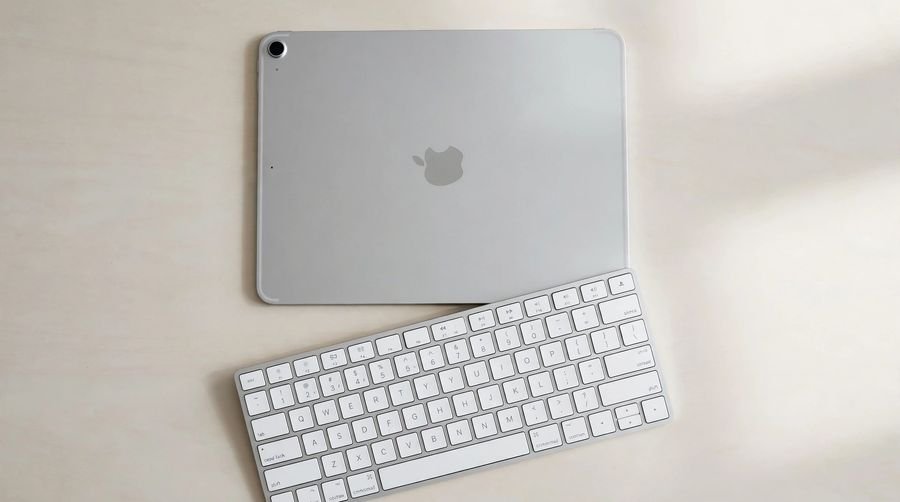
Learning how to connect keyboard to ipad is the fastest way to turn a tablet into a comfortable writing machine. You can pair a Bluetooth keyboard in about a minute, snap on a Magic Keyboard or Smart Keyboard Folio with no pairing at all, or plug in a wired USB-C keyboard and start typing straight away. The right method depends on the keyboard you own and the iPad model you use, because Apple keyboards made for iPad fit only certain models.
How do I know which keyboard works with my iPad?
Start by finding your exact iPad model, because two iPads that look alike can take different keyboards. Open Settings, tap General, then tap About, and read the Model Name field. A Magic Keyboard made for one iPad Pro generation may not fit another, and a Magic Keyboard Folio made for the standard iPad does not fit an iPad Air or an iPad Pro. Apple publishes a compatibility table for its iPad keyboards, and that table is the safest place to confirm a match.
There are three broad kinds of keyboard to choose from. A Bluetooth keyboard is the most flexible choice, because it works with almost every iPad and can switch between a computer, a phone, and an iPad. A Smart Connector keyboard draws power from the iPad, needs no charging and no pairing, and doubles as a case or stand. A wired USB keyboard is the simplest choice for a desk, because it needs no battery and no wireless connection.
Most current iPads have a USB-C port, while older iPads have a Lightning port, so check the port at the bottom edge of your iPad before you buy a cable or an adapter. If you are unsure which iPad you own, our guide to the Apple iPad Pro 2020 shows how model names and generations work, and the same Settings path applies to every iPad. Your iPad should also be running current software, because newer keyboards can need a recent iPadOS version.
iPadOS 27 was released on 14 September 2026, and the current version is iPadOS 27.2.1, released on 9 November 2026. To check your version, open Settings, tap General, then tap Software Update. If an update is available, install it before you start troubleshooting a keyboard, because an update often fixes Bluetooth and accessory problems. If you need help with the update itself, see our guide on how to install iOS 27, which follows the same Software Update path used on iPad.
How do I connect a Bluetooth keyboard to my iPad?
Bluetooth is the most common way to connect a keyboard to an iPad, and the steps are the same for most brands. First, make sure the keyboard has charge or fresh batteries, then turn it on and put it into pairing mode. The pairing button is different on every model, so check the manual if you cannot find it. Many keyboards have a dedicated Bluetooth button, while others need a function key combination, such as Fn plus a number key, until a light flashes.
On your iPad, open Settings and tap Bluetooth, then make sure Bluetooth is switched on. Wait for the keyboard name to appear under Other Devices, then tap its name. If your iPad shows a pairing code, type that code on the physical keyboard and press Return or Enter. The keyboard should then show as Connected. The next time you use it, just turn it on, and your iPad should reconnect.
How do I connect a Magic Keyboard or Smart Keyboard Folio to my iPad?
Apple keyboards made for iPad use the Smart Connector, a row of three small metal contacts, so they need no Bluetooth pairing, no charging, and no setup. According to Apple Support, the Magic Keyboard for iPad Pro fits the 11-inch and 13-inch iPad Pro models with the M4 or M5 chip, the Magic Keyboard for iPad Air fits the 11-inch and 13-inch Air models with the M2, M3, or M4 chip plus the 4th- and 5th-generation Air, and the Magic Keyboard Folio fits the iPad (A16) and the iPad (10th generation).
To attach a Magic Keyboard for iPad, place your iPad on the keyboard case so the magnets guide it into place and the Smart Connector contacts meet. The iPad should recognise the keyboard at once. To attach a Magic Keyboard Folio, fit the back cover onto your iPad, then attach the detachable keyboard to its edge. To attach a Smart Keyboard, line up the contacts and let the magnets hold them together.
How do I connect a wired USB keyboard to my iPad?
A wired keyboard is the easiest connection of all, because there is nothing to pair and nothing to charge. If your iPad has a USB-C port and your keyboard has a USB-C plug, connect the cable directly and start typing. If your keyboard has the larger USB-A plug, you need a USB-C to USB-A adapter or a hub. If your iPad has a Lightning port, you need a Lightning to USB adapter.
Which connection method should I choose?
The best method depends on how you use your iPad. A Bluetooth keyboard suits travel and shared use, a Smart Connector keyboard suits daily typing on one iPad, and a wired keyboard suits a fixed desk. The table below compares the three methods side by side, so you can see the trade-offs before you decide.
| Connection method | How it connects | Pairing needed | Needs charging | Best for |
|---|---|---|---|---|
| Bluetooth keyboard | Wireless, through Settings > Bluetooth | Yes, once | Yes, battery or USB charging | Travel, shared use, and any iPad |
| Magic Keyboard or Smart Keyboard Folio | Magnets and the Smart Connector | No | No, powered by the iPad | Daily typing on one compatible iPad |
| Wired USB keyboard | USB-C port, or an adapter for USB-A or Lightning | No | No | A desk setup or a keyboard you already own |
What are the most useful keyboard shortcuts on iPad?
Shortcuts are the real payoff of a physical keyboard, because they let you work without touching the screen. Most iPad shortcuts use the Command key, like on a Mac, and the Globe key on Apple keyboards adds more. Press and hold the Command key in any app to see its shortcuts. On a Windows-style keyboard, the Windows key acts as Command and the Alt key acts as Option.
Command plus Space opens Spotlight search. Command plus Tab switches to the next most recently used app, and holding Command while you press Tab lets you pick from your open apps. Command plus H goes to the Home Screen, while Globe plus H does the same on an Apple keyboard. Globe plus A shows or hides the Dock, Globe plus C opens Control Center, and Globe plus N shows the Lock Screen. Command plus C copies, Command plus V pastes, and Command plus Z undoes.
How do I switch between keyboards and change the layout?
Switching keyboards means two different things on iPad, and it helps to keep them apart. The first is switching between physical keyboards, such as moving from a Bluetooth keyboard to a Magic Keyboard. The second is switching between language keyboards and layouts, such as English (US), English (UK), French AZERTY, or German QWERTZ. To switch physical keyboards, turn off or move away from the one you are not using, then turn on or attach the one you want.
To add a language keyboard, open Settings, tap General, tap Keyboard, tap Keyboards, then tap Add New Keyboard and choose a language. To change the order, tap Edit on the same screen, drag a keyboard to a new position, then tap Done. With a physical keyboard connected, press Control plus Space to cycle through your language keyboards and the emoji keyboard.
How do I change hardware keyboard settings?
Hardware keyboard settings appear only when a physical keyboard is connected, so connect the keyboard first, then open Settings. Tap General, tap Keyboard, then tap Hardware Keyboard. From this screen you can turn Auto-Capitalization and Auto-Correction on or off for the physical keyboard, change the keyboard layout, and open Modifier Keys. The Modifier Keys screen lets you change what Caps Lock, Control, Option, Command, and Globe do, which is useful if you use a Windows keyboard or you want Caps Lock to act as Escape.
Why will my keyboard not pair with my iPad?
A keyboard that will not pair usually has a simple cause, so work through the checks in order. First, charge the keyboard or fit fresh batteries, because a low battery is the most common reason for a failed pairing. Next, confirm that the keyboard is in pairing mode, with its light flashing if it has one, and that it is not already connected to another device. Then check that Bluetooth is on in Settings.
If the keyboard still will not appear, forget the old pairing and start again. Open Settings, tap Bluetooth, find the keyboard under My Devices, tap the information button beside its name, then tap Forget This Device. Turn Bluetooth off, wait a few seconds, turn it back on, put the keyboard into pairing mode again, and select it from the list. Restart your iPad if the list is still empty, because a restart clears temporary Bluetooth faults. Also check for an iPadOS update in Settings under General, then Software Update, and move the keyboard closer to the iPad.
Interference can also break a pairing, so move away from other Bluetooth devices and try again in a quieter spot. A keyboard that is already paired to a nearby laptop may connect to that laptop first, so turn Bluetooth off on the laptop or switch the keyboard to a different channel. The same forget-and-repair steps that fix AirPods often fix a keyboard too, so if you have used Bluetooth accessories before, our guide on how to reset AirPods shows the same forget-device pattern in Settings, even though the accessory is different.
Why does my keyboard lag or type the wrong characters?
Lag usually comes from a weak Bluetooth signal, a low battery, or too many devices sharing the connection. Charge the keyboard, move it closer to the iPad, and disconnect Bluetooth accessories you are not using. If lag starts after an iPadOS update, restart the iPad, forget the keyboard, and pair it again, because a fresh pairing often clears the problem. A keyboard that lags only in one app may point to that app, so test the same keyboard in Notes to see whether the lag follows the app or the keyboard.
Which iPad keyboard should I buy?
Buy the keyboard that matches how you type, not the most expensive one. If you write every day on one iPad and you want a trackpad, a Magic Keyboard made for your exact iPad model is the smoothest choice, because it needs no charging and no pairing. If you travel or share a keyboard between devices, a Bluetooth keyboard is the better choice, because it works with any iPad.
Frequently asked questions
Can I connect any Bluetooth keyboard to my iPad?
Yes, almost any Bluetooth keyboard works with an iPad, including keyboards made for Windows and Mac. Turn the keyboard on, put it into pairing mode, open Settings, tap Bluetooth, and select the keyboard from the device list. If your iPad shows a pairing code, type it on the keyboard and press Return. Apple keyboards made for iPad are the exception, because they attach through the Smart Connector and do not pair over Bluetooth.
Do I need to pair a Magic Keyboard or Smart Keyboard Folio?
No, you do not pair a Magic Keyboard or Smart Keyboard Folio over Bluetooth. These keyboards attach with magnets and the Smart Connector, draw power from the iPad, and work as soon as they are attached. The only requirement is compatibility, so check your exact iPad model in Settings under General, then About, and match it to Apple’s compatibility list before you buy.
How do I connect a wired keyboard to my iPad?
Plug a USB-C keyboard directly into a USB-C iPad, or use a USB-C to USB-A adapter for a USB-A keyboard. If your iPad has a Lightning port, use a Lightning to USB adapter. Your iPad should detect the wired keyboard at once, with no pairing and no setup, and the on-screen keyboard should hide when you tap a text field.
Why is my iPad keyboard typing the wrong letters?
Your iPad is probably using a different keyboard layout from the one printed on your keys. Connect the keyboard, open Settings, tap General, tap Keyboard, tap Keyboards, tap your language, and pick the layout that matches your keyboard, such as US, UK, AZERTY, or QWERTZ. Also check Keyboard Type in the Hardware Keyboard settings, and press Control plus Space to confirm which language keyboard is active.
How do I switch between apps with a keyboard on iPad?
Press Command plus Tab to switch to the next most recently used app, and hold Command while you press Tab to pick from your open apps. Press Command plus Space to open Spotlight search, Command plus H to go to the Home Screen, and Globe plus H on an Apple keyboard for the same result. Press and hold the Command key in any app to see the shortcuts available in that app.
For more detail on Apple’s own keyboard shortcuts, see Apple Support: Learn iPad keyboard shortcuts, and for the full compatibility list, see Apple Support: iPad Magic Keyboard and Smart Keyboard. For a practical companion guide from a pure tech blog, see How-To Geek: How to Use a Physical Keyboard With Your iPad or iPhone.