
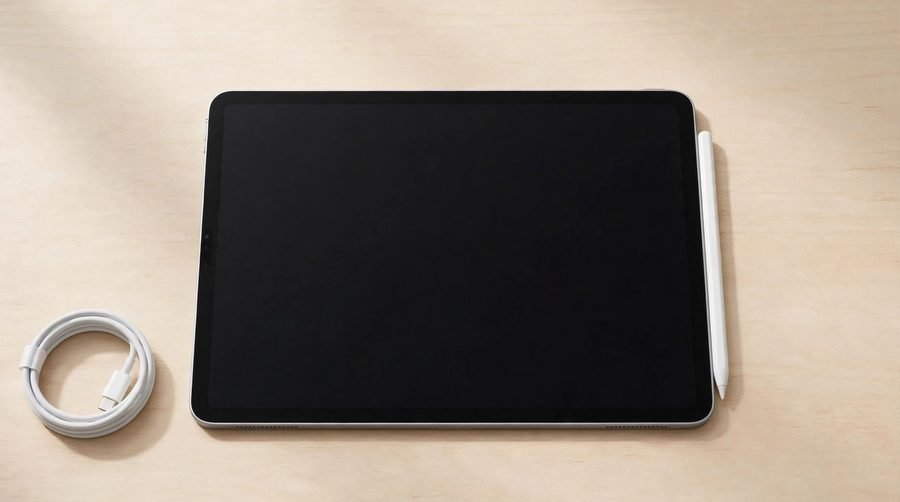
How to connect Apple Pencil to iPad?
To connect an Apple Pencil to an iPad, first check that your Pencil model works with your iPad, turn on Bluetooth, and then attach or plug in the Pencil in the way its design requires. Apple Pencil Pro and Apple Pencil (2nd generation) pair when you center them on the magnetic connector and tap Connect. Apple Pencil (USB-C) pairs when you slide open its cap, connect it to the iPad with a USB-C cable, and tap Connect. Apple Pencil (1st generation) pairs when you remove its cap, plug its Lightning connector into the iPad, and tap Pair. Pairing usually takes less than a minute, and the most common reason it fails is a mismatch between the Pencil and the iPad.
Apple sells four Pencil models, each working only with certain iPads, so check compatibility first. This guide covers every model, shows you how to check the battery, explains what to do when pairing fails, and lists current United States prices from Apple.
Which Apple Pencil works with my iPad?
Find your iPad model in Settings, then General, then About, where the model name is listed at the top. Then match it against the table below, which follows Apple Support compatibility guidance published on November 5, 2026. If your Pencil is not listed for your iPad, it will never pair.
| Apple Pencil model | Works with | How it connects | US price |
|---|---|---|---|
| Apple Pencil Pro | iPad Pro 11-inch and 13-inch (M4 and M5), iPad Air 11-inch and 13-inch (M2, M3, and M4), iPad mini (A17 Pro and A20 Pro) | Magnetic attach | $129 |
| Apple Pencil (USB-C) | Most USB-C iPads, including iPad Pro, iPad Air (4th generation and later), iPad (10th generation and A16), and iPad mini (6th generation and A17 Pro) | USB-C cable | $79 |
| Apple Pencil (2nd generation) | iPad Pro 11-inch (1st to 4th generation), iPad Pro 12.9-inch (3rd to 6th generation), iPad Air (4th and 5th generation), iPad mini (6th generation) | Magnetic attach | $129 |
| Apple Pencil (1st generation) | iPad mini (5th generation), iPad (6th to 9th generation), iPad Air (3rd generation), older iPad Pro models, and iPad (10th generation and A16) with an adapter | Lightning plug or adapter | $99 |
Apple Pencil Pro works only with the newest iPads, so it is the narrowest choice even though it is the most capable Pencil. Apple Pencil (USB-C) works with the widest range of current iPads, which makes it the safest buy if you are unsure which Pencil fits.
Software matters as well as hardware. Apple Pencil Pro needs iPadOS 17.5 or later, and Apple Pencil (USB-C) needs iPadOS 17.1.1 or later, so both work on iPadOS 27. If your iPad runs an older version, you should install iPadOS 27 before you pair, because an outdated iPad can refuse a compatible Pencil. iPadOS 27 was released on September 14, 2026.
How do I connect Apple Pencil Pro to my iPad?
Apple Pencil Pro is the easiest Pencil to connect, because it pairs and charges at the same time through magnets, with no cable, cap, or port to find. Its flat side lines up with the magnetic connector, and the iPad recognizes it the moment it snaps into place.
- Turn on Bluetooth in Settings.
- Unlock your iPad and check it runs iPadOS 17.5 or later.
- Center the flat side of Apple Pencil Pro on the magnetic connector on the long side of your iPad.
- Tap Connect when the pairing message appears, then test the Pencil in a note app.
Once paired, Apple Pencil Pro stays connected and charges on the magnetic connector. If you set it down for a while, it may disconnect to save power; attach it again to reconnect. The Pro also supports a squeeze gesture, barrel roll, haptic feedback, and Find My, which you can adjust in Settings under Apple Pencil.
How do I connect Apple Pencil (2nd generation) to my iPad?
Apple Pencil (2nd generation) connects in exactly the same magnetic way as Apple Pencil Pro, but it works with slightly older iPads. If you own an iPad Pro 2020, this is the Pencil for it, along with iPad Pro 11-inch (1st to 4th generation), iPad Pro 12.9-inch (3rd to 6th generation), iPad Air (4th and 5th generation), and iPad mini (6th generation).
- Turn on Bluetooth in Settings.
- Unlock your iPad so the pairing prompt can appear.
- Attach the flat side of the Pencil to the magnetic connector on the long side of the iPad.
- Tap Connect when the pairing message appears, then test it in a note app.
The 2nd generation Pencil also supports a double-tap gesture on its flat side, which you can set in Settings under Apple Pencil to switch tools or switch to the eraser. That setting only appears after the Pencil is paired. Like the Pro, this Pencil charges wirelessly while attached, so keep it attached when you are not using it.
How do I connect Apple Pencil (USB-C) to my iPad?
Apple Pencil (USB-C) pairs through a cable instead of magnets, and that difference catches many people out. It does not pair from magnetic storage alone, so connect it with a USB-C cable first.
- Turn on Bluetooth in Settings and unlock your iPad.
- Slide open the cap at the end of the Pencil to reveal its USB-C port.
- Plug a USB-C cable into the Pencil and into the USB-C port on your iPad.
- Tap Connect when the pairing message appears. Leave the cable connected if the battery is low, because the Pencil charges through it.
After the first pairing, you can use Apple Pencil (USB-C) without the cable, until you restart the iPad, turn off Bluetooth, or pair it with a different iPad. If that happens, connect the cable again and tap Connect. This Pencil does not support pressure sensitivity or the double-tap gesture, so artists who shade by pressing harder should choose the Pro or the 2nd generation model.
How do I connect Apple Pencil (1st generation) to my iPad?
Apple Pencil (1st generation) pairs by plugging directly into the iPad. Its Lightning connector hides under a cap at its end and goes straight into the charging port of a Lightning iPad. Once plugged in, the iPad shows a Pair button, and one tap finishes the job.
- Turn on Bluetooth in Settings and unlock your iPad.
- Remove the cap from the end of the Pencil to reveal the Lightning connector.
- Plug the Lightning connector firmly into the Lightning port on your iPad.
- Tap Pair when the pairing message appears. Leave it plugged in for a minute if the battery is low.
The exception is the iPad (10th generation) and the iPad (A16), which have a USB-C port instead of a Lightning port. For those two iPads, you need the USB-C to Apple Pencil Adapter, sold separately, plus a USB-C cable. Plug the Pencil and one end of the cable into the adapter, and the other end into the iPad, then tap Pair when the message appears. The 1st generation Pencil will not work with newer USB-C iPad Pro, iPad Air, or iPad mini models at all, even with the adapter. If the Pair button does not appear, leave the Pencil plugged in for about a minute and try again, as advised on the Apple Support page for Apple Pencil pairing problems.
How do I check the Apple Pencil battery and charge it?
Checking the battery is part of connecting, because a Pencil with no charge behaves exactly like a broken Pencil. Attach a Pro or 2nd generation Pencil to the magnetic connector to see a brief battery popup, or open Settings and tap Apple Pencil to see the battery level. The Batteries widget shows it too.
Charging follows the same split as pairing. Apple Pencil Pro and Apple Pencil (2nd generation) charge wirelessly on the magnetic connector, so put the Pencil back on the iPad when you finish. Apple Pencil (USB-C) charges through a USB-C cable, from the iPad or a power adapter. Apple Pencil (1st generation) charges when plugged into the iPad, or through the adapter and cable on a USB-C iPad.
How much does an Apple Pencil cost in the United States?
Apple lists four Pencil models in its United States store, with prices checked on Apple.com on November 25, 2026. Apple Pencil Pro costs $129, Apple Pencil (2nd generation) costs $129, Apple Pencil (USB-C) costs $79, and Apple Pencil (1st generation) costs $99. Education pricing is lower for the two newest models: Apple Pencil Pro at $119 and Apple Pencil (USB-C) at $69 for eligible students and educators.
Which one should you buy? If your iPad supports Apple Pencil Pro and you draw or take long handwritten notes, the Pro is the best fit, because its squeeze gesture, barrel roll, and hover preview save time in drawing apps. If you want the lowest price and your iPad has a USB-C port, Apple Pencil (USB-C) at $79 is the sensible choice for notes and sketching. Only buy the 1st generation Pencil if you own an older Lightning iPad.
What should I do if my Apple Pencil will not pair?
When a Pencil will not pair, work through the fixes in order, because Apple Support lists them as a sequence and the early steps solve most cases. Start with the simplest causes: a dead battery, Bluetooth off, and the wrong Pencil for the iPad.
- Update your iPad in Settings, then General, then Software Update.
- Confirm your Pencil works with your iPad on the Apple Pencil compatibility page.
- Charge the Pencil for at least one minute, then try pairing again.
- Check Bluetooth is on in Settings, and switch it off and on again.
- Reconnect the Pencil as your model requires, and keep it connected while you restart the iPad.
- In Settings, tap Bluetooth, find your Pencil under My Devices, tap the info button, tap Forget this Device, then pair again.
- Remove any case or cover from the iPad and try again, because a thick case can keep a magnetic Pencil from sitting flat.
If the Pair button still does not appear, the Pencil may need service, so contact Apple Support or book an appointment rather than buying a replacement straight away. Before that visit, test the Pencil on a second compatible iPad if you can: a Pencil that pairs with another iPad points to a problem with the first iPad, while a Pencil that pairs with nothing points to the Pencil itself. Remember that Apple Pencil (USB-C) and Apple Pencil (1st generation) need pairing again after you restart the iPad or turn off Bluetooth.
How do I disconnect my Apple Pencil and start using it?
Disconnecting is the reverse of pairing, and you only need it when giving the Pencil away, pairing it with a different iPad, or selling it. Open Settings, tap Bluetooth, find Apple Pencil under My Devices, tap the info button beside it, and tap Forget this Device. Taking a magnetic Pencil off the iPad or unplugging a cable Pencil does not unpair it.
Once your Pencil is connected, open Notes and tap the Pencil icon to write by hand, or open a drawing app to sketch. Scribble lets you handwrite in any text field and converts your writing to typed text, and you can turn it on or off in Settings under Apple Pencil. On iPadOS 27, you can also use the Pencil with Visual Intelligence to highlight information on the screen after taking a screenshot. To try something first, start with the free apps for drawing and note-taking that work well with a Pencil. For a deeper walkthrough, the MakeUseOf guide to using the Apple Pencil with an iPad is a useful second read.
Frequently asked questions about connecting Apple Pencil to iPad
Can I connect an Apple Pencil to any iPad?
No, you cannot connect an Apple Pencil to any iPad, because each Pencil model works only with certain iPad models. Check your iPad model in Settings, then General, then About, and match it against Apple Support compatibility guidance before you buy a Pencil. Apple Pencil Pro works only with the newest iPad Pro, iPad Air, and iPad mini models.
Why will my Apple Pencil not connect to my iPad?
The most common reasons are the wrong Pencil for the iPad, a flat battery, Bluetooth turned off, or an iPad that needs a software update. Charge the Pencil for at least one minute, check that Bluetooth is on, confirm compatibility on the Apple Support page, and then try pairing again. If the Pair button still does not appear, forget the Pencil in Bluetooth settings and pair it again.
Do I need Bluetooth on to connect an Apple Pencil?
Yes, you need Bluetooth on to connect an Apple Pencil, because every model pairs over Bluetooth even when it attaches with magnets or plugs in with a cable. Open Settings, tap Bluetooth, and make sure the switch is on before you attach or plug in the Pencil. If Bluetooth is off, the pairing prompt will not appear.
How do I know if my Apple Pencil is charging?
You can tell your Apple Pencil is charging by attaching a Pro or 2nd generation Pencil to the magnetic connector, which shows a brief battery popup, or by opening Settings and tapping Apple Pencil, where the battery level appears when the Pencil is connected. Apple Pencil (USB-C) charges through its USB-C cable, and Apple Pencil (1st generation) charges when its Lightning connector is plugged into the iPad. If no battery level appears, the Pencil is probably not paired.
Can I use Apple Pencil (USB-C) with an iPad that has a Lightning port?
No, you cannot use Apple Pencil (USB-C) with an iPad that has a Lightning port, because the USB-C model works only with iPads that have a USB-C port. Lightning iPads need Apple Pencil (1st generation), which plugs into the Lightning port directly. Apple Pencil (USB-C) is usually the most affordable Pencil for a USB-C iPad.