
How to Switch From iPhone to Android?
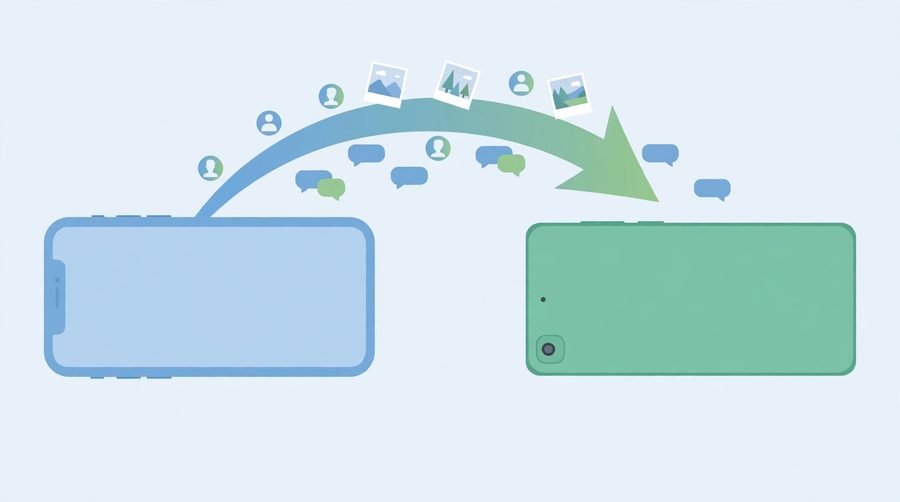
To switch from iPhone to Android, charge both phones, update the iPhone, and start setup on the new Android phone. When it asks where to copy data from, choose iPhone or iPad, then scan the QR code on the Android phone with the iPhone camera or connect the two phones with a cable. Pick the photos, contacts, messages, apps, and other data you want to move, move WhatsApp before you open it on the new phone, transfer your SIM or eSIM, and turn off iMessage and FaceTime on the iPhone so texts from iPhone users reach your new phone.
Switching phones used to mean losing half your stuff and spending a weekend rebuilding the rest. In 2026 the move is mostly a guided transfer during setup, and both Google and Samsung now start it with a QR code you scan with the iPhone camera. This guide covers both routes side by side: Android Switch on a Pixel and Smart Switch on a Galaxy, plus the two steps people still get wrong, which are WhatsApp and iMessage.
If both of your phones are iPhones, this is the wrong guide for you. Follow our steps to transfer your data to a new iPhone instead, because the iPhone-to-iPhone move keeps far more of your Apple setup intact. If you are sure about Android, keep reading: the whole transfer usually takes less than 30 minutes, according to Google, although it can take up to a few hours if you have a lot of data.
What Do You Need Before You Switch From iPhone to Android?
A little preparation before setup day saves the most common failures, and all of it happens on the iPhone while you still use it every day.
- Charge both phones fully and keep them side by side on strong Wi-Fi.
- Update the iPhone to the latest version of iOS 27, so the transfer screens match this guide.
- Back up the iPhone to iCloud, in case anything goes wrong during the move.
- Know your Google Account login, because the new Android phone is built around it.
- Find the iPhone charging cable: a USB-C to USB-C cable for an iPhone 15 or newer, or a Lightning to USB-C cable for an older iPhone.
- Keep your old iPhone switched on and nearby for at least a week after the switch.
Two account jobs are worth doing now. If the email address on your Apple Account is one you no longer use, change your Apple ID email before you start, so verification codes and receipts do not go to an inbox you cannot open. Also check that you know the passcode for the iPhone and the screen lock you plan to set on the Android phone, because setup asks for both.
Do not wipe, sell, or trade in the iPhone yet. The transfer reads your data from the old phone itself, and WhatsApp and iMessage both need the iPhone to be present and working. Wait until you have checked everything on the new phone, then deal with the old one.
How Do You Switch From iPhone to a Pixel With Android Switch?
On a Pixel, the move runs through Google’s Android Switch flow, which is built into setup. On a Pixel 10 or later, Google says you can transfer most of your iPhone data, including passwords and passkeys, Wi-Fi networks, texts, photos, contacts, apps, and calendars.
- Turn on the iPhone and the new Pixel, and pick a language on the Pixel.
- On the “Setup using another device” screen, tap iPhone or iPad.
- Scan the QR code on the Pixel with the iPhone camera to pair the two phones wirelessly.
- If no QR code appears, use the classic flow instead: connect to Wi-Fi, sign in to your Google Account, and connect the phones with your iPhone charging cable, then tap Trust on the iPhone.
- On the “Copy apps & data” screen on the Pixel, tap Next, then choose on the iPhone which data you want to transfer.
- Leave both phones alone and connected until the copy finishes, and stay on the iPhone transfer screen while it runs.
- When setup asks about your SIM, transfer your eSIM when prompted, or move your physical SIM card across.
Google calls the QR code route the upgraded transfer process, and it is available on Android 17 on Pixel 8 devices and newer, plus some newer Samsung and Vivo phones. The upgraded route copies more than the classic one, including call history, app data where the developer allows it, and eSIM transfer with select carriers. If your phone does not offer it, the classic cable or wireless route still works, and a cable moves more than Wi-Fi alone.
If you skipped the copy step during setup, you can still do it later on a Pixel 9 or newer. Open Settings, then Accounts & backup, then Copy data using Android Switch, then tap Start and follow the prompts. MakeUseOf explains how Google’s Switch to Android app made this move easier, including its built-in prompt to turn off iMessage.
How Do You Switch From iPhone to a Galaxy With Smart Switch?
On a Galaxy, the move runs through Samsung Smart Switch, which is built into setup and also available as an app. Samsung lists four routes from an iPhone: the QR code wireless transfer, a cable transfer, a wireless transfer through the Smart Switch app, and an iCloud transfer.
- Turn on the new Galaxy phone, pick a language, and agree to the terms.
- When it asks you to bring data from an old device, choose iPhone or iPad.
- Scan the QR code on the Galaxy screen with the iPhone Camera app, then tap Transfer to Android on the iPhone.
- Keep both phones side by side and tap Continue on the iPhone when asked.
- Choose the apps and data you want to move on the iPhone, then agree to the copy on the Galaxy.
- Let Smart Switch match your iPhone apps with their free Android versions and install the ones you choose.
- Finish the remaining Galaxy setup steps, then check the transfer result in the Smart Switch app or the notification panel.
The QR code route is the newest one. Samsung says it works without installing the Smart Switch app on the iPhone, but only on Galaxy phones running Android 17 with One UI 9.0 or later and iPhones running iOS 26.6 or later. On older Galaxy phones, the wireless route needs the Smart Switch app from the App Store on the iPhone and iOS 15 or later.
If your Galaxy does not show a QR code, use the cable route instead. Open Smart Switch on the Galaxy, tap Receive on this phone, then iPhone/iPad, then Cable, then Next. Connect the phones with a USB-C cable and your iPhone charging cable, tap Trust on the iPhone, choose the data you want, and tap Transfer. Samsung says a wired connection supports the most types of data, so use it when your message history matters.
Which Route Should You Pick: Pixel or Galaxy?
The two routes do the same job with different tools, and the right one is decided by the Android phone you bought, not by preference. The table below compares them at a glance.
| What you need to know | Pixel with Android Switch | Galaxy with Smart Switch |
|---|---|---|
| Tool that runs the move | Android Switch, built into Pixel setup | Smart Switch, built into Galaxy setup |
| Newest QR code route | Android 17 on Pixel 8 and newer | Android 17 with One UI 9.0 or later |
| What it can move | Photos, videos, contacts, calendar, texts, apps, passwords and passkeys, Wi-Fi networks, and eSIM with select carriers on Pixel 10 and later | Contacts, calendar, photos, videos, messages, apps, and documents, with the widest range over a cable |
| Best fallback if no QR code appears | Cable transfer with the iPhone charging cable, tapping Trust on the iPhone | Cable transfer, or wireless transfer with the Smart Switch app on the iPhone |
| Extra route | Apple iCloud migration tool for photos and data | iCloud transfer inside Smart Switch, or a PC or Mac backup |
| Move WhatsApp | Yes, with a cable during setup or through Android Switch after setup on supported phones | Yes, with a cable during setup or through Smart Switch |
| Copy data after setup | Settings, then Accounts & backup, then Copy data using Android Switch, on Pixel 9 and newer | Open Smart Switch any time and choose Receive on this phone |
Whichever route you use, the rule is the same: start the move during the new phone’s first setup, when the copy screen appears. Doing it then is simpler than fixing a half-finished move later, and WhatsApp in particular works best at that point.
How Do You Move WhatsApp From iPhone to Android?
WhatsApp is the one transfer with a hard rule: it must happen during the new Android phone’s setup, or through the supported after-setup transfer entry, and it needs a cable even if the rest of your data moved wirelessly. Do not open WhatsApp on the new Android phone before the move, because opening it first can remove the import option and may force a reinstall or a factory reset.
- Update WhatsApp on the iPhone and make sure both phones use the same phone number.
- During Android setup, choose Copy apps and data, then Copy from iPhone or iPad, and make sure WhatsApp is selected.
- Connect the phones with a cable and tap Trust on the iPhone when asked.
- Scan the QR code on the Android phone with the iPhone camera if one appears, then follow the WhatsApp prompts on the iPhone.
- Only open WhatsApp on the Android phone once the transfer says it is ready, then sign in with the same number.
The official move carries your chats, group chats, photos, videos, voice notes, documents, account information, and settings. It does not carry call history, payment messages, or statuses, so expect those to stay behind. If you already finished Android setup, check Settings, then Accounts and backup, then Copy data using Android Switch on a Pixel, or Smart Switch on a Galaxy, for a WhatsApp transfer entry before you give up and reset the phone.
How Do You Move Your SIM or eSIM to Android?
Your number is separate from your data, so deal with it as its own step. A physical SIM is simple: take it out of the iPhone and put it in the Android phone, and only do it once the data transfer is finished, so the iPhone can still receive verification codes during the move.
An eSIM can transfer during setup on supported phones and carriers. Google says that after the data transfer finishes on a Pixel, you keep the iPhone on and connected, choose the eSIM to transfer when prompted, and follow the steps shown on the iPhone. If you do not see the option, your device or carrier may not support eSIM transfer, and you should contact your carrier instead.
You can also transfer an eSIM later on a Pixel. Open Settings, tap Network and Internet, then SIMs, then Add SIM, then Transfer a SIM from another phone, then iPhone, and follow the on-screen steps. If your carrier does not support a direct transfer, it can issue a new eSIM, usually through its app or by sending you a QR code to scan.
How Do You Stop Missing Texts After Switching to Android?
This is the step people regret skipping. While your number is still registered with iMessage, your friends’ iPhones keep sending you blue-bubble iMessages that never reach an Android phone. Apple says to turn off iMessage and FaceTime before you move your number, while the SIM is still in the iPhone.
- If you already moved the SIM to the Android phone, put it back in the iPhone first.
- Make sure the iPhone is connected to a cellular data network.
- Open Settings, tap Apps, then Messages, and turn off iMessage.
- Go back to Settings, tap Apps, then FaceTime, and turn off FaceTime.
- Ask an iPhone-owning friend to text you: a green bubble or an RCS chat on their side means it worked.
If you no longer have the iPhone, Apple runs a free online deregistration page. Go to selfsolve.apple.com/deregister-imessage/ in any browser, enter your phone number, and follow the form to remove it from iMessage. Apple notes that it can take a few hours for some Apple devices to recognise that your number is no longer registered, so test again later if the first text still goes missing.
Old group chats with iPhone friends can still misbehave after deregistration, because the old thread is tied to iMessage. Start a fresh group chat on the Android phone if an old one keeps dropping your replies.
What Does Not Move When You Switch From iPhone to Android?
Most of your everyday data moves, but a few things do not, and knowing them in advance stops an unpleasant surprise in the first week. Paid iPhone apps do not transfer: you need to buy the Android version again or find a free equivalent, although free apps install automatically when an Android version exists.
Apple-only features do not come with you. iMessage and FaceTime do not exist on Android, and your texts arrive as RCS or SMS instead. iCloud Photos, iCloud Drive, Apple Music, and other Apple services still work through their Android apps or the web where Apple offers them, but your iPhone backups do not restore onto an Android phone.
Some app data moves only when the app developer allows it, and a few things, such as WhatsApp call history and payment messages, never move at all. Your Apple Account itself stays yours, including your purchases and iCloud storage, so you can still use it on an iPad, a Mac, or the web after the switch.
What Should You Check in the First Week After Switching?
The transfer finishing is not the end of the job. Spend a few minutes a day in the first week checking the things that only show up in real use.
- Open Photos and check that your oldest albums and videos arrived, not just the recent ones.
- Open Contacts and check for duplicates or missing names.
- Send and receive a text with an iPhone friend, and check a group chat replies properly.
- Open WhatsApp and check that your oldest chats and their photos are there.
- Sign in to your bank, email, and two-factor authentication apps one by one, and move any authenticator codes before you wipe the iPhone.
- Check that your alarms, calendar events, and reminders survived the move.
- Test calls, mobile data, and Wi-Fi on the new phone with the SIM or eSIM in place.
Only when every check passes should you deal with the old iPhone. Back it up one last time, sign out of your Apple Account, and then factory reset your iPhone before you sell it, trade it in, or hand it to someone else. A reset alone does not deregister iMessage, so make sure the iMessage step above is done first.
Frequently Asked Questions
Can I switch from iPhone to Android without losing my photos?
Yes, if you use the guided transfer during setup and pick photos and videos on the iPhone when asked. A cable transfer is the safest choice for a large photo library, and an iCloud backup gives you a fallback if anything goes wrong.
Do I need a cable to switch from iPhone to Android?
No, not always, because the newest QR code transfer on Android 17 phones works wirelessly. A cable is still the best choice when no QR code appears, when your message history matters, and always for the WhatsApp move.
Will my WhatsApp chats move from iPhone to Android?
Yes, if you move them during the new Android phone’s setup with a cable and the same phone number on both phones. Do not open WhatsApp on the Android phone first, and expect call history, payment messages, and statuses to stay behind.
Why am I not getting texts from iPhone users after switching to Android?
Your number is probably still registered with iMessage, so your friends’ iPhones keep sending blue-bubble messages that never reach an Android phone. Turn off iMessage and FaceTime on the iPhone, or deregister your number at selfsolve.apple.com/deregister-imessage/ if you no longer have the iPhone.
Can I switch back from Android to iPhone later?
Yes, and Apple offers its own Move to iOS app for the return trip, which runs during the new iPhone’s setup. Keep your Google Account and your WhatsApp chats in mind, because the same setup-time rule applies in reverse.