
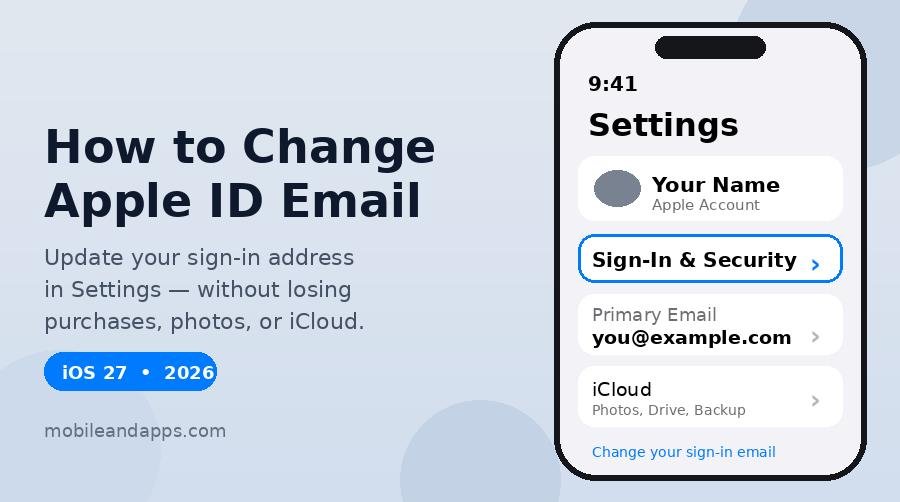
How to Change Apple ID Email on iPhone?
To change your Apple ID email, open Settings on your iPhone, tap your name at the top, tap Sign-In & Security, tap your primary email address, then choose a new primary email address or add a new one and verify it. Your account stays the same, so your purchases, photos, and iCloud data stay with you, and you only sign in with a different email address from now on.
Apple now calls an Apple ID an Apple Account. The email address is your sign-in name for the App Store, iCloud, Messages, and FaceTime on your iPhone. When that address no longer fits your life, you do not need a new account: you change the address on the account you already have.
People usually change it because they lose access to an old inbox, leave a job and lose a work email address, or switch to a new personal address. Whatever your reason, it takes only a few minutes once you can open the new inbox and know your iPhone passcode. The steps below follow Apple Support and match iOS 27, released on 14 September 2026 and currently at iOS 27.2.1.
What Happens When You Change Your Apple ID Email?
Changing your Apple ID email changes the address you use to sign in, and nothing else. Apple states that you will not lose access to your contacts, purchases, or other account information. Your apps, subscriptions, photos, and files stay where they are.
The primary email has two jobs. It receives Apple’s emails, including receipts and security alerts, and it is visible to others when you collaborate in iCloud. Any email address on your Apple Account can be used to sign in, even if it is not the primary one, so the change is mainly about which address Apple treats as your main contact address. One limit applies: you cannot change to an email address already in use by another Apple Account.
What Do You Need Before You Change Your Apple ID Email?
Run through this short list before you open Settings, so you do not get stuck halfway through.
- You know your Apple Account password.
- You can open the new inbox to read Apple’s verification code.
- Your iPhone is updated, so the screens match this guide.
- Your iPhone passcode is ready.
If your iPhone is not on the latest software yet, learn how to install iOS 27 first: the steps here match iOS 27, and older versions may show different labels. You do not need to sign out first. Apple recommends a trusted device, which is an Apple device already signed in to your Apple Account with two-factor authentication, and your iPhone is the best place to do it.
How to Change Apple ID Email on iPhone in iOS 27
Your iPhone is the easiest and most secure place to make this change, according to Apple. Use the iPhone you use every day, and keep the new inbox open for the verification code.
- Open the Settings app on your iPhone.
- Tap your name at the top of the screen to open your Apple Account settings.
- Tap Sign-In & Security.
- Tap your primary email address to open its settings.
- Decide what happens to the old address: select Remove from Account to remove it, or turn off Primary Email to keep it while using a different primary address.
- Choose a new primary email address from the other addresses on your account, or add a new primary email address.
- Follow the on-screen steps to enter and verify the new address with the code Apple sends to the new inbox.
Once Apple accepts the verification code, the new address becomes your primary email and sign-in name. Your other devices may ask you to sign in again with the new address and your existing password. Your password does not change unless you change it separately.
Turning off Primary Email instead keeps the old address on your account as an extra sign-in address, which is the safer choice while you still own the old inbox. If you remove a non-iCloud address, it cannot be linked to another Apple Account for 30 days.
How to Change Apple ID Email on the Web at account.apple.com?
You can also change it from any browser, which helps when your iPhone is not with you. Apple prefers a trusted device, so the site may redirect you to your iPhone or iPad to finish the change.
- Go to account.apple.com in any browser and sign in to your Apple Account.
- Complete two-factor authentication if Apple asks for it.
- Go to Sign-In and Security, then choose Email & Phone Numbers.
- Select your current primary email address.
- Choose the option to remove it or replace it, then enter the new email address.
- Follow the on-screen steps to verify the new address with the code Apple sends to it.
Without any trusted device, you might still be able to change your primary email on the web. If the site asks for a trusted device instead, wait until you have your own iPhone, iPad, or Mac: signing in on a device you do not control is a security risk.
How to Change Apple ID Email on a Mac?
The Mac steps follow the same pattern, because the same settings live in System Settings. Use a Mac you are already signed in to, so Apple recognises it as a trusted device.
- Open System Settings on your Mac, then click your name.
- Click Sign-In & Security.
- Click your primary email address to make changes.
- Choose Remove from Account to remove the address, or turn off Primary Email to keep it while you pick a different primary.
- Choose another address on your account as the new primary, or add a new one.
- Follow the on-screen steps to enter and verify your new primary email address.
As with the iPhone, purchases and iCloud data stay put; only the sign-in email changes. On a shared Mac, check the name at the top of System Settings first, so you change your own account.
What If Your Apple ID Email Is an iCloud, Me, or Mac Address?
This is the exception that catches many people out. If your Apple ID email ends in @icloud.com, @me.com, or @mac.com, Apple issued that address, and you cannot remove it the way you can remove a Gmail or Outlook address. The normal Remove from Account option does not appear.
Apple gives you a different option instead. If your only address is an iCloud address, you will see Change Email Address rather than Remove from Account. Choosing it replaces your existing iCloud address with a new one. iCloud Mail keeps working as before.
This needs a device with iOS 18.1 or later, iPadOS 18.1 or later, or macOS 26.4 or later, according to Apple Support. Any iPhone on iOS 27 qualifies easily. If a third-party address is on the account too, use the normal steps above instead: Change Email Address only appears when iCloud is your only address.
Is Changing Your Apple ID Email the Same as Creating a New Account?
No. Changing your email keeps your account, while creating a new account starts a second, empty one, and mixing the two up is the most expensive mistake in this topic. The table below shows the difference.
| What changes | Change the email on your account | Create a new Apple Account |
|---|---|---|
| Your purchases | Stay with you, because the account is the same | Stay with the old account |
| Your iCloud data | Stays with you, including photos and files | Starts empty |
| Your subscriptions | Keep running without any action from you | Do not move |
| Your sign-in | Same password, new email address | A new password and account |
| When to use it | You want a new email for the same account | You need a separate account, such as for a child |
If your goal is simply a new email address, change the email on your existing account. A new account splits your digital life in two, and Apple does not let you merge accounts or move purchases between them. If you are moving to a new iPhone too, change the email first, then transfer your data to a new iPhone, so the new phone signs in with the right address from the start.
What Happens to Your Purchases and iCloud Data After the Change?
Your purchases stay exactly where they are. The App Store, iTunes Store, and Apple Books tie purchases to your account, not to the email address you typed when you created it. After the change, your purchase history appears under the new address, you can still re-download apps you bought, and subscriptions keep billing the same payment method.
Your iCloud data stays put for the same reason. Photos, contacts, calendars, notes, reminders, and files in iCloud Drive belong to the account, so changing the sign-in email does not touch them, and your iCloud storage plan stays the same.
You will notice the change in Messages and FaceTime. Your old address may still be listed as a way to reach you, and after 30 days another user might be able to link it to a different Apple Account. Tell anyone who contacts you through your old address that it has changed, and check Messages and FaceTime settings so the listed addresses match the ones you use.
What Should You Do After Changing Your Apple ID Email?
The change takes minutes, but a short tidy-up on the same day stops small problems later.
First, sign in again on your other Apple devices. Your iPad, Mac, Apple Watch, and Apple TV may each ask for the new email address and your password. Use the new address everywhere, because the old one no longer signs you in. If a device keeps showing it, sign out there and sign back in with the new one.
Second, check your security settings while you are there: two-factor authentication on, trusted phone number current, and no device you no longer own signed in. This guide on how to secure your Apple ID on your iPhone covers the same settings in more depth.
Finally, update the address anywhere else that uses it. Your Apple Account is separate from your bank, your carrier, and your apps, so they will not learn about the change on their own. The Apple side is done once verification succeeds, but services that email your old address still need the update from you.
Why Can’t I Change My Apple ID Email?
Most failures have one of a few clear causes. Start with the message Apple shows you, because it usually points straight at the cause.
The most common message is that the email address is already in use. It means the address belongs to another Apple Account, perhaps one you created years ago and forgot, or a family member’s. Ask them to remove it from their account if it is theirs. If you removed that address from an account yourself, you may need to wait 30 days before Apple lets you use it again.
The next common problem is a missing verification email. Check the spam or junk folder of the new inbox, then check that you typed the address correctly. Apple’s support page explains what to do if you did not get the verification email.
Some people find Remove from Account missing entirely. That usually means your only address is an iCloud address, so Apple shows Change Email Address instead. If you see neither option, check that your iPhone is on iOS 27 and that you are in Sign-In & Security under your own name.
One last check helps when you sell or give away a phone afterwards. Do not hand over a device still signed in to your Apple Account, even with the new email on it. Learn how to factory reset your iPhone first, so the next owner starts clean and your account stays yours.
Frequently Asked Questions About Changing Your Apple ID Email
Will I lose my photos or purchases if I change my Apple ID email?
No. Changing the email only changes how you sign in, and Apple states that you keep access to your contacts, purchases, and other account information. Your photos, apps, and subscriptions stay where they are.
Can I change my Apple ID email to an iCloud address?
Yes, as long as that address is not already in use by another Apple Account. If your only address is already an iCloud address, use Change Email Address instead, which replaces it with a new one.
How long does it take to change my Apple ID email?
The change itself takes only a few minutes, including the time to read and enter the verification code Apple sends to your new inbox. Signing in again on your other Apple devices takes a little longer, so allow extra time if you own an iPad or a Mac.
Can I use my old email address with a different Apple Account?
Not straight away. If you remove a non-iCloud address from your Apple Account, it cannot be linked to another Apple Account for 30 days. After that, another user might be able to associate it with a different Apple Account for Messages, FaceTime, and more.
Do I need to sign out of all my devices before I change my Apple ID email?
No. Apple recommends making the change on your iPhone or another trusted device, and your other devices will ask you to sign in again with the new address and your existing password.