
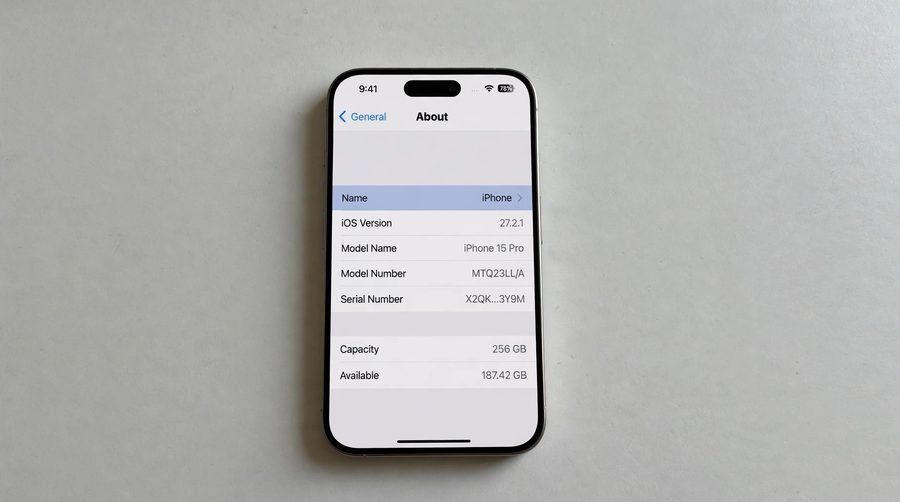
How to Change iPhone Name?
To change your iPhone name, open Settings, tap General, tap About, then tap Name. Tap the small clear-text button to erase the old name, type the new one, and tap Done on the keyboard if your keyboard shows it. The new name takes effect right away, and you do not need a computer, a cable, or your Apple Account password to do it.
Your iPhone name is the label your phone shows to other devices and services. When you first set up an iPhone, Apple gives it a plain default name, usually your first name followed by the word iPhone. That works fine until your household has two or three iPhones showing up under the same name when you try to send a photo or join a hotspot.
This guide covers iOS 27, released on 14 September 2026, with the current build 27.2.1 from 9 November 2026. The steps work on every iPhone that runs iOS 27, which is iPhone 11 and later, including the second-generation iPhone SE. Older versions of iOS use the same path.
What Happens When You Change Your iPhone Name?
Apple says the name you set is used by iCloud, AirDrop, Bluetooth, your Personal Hotspot, and your computer. One small change can therefore clear up confusion in several places at once.
AirDrop is where most people notice the name first. When someone nearby opens the share sheet to send you a photo, your iPhone appears under the name you set. If two family members both own an iPhone and both phones still carry the default name, picking the right one becomes a guessing game. Bluetooth works the same way: when you pair your iPhone with a car, a speaker, or headphones, the name in the other device list is your iPhone name.
Your Personal Hotspot also takes its Wi-Fi network name from your iPhone name. When you share your mobile connection with a laptop or a tablet, the network in the Wi-Fi list is your phone name, so anyone who connected to the old hotspot name will need to look for the new one after a rename.
iCloud and Find My use the name as well, so the renamed phone is the name you look for when you check where your devices are. Your computer uses it too: a Mac shows the phone by name in the Finder sidebar, and a Windows computer shows it in the Apple Devices app after you connect the phone with a cable.
| Where the name appears | What changes after you rename it | What to check |
|---|---|---|
| AirDrop | Your phone appears under the new name in nearby share sheets | Send a test photo from another Apple device |
| Bluetooth | Paired devices list the new name when your phone is nearby | Open Bluetooth settings on your car or speaker |
| Personal Hotspot | The Wi-Fi network name becomes the new iPhone name | Look for the new name in the Wi-Fi list on another device |
| iCloud and Find My | Your device list shows the new name | Open Find My and check the Devices list |
| Your computer | Finder on a Mac or the Apple Devices app on Windows shows the new name | Reconnect the phone and look at the device list |
How Do I Change My iPhone Name on My iPhone?
This is the method Apple documents. You only need the phone itself, unlocked.
-
Open the Settings app, the grey gear icon on your Home Screen.
-
Tap General.
-
Tap About. It sits near the top of the General screen.
-
Tap Name. A text field opens with your current name in it, and the keyboard appears.
-
Tap the small clear-text button, the x in a circle at the end of the field, to erase the old name.
-
Type the new name.
-
Tap Done on the keyboard if it appears. The Name row now shows the new name.
That is the whole job. There is no save button and no restart needed, because Apple applies the new name as soon as you enter it, and renaming touches no data.
The About screen is worth a look while you are there. Below the Name row it lists the iOS version, the model name, and the storage capacity, so you can check how much storage your iPhone has left if the phone has been feeling full.
If the Name row will not open when you tap it, do not keep tapping it. That usually means the iPhone is managed by an employer or a school, and the fix is covered in the troubleshooting section below.
How Can I Change My iPhone Name From My Computer?
Apple documents only one way to change the name: on the iPhone itself, in Settings, General, About, Name. That is the reliable method, and it is the one to use whenever the phone is in your hand. A computer can also rename the phone in many cases, which is handy when the phone is already plugged in for a backup, but the computer route is not the one Apple writes down, so treat it as a backup option.
On a Mac, connect your iPhone with a cable and unlock it, tapping Trust and entering your passcode if the phone asks. Open Finder, click your iPhone under Locations, then click the device name at the top of the pane. On many versions of macOS it becomes an editable field: type the new name, press Return, and check the About screen on the phone to confirm it stuck.
On a Windows computer, connect your iPhone with a cable, unlock it, and tap Trust if the phone asks. Open the Apple Devices app, which is the app Apple now uses on Windows for iPhone management, and select your iPhone. If the name field there is editable, type the new name and save it. Older Windows setups used iTunes for the same job. If the name will not edit in the app, rename the phone in Settings instead, because the on-phone method always works on a personal iPhone.
After renaming from a computer, check the About screen on the phone. The computer can take a little while to show the new name, so if Finder or the Apple Devices app still shows the old one, eject the phone, unplug it, and plug it back in. The phone itself is the source of truth. For a second opinion on the on-phone steps, How-To Geek’s guide to changing an iPhone name walks through the same Settings path.
How Do I Change My Apple Account Name Instead?
Many people who search for how to change their iPhone name actually want to change the name on their Apple Account, the personal name attached to the account itself. The two names look similar in Settings, but they do different jobs.
Your device name is the label for one phone, and it is the name other devices see over AirDrop, Bluetooth, and the hotspot. Your Apple Account name is your own first and last name, and it is the name that appears at the top of Settings, on App Store receipts, in Family Sharing, and across iCloud.
To change your Apple Account name on your iPhone, open Settings and tap your name at the very top of the screen. Tap Personal Information, then tap Name. Edit your first and last name, then tap Done in the top right to save. You may be asked for your device passcode or your Apple Account password first.
You can also change it on the web. Go to account.apple.com in a browser, sign in, open Personal Information, and edit the name there. The change syncs to your devices, though it can take a little while to appear everywhere.
Changing your Apple Account name does not change your sign-in email address, your phone number, or your iCloud email address. If the email address itself is what needs to change, our guide explains how to change the email address on your Apple Account without losing your purchases or data.
What Should I Name My iPhone?
The best iPhone name is short, clear, and easy to spot in a list. In a share sheet or a Bluetooth menu you usually have only a second to pick the right device, so a name you can read at a glance beats a clever one every time.
A simple pattern works well for most people: your first name plus the model, such as Naveed’s iPhone 17, or a purpose plus the model, such as Work iPhone or Home iPhone. In a household with several iPhones, adding the model or the owner to each phone ends the confusion in AirDrop and in the car. If you own an iPhone and an iPad, give each device its own name, because renaming the iPhone does not rename your other Apple devices.
Think about privacy before you type your full name. Your iPhone name can appear to people nearby in AirDrop and Bluetooth lists, and to anyone who can see your hotspot network name. A first name on its own is usually enough, and a nickname or a first name plus the model keeps things friendly without sharing more than you need to.
Keep the name short enough to read in full, since long names get cut off in share sheets and Bluetooth menus. Put the distinguishing word first, such as the owner or the purpose, and leave the model for the end. You can change the name again whenever you like, so pick something clear now and adjust it later if your household gains another iPhone.
Why Will My iPhone Name Not Change?
On a personal iPhone, the Name field should always work. When it does not, one of a few causes is behind it.
The most common cause is a managed iPhone. If your employer or school supplied the phone, or installed a management profile on it, they can block name changes. Apple lists a restriction called Modify device name for supervised devices, and when it is turned on, the Name field in Settings, General, About cannot be edited. To check, open Settings, tap General, and look for VPN and Device Management near the bottom. If you see a management profile there, ask the IT team that manages the phone to change the name for you.
A second cause is the network reset. If your iPhone name suddenly went back to the word iPhone on its own, a network settings reset is the likely reason. Apple states that Reset Network Settings removes all network settings and resets the device name assigned in Settings, General, About to iPhone. The fix is simple: open Settings, General, About, Name, and type your preferred name again.
A third cause is a stale display rather than a failed rename. The phone itself may already carry the new name while another device still shows the old one. Turn AirDrop off and back on, turn Bluetooth off and back on, and open a fresh share sheet on the other device. For a hotspot, forget the old network on the other device and join the new one by name.
If the new name is not showing even on the phone itself, quit the Settings app and try again. Swipe it away from the app switcher and reopen it. If that does not help, turn your iPhone off and back on, then check the About screen again. Also check for updates in Settings, General, Software Update, since the steps in this guide were checked against iOS 27.2.1.
How Do I Check That the New Name Worked Everywhere?
Start on the phone itself. Open Settings, tap General, then tap About, and confirm that the Name row shows the new name. That is the source of truth, and if it is right there, the rename worked.
Next, check AirDrop with a second Apple device if you have one. Open Photos on the other device, pick any photo, tap the share button, and look at the AirDrop row. Your iPhone should appear under its new name. If it still shows the old name, toggle AirDrop off and back on in Control Centre on both devices, then open the share sheet again.
Then check Bluetooth and the hotspot. Open Settings, tap Bluetooth, and look at the list of devices, or open the Bluetooth menu on your car or speaker. On a laptop or tablet, open the Wi-Fi list and look for your new iPhone name as the hotspot. If the old name is still there, forget that network and connect to the new name.
Frequently Asked Questions
How do I change my iPhone name on iOS 27?
Open Settings, tap General, tap About, then tap Name. Tap the clear-text button to erase the old name, type the new name, and tap Done on the keyboard if it appears. The About screen then shows the new name, and AirDrop, Bluetooth, Personal Hotspot, iCloud, and your computer start using it.
Will changing my iPhone name change my Apple Account name?
No. Changing the device name only relabels this one iPhone. Your Apple Account name, your contact card, your phone number, and the name people see in Messages stay the same. To change your own name on the account, go to Settings, tap your name at the top, tap Personal Information, then tap Name.
Why does my old iPhone name still show on AirDrop or Bluetooth?
Other devices can hold on to the old name for a while after you rename your phone. Turn AirDrop or Bluetooth off and back on, open a fresh share sheet on the other device, and give iCloud a few minutes to sync. If the old name still shows on a Wi-Fi list, forget that hotspot network on the other device and join it again.
Can I change my iPhone name from my computer?
You can try. On a Mac, connect your iPhone, open Finder, select it under Locations, and click the device name at the top to edit it. On Windows, connect it and open the Apple Devices app. If the name will not edit on the computer, use Settings on the iPhone itself, which is the method Apple documents.
Why did my iPhone name go back to iPhone?
Resetting network settings is the usual cause. Apple states that Reset Network Settings removes all network settings and resets the device name in Settings, General, About to iPhone. Rename the phone again in Settings, General, About, Name, and it will stay until the next network reset.