
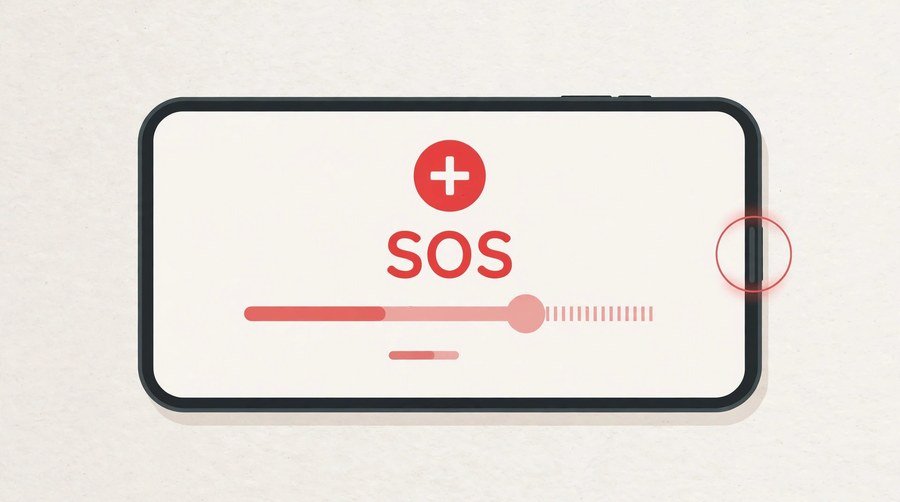
How to turn off SOS on iPhone?
To turn off SOS on iPhone, open Settings, tap Emergency SOS, and turn off Call with Hold and Release and Call with 5 Button Presses. On iPhone 14 and later, also turn off Call After Severe Crash to stop automatic calls after a detected car crash. There is no save button, so the change takes effect the moment each switch turns grey. The steps below match iOS 27, released on 14 September 2026, with current build 27.2.1 released on 9 November 2026. Before you turn anything off, read the safety warning further down this page, because switching SOS off removes the automatic call that can reach help when you cannot dial for yourself.
What is Emergency SOS on iPhone?
Emergency SOS is the built-in safety feature that calls emergency services for you when you cannot unlock your iPhone, see the screen, or speak. It is on by default, and it can start a call in three ways: by holding the Side button and a Volume button, by pressing the Side button five times quickly, or, on iPhone 14 and later, automatically after a severe car crash detected by Crash Detection. When a countdown starts, your iPhone sounds a loud alarm and flashes a warning, then calls 911 in the US, or your local emergency number elsewhere, unless you stop it in time. After an SOS call, your iPhone can also send a text to your emergency contacts with your location, so the people you trust know something happened and where you are.
The feature exists for the moments when dialling is impossible: a fall, a medical emergency, a car crash, or a situation where you cannot speak freely. That is also why it is so easy to trigger by accident. The same buttons you hold to switch the phone off, the same five quick presses a child makes while playing, and the same hard jolt from skiing, a roller coaster, or a phone mounted on a bumpy ride can all start the countdown. On iPhone 14 and later, Emergency SOS via satellite can also offer help when there is no cellular or Wi-Fi coverage, and Apple lists no switch to turn that part off. This guide is about the parts you can control: the two button shortcuts and Crash Detection.
How do you turn off SOS on iPhone?
Turning off SOS means turning off the automatic ways it starts. There is no single master switch, so you turn off each trigger separately, all on the same settings screen. Nothing is deleted, no passcode is needed, and every switch can be turned back on in seconds.
- Open the Settings app.
- Scroll down and tap Emergency SOS. It has a red icon with the letters SOS. If you cannot spot it, swipe down on the main Settings screen and type SOS in the search field.
- Turn off Call with Hold and Release. The switch turns grey. Holding the Side button and a Volume button will no longer start a countdown to call emergency services.
- Turn off Call with 5 Button Presses. The switch turns grey. Pressing the Side button five times quickly will no longer start a countdown. On some iOS versions this switch is labelled Call with 5 Presses, so look for the closest match on your screen.
- Leave the Settings app. There is no save button, and the change applies right away.
Turn off only the trigger that keeps misfiring if you can. If the calls start when you hold the buttons to switch the phone off, turn off Call with Hold and Release and leave the five-press shortcut on. If a child or a tight case keeps pressing the Side button, turn off Call with 5 Button Presses and leave the hold shortcut on. Keeping one shortcut ready means you still have a fast way to call for help without unlocking the phone. The Call Quietly switch on the same screen only silences the alarm sound and flashing during the countdown; it does not stop the call, so turning it on is not a substitute for turning off a trigger.
What does each Emergency SOS setting do?
The Emergency SOS screen holds four switches, and each one controls a different trigger. Knowing what each does keeps you from turning off more than you need to, and from leaving on the one that keeps calling.
| Setting | What it controls | Turn it off when |
|---|---|---|
| Call with Hold and Release | Holding the Side button and a Volume button starts a countdown, then calls emergency services when you release the buttons | Calls start when you switch the phone off or squeeze it in a pocket or bag |
| Call with 5 Button Presses | Pressing the Side button five times quickly starts a countdown to call emergency services | A child, a case, or a fidgeting habit keeps pressing the Side button |
| Call After Severe Crash | Crash Detection on iPhone 14 and later calls emergency services automatically after a severe car crash | False alerts keep firing during skiing, rough sports, or bumpy rides |
| Call Quietly | Silences the warning alarm and flashing while the countdown runs | Never as a way to stop calls, because it only hides the sound, not the call |
Two of these switches are easy to confuse. Call with Hold and Release is the one tied to the power-off gesture, which is why it fires most often: the buttons you hold to switch the phone off are the same buttons that start the SOS countdown. Call with 5 Button Presses is the one tied to repeated presses, which is why it fires in pockets, in the hands of small children, and under a case that presses the button. If you are not sure which one fired, turn off one, wait a few days, and see whether the accidental calls stop before you turn off the other.
How do you turn off Crash Detection on iPhone?
Crash Detection is separate from the button shortcuts, with its own switch on the same screen. It exists only on iPhone 14 and later, and it is on by default on every supported model. After a severe crash, your iPhone sounds an alarm and shows an alert for 10 seconds. If you do not respond, a 30-second countdown runs, and then the phone calls emergency services by itself. That automatic call is the whole point of the feature, and it is also the reason it can call for help when nothing is wrong, after a hard stop, a fall while skiing, or a rough ride.
- Open Settings.
- Tap Emergency SOS.
- Scroll down to the Crash Detection section and turn off Call After Severe Crash.
- Tap Turn Off if your iPhone asks you to confirm.
Turning off Crash Detection on your iPhone also turns it off on a paired Apple Watch, so you do not need to change the setting twice. If you want to stop automatic dialling from the watch on its own, open the Watch app on your iPhone, tap the My Watch tab, tap Emergency SOS, and turn off Hold Side Button to Dial. Before turning Crash Detection off for good, try turning off only the button shortcuts first: many false alerts come from the Side button, not from a crash, and Crash Detection is the feature most likely to save your life when you cannot call yourself.
What happens after you turn SOS off?
Turning off the automatic triggers removes the fast, hands-free ways to call for help, and that trade-off deserves a clear look before you change anything. With both button shortcuts off, holding or pressing the Side button will not start an emergency call, even if you do it on purpose in a real emergency. With Crash Detection off, a severe crash will not trigger an automatic call either. Your iPhone will also stop sending the automatic text with your location to your emergency contacts after an SOS call, because that message only follows a call started through SOS. If you live alone, drive long distances, or have a medical condition, think carefully before turning off all three triggers at once, and tell someone close to you that you changed the setting.
What does not change is just as important. You can still call for help yourself in every normal way. Holding the Side button and a Volume button still opens the power-off screen, where the Emergency Call slider sits beside the power-off slider, and dragging it calls emergency services at once; our guide to turn off your iPhone walks through that same screen. On the lock screen, tapping Emergency opens a keypad for dialling 911 in the US, or your local emergency number elsewhere. You can open the Phone app and dial 911 like any other number, or ask Siri to call 911. None of the switches in Settings, under Emergency SOS, takes any of those away, and that is by design: Apple built the feature so it cannot leave you with no way to call for help.
How do you stop an SOS call that already started?
A countdown is not a call yet, and you have until the timer ends to stop it. If you started the countdown by holding the Side button and a Volume button, release both buttons before the timer hits zero and the call never starts. If the countdown started from five quick presses, or from Crash Detection, tap the Stop button on the screen, then tap Stop Calling to cancel it. The alarm is loud on purpose, so do not panic: the sound is a warning, not proof that a call has already gone through.
If the call has already connected, do not hang up. Stay on the line and tell the operator the call was an accident and you do not need help. Hanging up can send police, fire, or medical help to your location to check on you, because dispatchers treat a silent hang-up as a possible emergency. A short, honest explanation ends the call cleanly and keeps help available for someone who truly needs it. If accidental calls keep happening, that is the sign to turn off the trigger that fired, using the steps above, rather than relying on cancelling the countdown every time.
Why does my iPhone show SOS in the status bar?
The letters SOS or SOS Only at the top of your screen are a different problem from Emergency SOS, even though they share the name. They mean your iPhone has lost its connection to your carrier and can only make emergency calls, and no switch in Settings, under Emergency SOS, removes them. The letters go away on their own as soon as your iPhone reconnects to your carrier, so the fix is to restore the signal, not to change an SOS setting.
Start with the fastest fix: open Settings, turn on Airplane Mode, wait at least 15 seconds, then turn it off, so the phone searches for your carrier again. If the letters stay, restart your iPhone, then check that your SIM is seated properly if your model has a physical SIM tray. A carrier settings update can also help: connect to Wi-Fi, open Settings, tap General, then About, and accept the update if one is offered. If the letters return again and again on a network you normally use, our guide to reset your network settings on iPhone covers the deeper fix. Travelling abroad without a roaming plan is a common cause too, since the phone has no valid network to join until you add one.
Should you turn SOS off, or just fix the trigger?
For most people, the right answer is to fix the trigger, not to switch everything off. Turn off only the shortcut that keeps firing, keep the other one ready, and turn the first one back on once the cause is gone: a child grows out of button play, a tight case gets replaced, a ski trip ends. If the false calls come from a specific activity, such as skiing or a roller coaster, turn Crash Detection off for that activity and back on afterwards, rather than leaving it off for months. The MakeUseOf guide to turning off SOS on iPhone gives the same advice: disable the triggers that misfire, but remember how to reach help manually if you ever need it.
There are good reasons to turn a trigger off for longer. A phone that calls 911 from a pocket every week wastes emergency resources and can bring a fine in some areas for repeated false calls. A household with small children may need the five-press shortcut off until the children are older. A job that involves hard impacts, such as construction or mountain rescue training, may need Crash Detection off during work hours. In each case, write down which switches you turned off and set a reminder to review them, because a setting changed in a hurry is easy to forget, and a forgotten switch is no help in an emergency.
How do you turn SOS back on?
Turning SOS back on is the same screen in reverse, and it takes less than a minute. Open Settings, tap Emergency SOS, and turn on Call with Hold and Release, Call with 5 Button Presses, and Call After Severe Crash if your iPhone supports Crash Detection. Each switch turns green as you turn it on, and the change takes effect right away, with no save button and no restart needed. Do it as soon as the cause of the false calls is gone, rather than leaving it for later, and check that your emergency contacts are still listed in the Health app under Medical ID, so the right people are notified if SOS ever calls for you.
Frequently asked questions about turning off SOS on iPhone
Can you completely turn off SOS on iPhone?
No. There is no single switch that turns off every part of Emergency SOS, but you can turn off all three automatic triggers in Settings, under Emergency SOS: Call with Hold and Release, Call with 5 Button Presses, and Call After Severe Crash on iPhone 14 and later. Even with all three off, you can still call 911 in the US by dragging the Emergency Call slider on the power-off screen, tapping Emergency on the lock screen, or dialling 911 in the Phone app.
Will turning off SOS remove the SOS letters at the top of my screen?
No. The letters SOS or SOS Only in the status bar mean your iPhone has lost its connection to your carrier and can only make emergency calls, and no setting in Emergency SOS removes them. Turn Airplane Mode on for 15 seconds and then off, restart your iPhone, and check that your SIM is seated properly. If the letters stay, the problem is your signal or account, not your SOS settings.
How do I turn SOS back on after turning it off?
Open Settings, tap Emergency SOS, and turn the switches back on: Call with Hold and Release, Call with 5 Button Presses, and Call After Severe Crash if your iPhone supports Crash Detection. The change takes effect right away, with no save button and no restart needed, so test the setting by checking that each switch shows green.
What should I do if I accidentally call 911?
Stay on the line and tell the operator the call was an accident and you do not need help. Do not hang up, because a hang-up can send police, fire, or medical help to your location to check on you. If the countdown is still running, release the buttons before it ends, or tap Stop and then Stop Calling to cancel it.
Does turning off SOS turn off Crash Detection too?
No. Crash Detection is a separate feature with its own switch, Call After Severe Crash, in Settings, under Emergency SOS, and it only exists on iPhone 14 and later. Turning off the two button shortcuts stops accidental calls from the side button, but a severe car crash can still trigger an automatic call until you turn off Call After Severe Crash as well.