
How to turn off read receipts on iPhone?
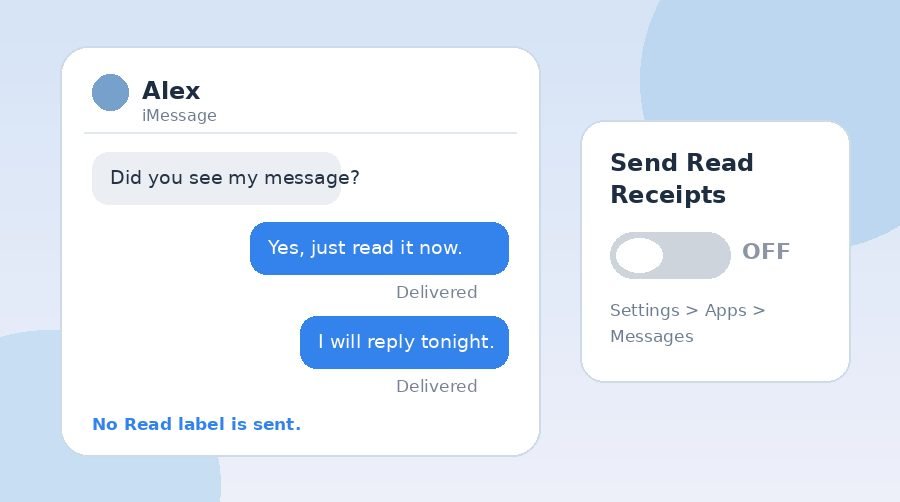
To turn off read receipts on iPhone, open Settings, tap Apps, tap Messages, and turn off Send Read Receipts. From that moment, people who send you iMessages will see Delivered under their messages after you open them, instead of Read with the time you opened them. The change takes effect straight away, with no restart, and it applies to every iMessage conversation you have never changed on its own.
This guide uses iOS 27, released on 14 September 2026, with the current build 27.2.1, released on 9 November 2026. On iOS 18 and iOS 26 the path is the same, because Messages has sat under Apps in Settings since iOS 18. On iOS 17 and earlier, Messages appears directly in the main Settings list, so skip the Apps step. If your iPhone looks different, you can update your iPhone to iOS 27 first, after you check your iPhone storage for room.
How do I turn off read receipts for everyone on my iPhone?
Turning off read receipts for everyone is the fastest fix, and it is the right choice if you do not want anyone to know when you have read their messages. It changes the default for all of your iMessage conversations at once.
- Open the Settings app on your iPhone.
- Scroll down and tap Apps, then tap Messages.
- Find Send Read Receipts and tap the switch so it turns grey.
- Leave Settings. The change is already active, and there is nothing else to save.
Once the switch is off, the sender sees Delivered under their message, even after you have opened it and read every word. They will not see Read, or the time you opened it. The change only affects messages you open after you turn the switch off: if you already opened a message while receipts were on, the sender already saw Read, and no setting change can take that back.
There is one important limit. Apple says the main switch affects only conversations where you never changed the setting for that person on their own. If you once changed it inside a single conversation, that chat keeps its own choice, even when you flip the main switch. If one person still sees Read, change the setting inside that chat, as explained next.
How do I turn off read receipts for one person only?
Turning off read receipts for one person is the right fix when you want most people to see Read, but not one or two specific people, such as a colleague or a client, while a partner or parent still gets the reassurance.
- Open the Messages app on your iPhone.
- Tap the conversation with the person you want to change.
- Tap the contact name or icon at the top of the conversation.
- Find Send Read Receipts and turn the switch off for that person only.
This setting works in both directions. If your main switch is off, you can turn Send Read Receipts on inside one conversation, and that one person will see Read when you open their messages, even though nobody else does. If your main switch is on, you can turn it off inside one conversation, and that one person will only ever see Delivered. The choice inside a conversation sticks until you change it there again, so flipping the main switch later will not undo it.
Why does someone still see Read after I turned off read receipts?
The most common reason is the per-conversation override described above. You turned off the main switch in Settings, but that conversation had its own Send Read Receipts switch turned on at some point, so it kept sending Read. Open that conversation, tap the contact name at the top, and turn off Send Read Receipts there. That fixes it in almost every case.
The second reason is timing. If you opened the message before you changed the setting, the Read label was already sent, and no setting change can undo it. Test the fix with a new message, not an old one. A third possibility is that you read the message on another Apple device, because each device has its own Messages setting, so check the switch on your iPad and Mac too.
How can I tell if someone has read my message?
When you send an iMessage, the small label under your message tells you what happened to it. Delivered means your message reached the other person’s device, but they have not opened it yet, or they have read receipts turned off. Read, followed by a time, means they opened the message and have read receipts turned on. No label at all usually means the message is still sending, or the conversation is not using iMessage.
The label only works when both sides have iMessage turned on and the other person has read receipts turned on. Apple says you cannot turn on read receipts for anyone but yourself. If you want to know when someone reads your messages, ask them to turn read receipts on. There is no setting or app on your iPhone that forces someone else’s iPhone to send you a Read label.
| What you see | What it means | What to do about it |
|---|---|---|
| Delivered | Your iMessage reached the other person’s device, but they have not opened it, or they have read receipts turned off. | Wait. You cannot tell which of the two it is. |
| Read, with a time | The other person opened your iMessage, and they have read receipts turned on. | Nothing. They know you can see they read it. |
| No label under the message | The message may still be sending, or the conversation is using SMS or RCS instead of iMessage. | Check your connection, then check whether the bubbles are green. |
One thing the label cannot tell you is whether the other person actually read your words or only opened the chat. Opening a conversation marks its newest messages as read, even if the person only glanced at the screen. If your message matters and you have not had a reply, follow up with a short message, rather than reading too much into the label.
Do read receipts work for SMS and RCS messages?
No. Read receipts on iPhone are an iMessage feature, and Apple says you and the other person must both have iMessage turned on for them to work. The Send Read Receipts switch in Settings controls iMessage only. It does not control SMS text messages, and it does not control RCS messages, which are the newer messages your iPhone exchanges with many Android phones. In those conversations there is no Read label for the sender to see, so there is nothing to turn off.
You can tell the difference by the colour of the message bubbles. Blue bubbles are iMessages, sent between Apple devices over the internet, and those are the only conversations where read receipts apply. Green bubbles are SMS or RCS messages, and those never show a Read label from this setting. Group iMessage chats do not offer the same per-chat control either, so for a group chat, read messages from your Lock Screen or Notification Center, where opening the preview does not mark them as read.
How do I turn read receipts back on after turning them off?
Turning read receipts back on is the reverse of turning them off. Go to Settings, tap Apps, tap Messages, and turn on Send Read Receipts. The switch turns green, and from then on, people who send you iMessages will see Read with the time once you open their messages. Messages you already opened while the switch was off stay at Delivered.
Remember the override rule in reverse, too. If you turned read receipts off for one person inside their conversation, turning the main switch back on will not turn them back on for that person. Apple says you have to turn the setting back on for that one contact individually, so open that conversation, tap the contact name at the top, and turn on Send Read Receipts there.
How do I turn off read receipts in WhatsApp and Instagram?
The iPhone setting in this guide only controls Apple’s Messages app. It does nothing for WhatsApp, Instagram, Facebook Messenger, or any other messaging app, because each app has its own read receipt control. If you want the same privacy in those apps, you have to change the setting inside each app.
In WhatsApp, read receipts are the blue ticks that appear when someone reads your message. To turn them off, open WhatsApp, tap Settings, tap Privacy, and turn off Read Receipts. This turns them off for everyone at once, and WhatsApp does not let you turn them off for one person while keeping them on for others. Turning them off also stops you seeing blue ticks on messages you send. Note that you cannot turn off read receipts for group chats in WhatsApp, even with this toggle off. In Instagram, turn read receipts off for everyone in Settings, under Messages and story replies, or for one chat by opening it, tapping the person’s name, tapping Privacy and safety, and turning off Read Receipts there.
How can I read a message without sending a read receipt?
Sometimes you do not want to change any setting, you just want to read one message without the sender knowing yet. The simplest way is to read it without opening the conversation. On the Lock Screen or in Notification Center, you can read the first part of a message in the notification itself, and that does not send a Read label. Make sure message previews are on by going to Settings, then Notifications, then Show Previews, and choosing Always or When Unlocked.
You can also long-press a conversation in the Messages list to see a preview of the newest message without opening it. If the message is short, the preview shows all of it. If you only need one line from a longer message, long-press the message itself and copy it, then read it outside the chat. Our guide to copy and paste on iPhone shows the exact gestures.
What should I check on my iPad and Mac?
If you read messages on more than one Apple device, check the setting on each one, because a message opened on your iPad or Mac follows that device’s setting, not your iPhone’s. On iPad, the path is the same: Settings, then Apps, then Messages, then Send Read Receipts. On a Mac, open Messages, choose Messages, then Settings from the menu bar, click iMessage, click Settings, and deselect Send read receipts. Checking all three takes about two minutes, and it removes the most common surprise, a Read label sent from a device you forgot about.
What is the best read receipt setup for most people?
For most people, the best setup is the main switch off, with read receipts turned on for one or two people who need the reassurance. That gives you privacy from colleagues, clients, and casual contacts, while your partner or a parent still sees that you have read their message.
If you would rather keep receipts on for everyone, that is a fair choice too, especially if you reply quickly and like people knowing their message landed. The wrong setup is the one you did not choose, where the switch is on simply because you never looked at it. Check the switch now, decide what you want it to be, and check the one or two conversations that matter most. For more ways to read messages without alerting the sender, see the MakeUseOf guide 4 Ways to Read iMessage Texts Without Alerting the Sender. Apple’s own steps are the authority for the exact menu names, so check Turn read receipts on or off in Messages on iPhone on Apple Support if your menus look different after an update.
Frequently asked questions
How do I turn off read receipts on iPhone for everyone?
Open Settings, tap Apps, tap Messages, and turn off Send Read Receipts, which stops Read labels for every iMessage conversation you have never changed on its own, and senders will see Delivered instead.
Can I turn off read receipts for one person only?
Yes, open the conversation in Messages, tap the contact name or icon at the top, and turn off Send Read Receipts there, which hides your Read status from that person only while everyone else is unchanged.
Why does someone still see Read after I turned off read receipts?
Someone still sees Read because that conversation has its own Send Read Receipts switch turned on, which overrides the main switch, or because you opened the message before changing the setting, so open that chat and turn its switch off too.
Do read receipts work on SMS or RCS messages?
No, read receipts only work for iMessages between Apple devices, so SMS and RCS conversations with green bubbles never show a Read label, and the Send Read Receipts switch does not affect them.
How do I turn read receipts back on after turning them off?
Go to Settings, tap Apps, tap Messages, and turn on Send Read Receipts, then open any conversation you changed on its own and turn its switch on too, because the main switch does not override individual choices.