
How to copy and paste on iPhone?
To copy and paste on iPhone, touch and hold the text, photo, or link you want to copy, adjust the blue selection handles if you need to, tap Copy, then go to the place where you want it, touch and hold there, and tap Paste. That is the whole method, and it works the same way in Messages, Notes, Safari, Mail, and most other apps on iOS 27.
Typing out a long address, tracking number, or password by hand wastes time and invites mistakes. Copy and paste moves the exact characters for you, with no retyping and no spelling errors. It also works for more than words: you can copy a photo into a note, a link into an email, or a paragraph from a web page into a document. This guide covers the steps, the faster selection tricks, Universal Clipboard, and fixes when paste fails.
How do you copy and paste text on an iPhone step by step?
The basic move has four parts. Find the text you want, in a note, message, web page, or email. Select it by touching and holding a word until it is highlighted and two blue handles appear. Tap Copy in the menu above the selection. Then go to your destination, touch and hold in a text field, and tap Paste.
- Open the app that has the text you want to copy, such as Notes, Messages, Safari, or Mail.
- Touch and hold on the first word you want to copy until it is highlighted and the blue handles appear.
- Drag the handles to cover all the text you want, then tap Copy in the menu above the selection.
- Open the app or message where you want the text to go, and tap inside the text field to place the cursor.
- Touch and hold in that field until the menu appears, then tap Paste to insert the copied text.
- Check the pasted text, then send, save, or keep editing as normal.
If you are pasting into text that already exists, tap once where the new text should land first, because the cursor marks the exact spot. If the menu does not appear, lift your finger and press a little longer, inside an editable field rather than on a button or picture. Remember that a new copy replaces the old one, because the clipboard holds only the most recent item.
In Messages, touch and hold a whole bubble and tap Copy to copy it at once. In Safari, touch and hold a link and choose Copy Link to copy the address without opening the page. These steps match the latest iOS, so update first if needed: see our guide on how to install iOS 27, or how to get iOS 26 on your iPhone if you skipped that release.
How do you select exactly the text you want?
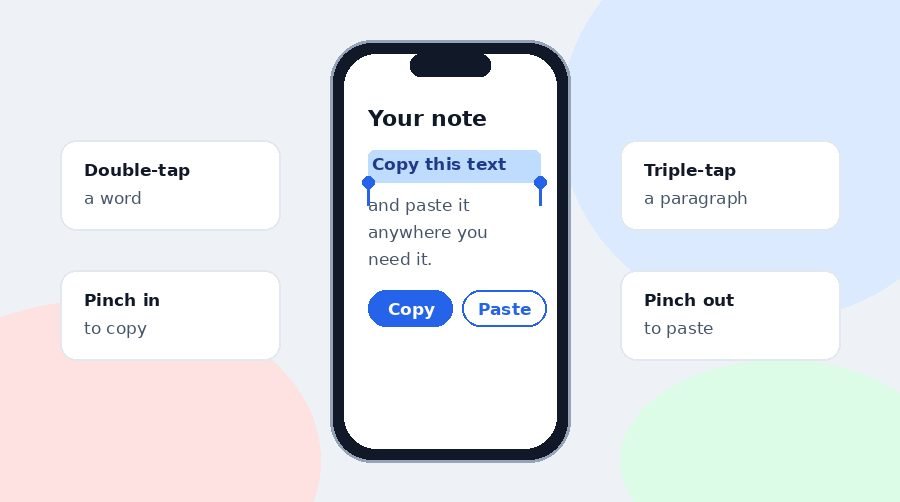
Selecting is the part most people struggle with, and it has the best shortcuts. Double-tap a word to select just that word. Triple-tap a paragraph to select the whole paragraph. Double-tap and hold the first word, then drag, to select a block in one motion. Then drag the blue handles to fine-tune the ends, using the magnified view near your finger.
| What you want to select | Gesture | Best for |
|---|---|---|
| One word | Double-tap the word | A name, a code, or a single term |
| One paragraph | Triple-tap the paragraph | A full answer or a block of text |
| A block of text | Double-tap and hold, then drag | Several lines or sentences at once |
| Everything in a field | Tap Select All in the menu | Copying a whole note or message draft |
| Fine adjustment | Drag a blue handle | Fixing the start or end by one word |
You can also turn the keyboard into a trackpad. Touch and hold the space bar until the keyboard turns light grey, then slide your finger to move the cursor. Touch the keyboard with a second finger to start selecting while you move the first finger. To move text inside one document, select it, hold it until it lifts up, then drag it to its new place.
The menu changes with the text. In a note you are writing, it offers Cut as well as Copy. On a web page or a received message, you will usually see Copy, Look Up, Translate, and Share instead. If the menu shows a right-pointing arrow, tap it for more options, including Select All.
How do you copy and paste a photo, link, or message on iPhone?
For a photo, open it in Photos or Safari, touch and hold it, and tap Copy. Then open Notes, Mail, or Messages, touch and hold in the editing area, and tap Paste. The photo appears in full. If Paste is greyed out, the app does not accept images, so use the Share button instead.
For a link, touch and hold the linked words on a page and tap Copy Link to copy the address, not the visible words. If you are already on the page, touch and hold the Safari address bar and tap Copy. Paste the link into a message, email, or note, where it appears as a full address the reader can tap.
For a message, open Messages, touch and hold the bubble, and tap Copy. The whole message is copied, even over several lines. Paste it where you need it, for example to quote it in an email or save a code in a note. Copying a message copies the text only, not the sender name or time, so add that context yourself if needed.
What are the three-finger gestures for copy and paste?
If the menu feels slow, use three fingers and no menu at all. These gestures have worked since iOS 13 and still work on iOS 27. After selecting text, pinch closed with three fingers to copy; a small Copy label flashes at the top. Pinch open with three fingers to paste. Pinch closed twice to cut text from an editable field.
The same fingers give you undo and redo. Swipe left with three fingers to undo, and swipe right to redo. A bad paste is easy to fix: swipe left, move the cursor, and paste again. The gestures work across apps, and you can mix them with the menu method however you like.
How do you copy on iPhone and paste on Mac or iPad?
Universal Clipboard lets you copy on one Apple device and paste on another, with no cable or email to yourself. Copy text or an image on your iPhone as normal, then paste it on your iPad or Mac. In reverse, copy on your Mac with Command-C, then touch and hold on your iPhone and tap Paste. The copy stays available only briefly, so paste soon after you copy.
Four conditions must all be true. Every device must be signed in to the same Apple Account, with Wi-Fi, Bluetooth, and Handoff all turned on. The devices must also be near each other, within about 30 feet or 10 metres. On iPhone, check Handoff in Settings, then General, then AirPlay and Continuity. On a Mac, it is in System Settings, then General, then AirDrop and Continuity.
Universal Clipboard has three limits. It carries only your latest copy, never a history, so a newer copy on either device replaces it. It is best for small text selections and single images, not for moving many files at once. For larger transfers, use AirDrop or a shared folder instead.
How is copy and paste different on iPhone, Android, and Mac?
The idea is the same everywhere — select, copy, paste — but the moves differ. On iPhone, everything is touch-based: tap, hold, and drag, or use the three-finger gestures. On a Mac, select with a mouse or trackpad, then press Command-C to copy and Command-V to paste. On Android, long-press to select and use the pop-up menu, much like iPhone, but Android often keeps a clipboard history, which iPhone does not.
Many top results for the generic phrase how to copy and paste answer it for all phones at once. That helps if you switch systems, but those guides cannot go deep on iPhone-only parts such as the three-finger gestures, Live Text, or Universal Clipboard. This guide stays iPhone-first, and treats other devices only as a comparison.
Why is paste not working on your iPhone, and how do you fix it?
First, check that you actually copied something. Open Notes, start a new note, touch and hold, and tap Paste. If nothing appears, select the text again and watch for the highlight and the Copy tap. Second, check that you copied recently, because the clipboard holds only the last item and a Universal Clipboard copy lasts only a short time.
Third, check the app and the field. Some apps block copying, and some fields do not accept pasting, especially password fields and secure forms. If it pastes in Notes but not in your app, the app is the limit, not your phone. Fourth, restart the app, then restart your iPhone, and check for a software update in Settings, then General, then Software Update.
Two causes are easy to miss. Since iOS 16, an app must ask before reading what you copied from another app, so if you tapped Do Not Allow by mistake, change that choice in Settings. A stuck selection can also block you: tap elsewhere to clear the blue handles, then select again. If Universal Clipboard fails, recheck its four requirements and restart both devices.
How do you copy text from a photo on iPhone?
Live Text lets you copy words straight out of a photo, a screenshot, or the camera view. Open a photo in Photos, touch and hold the text inside it, and iOS will let you select it like ordinary text. Drag the handles, tap Copy, then paste into a note, message, or search box. You can also tap the Live Text button in the corner of a photo to select all its text at once.
This suits signs, menus, receipts, book pages, and screenshots, where retyping would be slow and error-prone. It works best with clear, well-lit text, and can struggle with handwriting or very small print, so check the result before sending it. Learn the double-tap and triple-tap first, add the three-finger pinch when the menu feels slow, and set up Universal Clipboard once. If you paste into Notes often, our guide to Apple Notes as a productivity powerhouse shows how to organise those notes without extra apps.
Frequently asked questions about how to copy and paste on iPhone
How do you copy and paste on iPhone in the fastest way?
The fastest way is to double-tap a word to select it, drag the handles if you need more text, pinch closed with three fingers to copy, then go to the destination and pinch open with three fingers to paste. If you prefer menus, tap Copy after selecting, then touch and hold in the destination field and tap Paste. Both methods use the same clipboard, so use whichever feels quicker for the job in front of you.
Why can I copy on my iPhone but not paste it?
The most common causes are that you copied something else since, so the first item was replaced, that the destination field does not accept pasting, or that the app was not allowed to read the clipboard. First try pasting into a new note in Notes to check the clipboard itself. If it works there, the problem is the original app or field. If it does not work there either, copy again and paste straight away, then restart the app and your iPhone.
How do you select a whole paragraph on iPhone?
Triple-tap the paragraph with one finger, and the whole paragraph will be selected at once, with blue handles at each end. You can then tap Copy in the menu, or pinch closed with three fingers to copy without the menu. If the selection is slightly too long or too short, drag either blue handle to adjust it before you copy.
Can you copy on iPhone and paste on a Mac?
Yes, with Universal Clipboard. Sign in to the same Apple Account on both devices, turn on Wi-Fi, Bluetooth, and Handoff on both, and keep the devices within about 30 feet or 10 metres of each other. Copy on your iPhone as normal, then press Command-V on your Mac to paste. The copy is available only briefly, so paste soon after you copy, and do not copy anything else in between.
Where does copied text go on iPhone?
Copied text goes to the iPhone clipboard, which is a hidden holding place in iOS, not an app you can open. It holds only the most recent item you copied or cut, and a new copy replaces the old one. To see what is on the clipboard, open Notes, start a new note, touch and hold, and tap Paste. The pasted result shows exactly what the clipboard currently holds.
For a second opinion, see the MakeUseOf guide to how to copy and paste on iPhone. Apple documents the gestures on its Select, cut, copy, and paste text on iPhone page, and the cross-device rules on its Universal Clipboard guide for iOS 27 and its Use Universal Clipboard article.