
How to Set Up Voicemail on iPhone?
To set up voicemail on iPhone, open the Phone app, tap Voicemail, tap Set Up Now, create a voicemail password, and choose a Default or Custom greeting, then tap Save. On the newer unified Phone layout, tap Calls first, then the Filter button, then Voicemails, and tap Set Up Now there instead. The whole setup takes a few minutes, and your carrier, not Apple, runs the mailbox behind it, so the password rules and some of the prompts come from your carrier.
This guide covers iOS 27, which Apple released on 14 September 2026, with the current build 27.2.1. The menu names below match that version. If your iPhone looks different, update it first, because older versions move these controls. Apple says voicemail, Visual Voicemail, and Live Voicemail are available from select carriers in select countries or regions, so a missing option is usually a carrier or plan limit, not a broken phone. The steps below start with the built-in iPhone setup, then explain the greeting, Visual Voicemail, and Live Voicemail, then show where AT&T, Verizon, and T-Mobile genuinely differ.
What Is the Difference Between Voicemail, Visual Voicemail, and Live Voicemail?
Three features share the word voicemail, and mixing them up is the reason most setup guides feel confusing. Carrier voicemail is the mailbox your carrier keeps on its network. When you miss a call, the caller leaves a message there, and you reach it by calling in. Visual Voicemail is the same mailbox shown as a list inside the Phone app, so you can pick one message to play, share, or delete without listening to every message in order. Live Voicemail is different again: it shows a live transcription on your screen while the caller is still leaving the message, and you can pick up mid-message if it turns out to matter.
Most people need the first two, and the third is optional. Set up the mailbox once, and Visual Voicemail appears automatically if your carrier and plan support it. Live Voicemail is a separate switch in Settings, and it only works while your iPhone is on and connected to your carrier network. If your iPhone is turned off or out of range, Apple says the call is sent to carrier voicemail instead, if that service is available. That split is worth remembering, because it explains why some voicemail problems need your carrier, not a settings change.
How Do I Set Up Voicemail on iPhone Step by Step?
Start with the built-in setup, because it works the same way on every major US carrier when Visual Voicemail is supported. Open the Phone app. If you see a Voicemail tab at the bottom, you are on the classic layout, so tap Voicemail, then tap Set Up Now. If you see a single Calls view instead, you are on the unified layout, so tap Calls, tap the Filter button, tap Voicemails, and then tap Set Up Now. Apple documents both layouts in its current guide, and Apple Support confirms the first-time setup asks you to create a voicemail password and record your greeting.
Step 1: tap Set Up Now when it appears. It only shows the first time, before the mailbox exists. Step 2: create a voicemail password and enter it again to confirm. Your carrier sets the password rules, and the screen tells you the length it accepts, so do not guess a length from another carrier. Pick a password you can remember, because you will need it when you call your voicemail from another phone. Step 3: choose Default for the standard greeting, or Custom to record your own. Step 4: if you chose Custom, tap Record, speak your greeting clearly, tap Stop, tap Play to hear it back, and tap Save when you are happy with it. If you chose Default, tap Save or Done to finish.
If you do not see Set Up Now at all, and the screen shows Call Voicemail instead, your carrier does not offer Visual Voicemail on your plan, or the mailbox has not been provisioned yet. Tap Call Voicemail and follow the voice prompts to set up the mailbox by phone, exactly as you would by pressing and holding 1 on the keypad. How-To Geek reaches the same conclusion in its own iPhone voicemail guide: the Phone app path is the normal route, and the call-in route is the fallback when your carrier uses the older method. Once setup finishes, test it by calling your iPhone from another phone, letting it ring through to voicemail, and leaving a short message. Then open Phone, tap Voicemail, and check that the message appears and plays.
How Do I Record or Change My Voicemail Greeting?
Your greeting is the message callers hear when you do not answer, so it is worth recording a clear one with your name in it. To change it later, open the Phone app. On the classic layout, tap Voicemail, then tap Greeting in the top corner. On the unified layout, tap Calls, tap Voicemails, tap Edit, and then tap Edit Voicemail Greeting. Choose Default to use the standard message with your number, or choose Custom to record your own.
For a custom greeting, tap Record, wait a beat, then speak slowly and clearly. Say your name, say you cannot take the call, and say you will call back, then tap Stop and tap Play to check it. Record somewhere quiet, hold the phone at a normal distance, and do not rush the last words, because a greeting that gets cut off sounds worse than a short one. A good example is: Hi, you have reached Alex. I cannot take your call right now. Please leave a message after the beep, and I will get back to you as soon as I can. Thank you. Tap Save when it sounds right. Your new greeting replaces the old one straight away, so the next missed call hears the new version.
How Do I Turn On Live Voicemail on iPhone?
Live Voicemail shows you a real-time transcription as someone leaves a message, so you can read it and decide whether to answer before they finish. To turn it on, open Settings, tap Apps, tap Phone, and turn on Live Voicemail. The next time a caller is sent to voicemail, your iPhone displays their words as they speak. The caller cannot hear you and you cannot hear them unless you choose to answer the call. If the message is not worth answering, tap Stop to end the incoming voicemail without answering or blocking the caller.
Live Voicemail is not available in every country, region, or language, and it needs a carrier that supports it, so do not be surprised if the switch is missing on some lines. If you have Silence Unknown Callers turned on, Apple says unknown numbers go directly to Live Voicemail without ringing you first, which is why the two settings feel like one feature. Calls your carrier identifies as spam do not go through Live Voicemail and are instead declined straight away. If unknown callers are your main problem, our guide on how to block spam calls on iPhone shows how screening and carrier filters work together, and our guide on how to silence notifications on iPhone covers quieting the rest of the interruptions without missing the calls that matter.
To turn Live Voicemail off again, go back to Settings, tap Apps, tap Phone, and turn Live Voicemail off. Turning it off only stops the live transcript on your iPhone. It does not cancel voicemail on your line, so callers can still leave a message in your carrier mailbox, and you can still check those messages in the Voicemail tab.
How Do I Use Visual Voicemail and Sync It With iCloud?
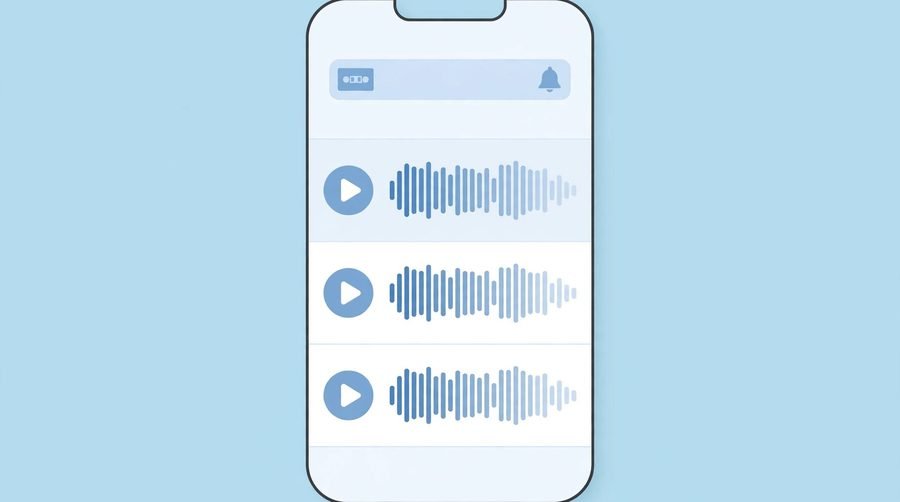
Visual Voicemail turns your messages into a list you can manage like email. Open the Phone app and tap Voicemail, or on the unified layout tap Calls, then Filter, then Voicemails. Tap a message to play it, use the playback controls to pause or skip ahead, tap the speaker icon to hear it on speaker, tap the phone icon to call the person back, or tap the trash icon to delete it. A badge on the Voicemail icon shows how many messages you have not heard yet. If your carrier supports transcription, you will also see the message as text under the recording.
To keep voicemails in sync across your devices, store them in iCloud. Go to Settings, tap your name, tap iCloud, tap See All next to Saved to iCloud, and turn on Phone & FaceTime. Apple says this syncs both Live Voicemail and carrier voicemail. Deleted messages go to a Deleted Voicemails list first, so check there if you deleted one by mistake. Save any message you need to keep, because carriers can clear old messages from the mailbox, and a message saved to your phone or shared to Files is the only copy you control.
Does Voicemail Setup Differ by Carrier?
Yes, but only in a few places, and the differences are all on the carrier side. The iPhone steps are the same: Phone, Voicemail, Set Up Now, password, greeting. What changes is the dial-in fallback, the password length, and how you recover a forgotten password, because your carrier owns the mailbox. Do not use another carrier’s dial-in code or password length as if it were universal. Use your own carrier’s row below.
| Carrier | How setup differs | Password rule | Good to know |
|---|---|---|---|
| AT&T | Same Phone app setup. If the phone sends you to dial-in, press and hold 1 on the keypad and follow the voice prompts. | 7 to 15 digits | Set up voicemail within 60 days of activation. You must set up Visual Voicemail on your own phone. |
| Verizon | Same Phone app setup. You can also dial *86 to finish setup or to hear messages by phone. | Set it when prompted; Verizon’s support FAQ does not state a fixed length | Messages left while Live Voicemail is on are not saved on Verizon’s system, so they cannot be retrieved by dialling *86. |
| T-Mobile | Same Phone app setup. You can also press and hold 1 and follow the voice prompts. | 4 to 7 digits | Dial #793# for a temporary PIN by text if you forget yours. T-Mobile says its Voicemail to Text feature may not work with Live Voicemail. |
The carrier details above come from each carrier’s own support pages, not from a roundup. If your carrier is not one of these three, start with the same Phone app setup and follow whatever your carrier’s own support page says for the fallback, because smaller carriers and MVNOs each set their own rules. Never pay for a voicemail setup service or an app that promises to set up voicemail for you. The mailbox is part of your phone plan, and setup is free through the Phone app or your carrier’s own prompts.
Why Is My Voicemail Not Working on iPhone?
Most voicemail failures are carrier problems, not phone problems, and the fix depends on which side is at fault. If the Voicemail tab shows Call Voicemail instead of a message list, or Set Up Now never appears, your carrier has not provisioned Visual Voicemail on your line, or your plan does not include it. Restart your iPhone, check for an iOS update, and check for a carrier settings update under Settings, then General, then About. If nothing changes, contact your carrier and ask them to check that voicemail and Visual Voicemail are active on your account. This is especially common after switching carriers, changing phones, moving from a physical SIM to eSIM, or porting a number, when provisioning can take time to finish.
If setup worked before and then stopped, think about what changed. A new SIM, a restored backup, or a carrier change can break the link between your iPhone and the mailbox. If calls go straight to voicemail without ringing, check that you have not left your phone on silent, in Do Not Disturb, or with Silence Unknown Callers on. If nobody can leave a message at all, your mailbox may be full, so delete old messages and try a test call again. If your iPhone is off, Apple says calls are sent to carrier voicemail if that service is available, which is why callers can still leave a message while your phone is dead. Our guide on how to turn off iPhone explains what stops working when the phone is off, and voicemail is the one thing that keeps working, because it lives on the carrier network.
Work through the checks in order: restart the iPhone, update iOS, confirm you have cellular signal, open the Voicemail tab and look for an error, then call your carrier. Do not reset network settings or erase the phone first. Those steps wipe saved Wi-Fi passwords and settings, and they cannot fix a mailbox that was never provisioned. If your carrier confirms voicemail is active and the iPhone still cannot set it up, contact Apple Support, because at that point the problem is on the phone itself.
How Do I Change My Voicemail Password?
To change a voicemail password you still know, open Settings, tap Apps, tap Phone, and tap Change Voicemail Password. Enter the new password and tap Done. On older iOS versions the same option sits under Settings, then Phone, with no Apps step. Choose a password that follows your carrier’s length rule, and write it down somewhere safe, because a voicemail password is easy to forget when you only use it after changing phones.
If you forgot the password, your iPhone cannot show it to you, and only your carrier can reset it. On T-Mobile, dial #793# for a temporary PIN by text, then set a new one when prompted. On AT&T and Verizon, contact your carrier or use the carrier app to reset it, then set a new password the next time you open the Voicemail tab. Never share your voicemail password with anyone who calls or texts asking for it. A real carrier will never ask for it that way, and anyone with it can listen to your messages from another phone.
Frequently Asked Questions
Why does my iPhone keep asking me to set up voicemail?
Your iPhone asks you to set up voicemail because the mailbox has not been created yet, or your carrier has not finished provisioning it on your line. Finish the setup in Phone, then Voicemail, then Set Up Now, and if the prompt comes back after a restart, contact your carrier and ask them to check that voicemail is active on your account.
Can I set up voicemail on iPhone without calling my carrier?
Yes, in most cases. Open the Phone app, tap Voicemail, tap Set Up Now, create a password, and choose a greeting. You only need to call your carrier if that screen never appears, if setup keeps failing, or if you need a forgotten password reset.
How do I turn off Live Voicemail on iPhone?
Open Settings, tap Apps, tap Phone, and turn Live Voicemail off. Turning it off only stops the live transcript on your iPhone. It does not cancel voicemail on your line, so callers can still leave a message in your carrier mailbox.
Why is Visual Voicemail not showing on my iPhone?
Visual Voicemail only appears when your carrier and plan support it, so first check that voicemail is active on your line. Restart your iPhone, check for an iOS update and a carrier settings update, and if the Voicemail tab still shows Call Voicemail instead of a message list, ask your carrier to check your provisioning.
What do I do if I forgot my voicemail password?
Your iPhone cannot show you a forgotten voicemail password, so only your carrier can reset it. On T-Mobile, dial #793# for a temporary PIN by text. On other carriers, contact support or use the carrier app, then set a new password you will remember.