
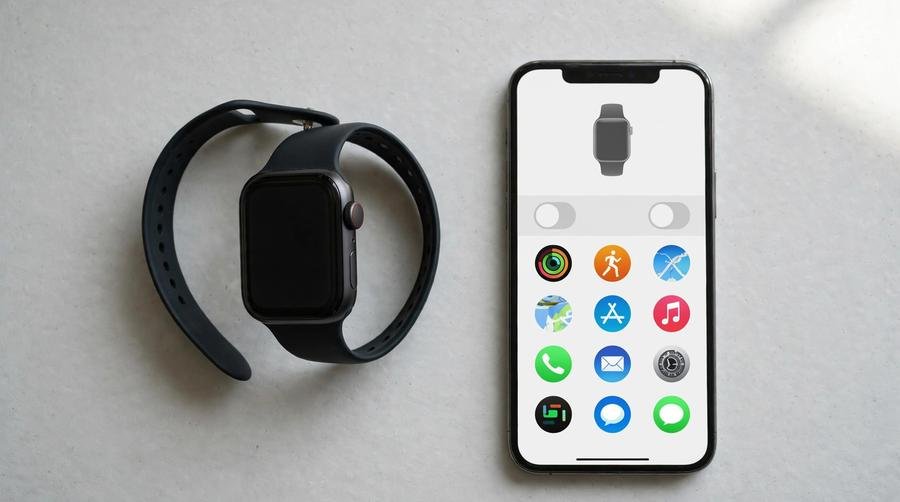
Learning how to unpair apple watch the right way matters, because the wrong method can leave the watch locked to your Apple Account even after it has been wiped clean. Unpairing from the iPhone first backs the watch up, then erases it, restores factory settings, and turns off Activation Lock. That is the safe route for selling, giving away, trading in, or moving a watch to a new iPhone.
This guide covers the full process for iOS 27 and watchOS 27: backups, cellular plans, moving to a new iPhone, and fixing a watch that will not unpair. Keep both devices close and charged, and have your Apple Account password ready.
What does unpairing an Apple Watch actually do?
Unpairing does four things at once: the iPhone backs up the watch, saving faces, settings, app layout, and health and fitness history; the watch is erased and returns to factory settings; and Activation Lock is turned off, releasing the watch from your Apple Account.
Activation Lock turns on automatically when Find My is set up on the paired iPhone, tying the watch to your Apple Account so nobody else can activate it without your password, even after an erase. That protection is valuable when a watch is lost, but a buyer who receives a locked watch will be asked for your password during setup, and the watch will be unusable until the lock is removed.
Erasing the watch on its own does not do the same job. If you open Settings on the watch, go to General, then Reset, and tap Erase All Content and Settings, the watch is wiped but stays paired and Activation Lock stays on. The same applies to Erase Apple Watch Content and Settings in the Watch app, under My Watch, then General, then Reset.
What should you do before you unpair your Apple Watch?
Charge both devices and keep them close together, because unpairing works over Bluetooth and a weak connection can stall it. The menu names here match iOS 27.2.1 and watchOS 27.2.1, and watchOS 27 runs on Series 9 and later, SE 3, and Ultra 2 and later.
Confirm you know your Apple Account password, needed to turn off Activation Lock, and your watch passcode. Remove any transit cards first: in the Watch app, tap My Watch, then Wallet and Apple Pay, then tap the transit card and remove it.
Finally, back up the iPhone itself. The watch backup created during unpairing lives on the paired iPhone and is included when that iPhone is backed up to iCloud or a computer, so it travels to a new iPhone with the iPhone backup. Lose or wipe the old iPhone first, and the watch backup goes with it. Health and fitness data needs iCloud or an encrypted computer backup to be preserved in full.
How do you unpair an Apple Watch with your iPhone?
This is the recommended method whenever you still have the paired iPhone, and the only one that backs up the watch, erases it, and removes Activation Lock in a single pass.
-
Keep your Apple Watch and iPhone close together, with enough charge to finish.
-
On the iPhone, open the Apple Watch app.
-
Tap the My Watch tab, then tap All Watches at the top.
-
Tap the info button, the small letter i in a circle, next to the watch.
-
Tap Unpair Apple Watch, then tap Unpair followed by your watch name.
-
If the watch is on a cellular plan, decide now whether to keep the plan or remove it.
-
Type your Apple Account password to turn off Activation Lock, then tap Unpair.
The iPhone first backs up the watch, then the watch erases itself and restarts. When it finishes, it shows the Start Pairing screen, ready for a new owner or a fresh setup. The process usually takes a few minutes.
If the watch is paired with an iPhone you are also replacing, unpair the watch before wiping the old iPhone, because the watch backup is created there and travels with its backup to the new phone. Our guide to how to transfer iPhone to iPhone covers the phone side of that move.
How do you erase an Apple Watch without your iPhone?
Sometimes the paired iPhone is lost, broken, or sold, and you still need to wipe the watch. You can erase it directly from the watch itself, but Activation Lock stays on, so it will still ask for the original Apple Account and password at setup. This method alone is not enough for a sale or a gift.
-
On the Apple Watch, open the Settings app.
-
Tap General, then scroll down and tap Reset.
-
Tap Erase All Content and Settings, and type your watch passcode if asked.
-
When asked about the cellular plan, pick Keep Plan if you will pair the watch again, or Remove Plan if you are giving it away.
-
Tap Erase All to confirm, then wait for the watch to erase and restart.
No backup is created when you erase the watch this way, because there is no paired iPhone nearby to receive one. Anything only on the watch and not already synced to iCloud is lost.
Once the watch has been erased on its own, release Activation Lock from the web: at icloud.com/find, sign in with the same Apple Account, open Find My, select the watch, and choose Remove from Account. Do not hand the watch to a buyer until this is done, and if the watch is already gone, the same step still works from anywhere.
What happens to your cellular plan when you unpair?
Only GPS plus Cellular models ask the cellular question. Keep the plan if you will pair the same watch with the same iPhone again, for example to fix a problem or move it to a new iPhone. Remove the plan if the watch is going to someone else, because the new owner will set up their own plan.
Removing the plan from the watch does not cancel your carrier subscription, so contact your carrier to cancel it if you will not use the plan on another watch, and check your contract first, because fees may apply. You can also remove a plan without unpairing: in the Watch app, tap My Watch, then Cellular, then the info button next to your plan, and tap Remove followed by your carrier name.
How do you move an Apple Watch to a new iPhone?
A watch can only be paired with one iPhone at a time, so the move is always unpair first, then pair again, with the backup made during unpairing carrying your settings across.
-
On the old iPhone, unpair the watch in the Watch app, choosing Keep Plan on a cellular model.
-
Back up the old iPhone to iCloud or a computer, so the fresh watch backup is included.
-
Set up the new iPhone and restore it from that iPhone backup before pairing the watch.
-
Bring the watch close to the new iPhone and follow the pairing prompts.
-
Choose Restore from Backup and pick the most recent watch backup.
Health and fitness data comes back too, provided the iPhone backup was made to iCloud or as an encrypted computer backup. After the restore, add Apple Pay cards again and re-pair Bluetooth accessories, because those are never in a watch backup. If the new iPhone was set up as a new device, the watch backup may not appear, and the fix is to erase the new iPhone, restore it from the old backup, and pair the watch again.
How do you check Activation Lock is really off?
The simplest check is visual: after unpairing, the watch should show the Start Pairing screen, and the Watch app should no longer list it under All Watches. If it still shows your face or apps, it was erased rather than unpaired.
For a firmer check, sign in to icloud.com/find: the watch should not appear in the device list after a proper unpair, and if it does, select it and choose Remove from Account. The MakeUseOf guide to managing Apple Watch Activation Lock is a useful second reference. If you are the buyer, ask the seller to unpair in front of you, since Apple cannot remove the lock for a buyer without proof of purchase from the original owner.
What if your watch is going for repair on watchOS 27?
Apple says a watch on watchOS 27 or later should use Ready for Repair or Trade In, turned on from the paired iPhone on iOS 27 or later, instead of being unpaired, because that keeps Find My on while the watch is away. Unpairing is still the instruction for watchOS 26 or earlier.
Unpairing is not a fix for every problem, so try a restart and a software update first. Our companion guide to how to reset Apple Watch covers lighter reset options for a watch you plan to keep.
Why will my Apple Watch not unpair?
First, check distance and connection: the watch and iPhone must stay close together with Bluetooth on, or the unpair can stall. Second, check the Apple Account password: a wrong password, or a locked account, stops the unpair at the password step. Reset it through Apple Account recovery, sign back in, and try again, without guessing repeatedly.
Third, check for a software problem. Restart both devices and check for updates. If the screen is frozen, hold the side button and the Digital Crown together for ten seconds until the Apple logo appears. If you have forgotten the passcode, put the watch on its charger, hold the side button until the power button appears, then hold the Digital Crown until Erase all content and settings appears, and tap Reset twice. That erases the watch without the passcode, but creates no backup and does not remove Activation Lock.
When Activation Lock is stuck after an erase, the watch was usually erased on its own, or the unpair was interrupted before the password step. Sign in to icloud.com/find, select the watch, and choose Remove from Account, then wait a few minutes and try pairing again with the same Apple Account. If the plan will not transfer, contact the carrier first, because only the carrier can move or cancel it. If you need to turn Find My off on the iPhone, our guide to how to turn off Find My iPhone explains that step safely.
Which unpairing method should you use?
The table below sums up the choice. With the paired iPhone, always use the Watch app method, the only one that backs up the watch and releases the lock. Without it, erase on the watch and remove it at icloud.com/find.
| Your situation | Method to use | Backup created? | Activation Lock removed? |
|---|---|---|---|
| You have the watch and the paired iPhone | Unpair in the Apple Watch app on the iPhone | Yes | Yes |
| You have the watch but not the paired iPhone | Erase on the watch, then Remove at icloud.com/find | No | Yes, after the Remove step |
| The watch is already gone | Remove at icloud.com/find | No | Yes, after the Remove step |
| You are keeping the watch and fixing a glitch | Unpair in the Watch app, then pair again and restore | Yes | Yes, then on again after pairing |
| The watch is going for repair on watchOS 27 | Ready for Repair or Trade In from the iPhone | Not by unpairing | Kept on during repair |
Apple Support is the authority for these steps: the unpairing guide at Apple Support: Unpair and erase your Apple Watch and the backup guide at Apple Support: Back up your Apple Watch.
Frequently asked questions
Does unpairing an Apple Watch erase everything on it?
Yes, unpairing erases everything on the watch and restores it to factory settings, which is why the iPhone makes a backup first. Your faces, settings, app layout, and health and fitness data are saved in that backup, but Apple Pay cards, Bluetooth pairings, and the passcode are not included, so you will set those up again after pairing.
Can I unpair an Apple Watch without the paired iPhone?
Yes, you can erase the watch from Settings, then General, then Reset, then Erase All Content and Settings, but that alone does not remove Activation Lock and creates no backup. To release the lock, sign in to icloud.com/find with the same Apple Account, select the watch, and choose Remove from Account before handing it to someone else.
Will unpairing cancel my Apple Watch cellular plan?
No, removing the plan from the watch does not cancel your carrier subscription, and you still need to contact your carrier to cancel it if you will not use the plan on another watch. Choose Keep Plan if you will pair the same watch again, and Remove Plan if it is going to someone else, then check with your carrier about fees.
How do I move my Apple Watch to a new iPhone?
Unpair the watch from the old iPhone first, then back up the old iPhone to iCloud or a computer so the fresh watch backup is included. Set up the new iPhone, restore it from that backup, then pair the watch and choose Restore from Backup.
What should I do if Activation Lock is still on after I erased the watch?
Sign in to icloud.com/find with the Apple Account the watch was paired to, select the watch in Find My, and choose Remove from Account. Wait a few minutes, then try setup again. If it still asks for the old account, contact Apple Support with proof of purchase if you are the original owner.
Unpairing is short once you know the order: back up the iPhone, unpair from the Watch app with the password ready, choose the cellular option deliberately, and check the lock is off before the watch leaves your hands.