
How to Use Canva for Free?
To learn how to use Canva for free, create a free account at canva.com, pick a design type or a free template, swap in your own words and photos, and download the finished design as a PNG, JPG, PDF, or MP4 without paying anything. Canva Free costs nothing and has no time limit, so you can keep using it for as long as you like. The trick to using it like a pro is knowing which templates, photos, and tools are genuinely free, and steering around the ones marked Pro, because a single Pro element in your design is what turns a free download into an upgrade prompt.
Canva is a browser-based design tool, so there is nothing to install on a computer, and the same free account works in the Canva app on your phone. Most everyday designs work fine on the free plan: social media posts, flyers, invitations, presentations, resumes, YouTube thumbnails, and simple videos. This guide walks through the full workflow, from setting up the account to exporting a clean file, and it spells out exactly where the free plan stops and the paid plan starts, so you never waste an hour on a design you cannot download for free.
What Can You Actually Do With Canva Free?
Canva Free is a real working plan, not a short trial. You get the full drag-and-drop editor, a large library of free templates, photos, and graphics, the ability to upload your own files, and free downloads in the most common formats. You also get 5 GB of cloud storage for your uploads and designs. If you want the full picture of what the free plan covers before you start, read everything you need to know about Canva Free on this site. The table below shows how the free plan compares with the paid plan on the points that matter most when you are deciding whether to pay.
| Feature | Canva Free | Canva Pro |
|---|---|---|
| Price | $0, no time limit | $18 per month, or $144 per year ($12 per month billed yearly) |
| Templates, photos, and graphics | Large free library | Full premium library, including everything marked Pro |
| Cloud storage | 5 GB | 100 GB |
| Brand Kit | Not included | Included, for saving your logo, colors, and fonts |
| Magic Resize | Not included | Included, resizes one design for many formats |
| Background Remover | Not included | Included, removes a photo background in one click |
| Download formats | PNG, JPG, PDF, MP4 | Everything in Free, plus transparent PNG and SVG |
| AI tools | Limited access | Full access, with a larger monthly allowance |
The free plan has one limit that catches more beginners than any other: storage. Your uploads count against the 5 GB, so a free account fills up faster than most people expect if you upload lots of large photos and videos. Upload only the files you need for the design in front of you, and delete old uploads and unused designs from time to time. Canva saves your work automatically as you go, so there is no Save button to hunt for, and your designs stay in your account until you delete them.
How Do You Set Up Your Free Canva Account?
Setting up a free account takes about a minute. Go to canva.com and click Sign up, then continue with your email address, or with Google or Apple. Canva sends a code to your email address to confirm it, and then asks for your name. That is the whole setup: there is no card needed, and no trial clock starts ticking, because the free plan is free for good.
During setup Canva asks what you plan to use it for, such as personal projects, school, or business. Your answer shapes the templates Canva suggests on your home page, so pick the closest match rather than skipping through it. If you picked the wrong one, you can change it later in your account settings, and it does not lock you out of any template or feature. Once you are in, your home page shows your recent designs, suggested templates, and a search bar at the top, and the same account signs you in on the Canva app, where your designs sync across devices.
One setup choice is worth making early: turn on two-step verification in your account settings. Your Canva account holds your designs and your uploaded photos, so a second step at sign-in is cheap protection. Canva also offers free Pro-level access for verified teachers and registered nonprofits through its Education and Nonprofits programs, so if you teach or run a nonprofit, check whether you qualify before you ever consider paying.
How Do You Make Your First Design in Canva Free?
Start with a template, not a blank page. A template is a finished layout made by a professional designer, and your job is only to replace its words, photos, and colors with your own. Starting blank is slower and usually ends in a layout that looks empty, which is the most common beginner mistake. Follow these steps for your first design.
- On the Canva home page, type what you want to make in the search bar, such as Instagram post, flyer, presentation, or resume, and pick the design type that matches.
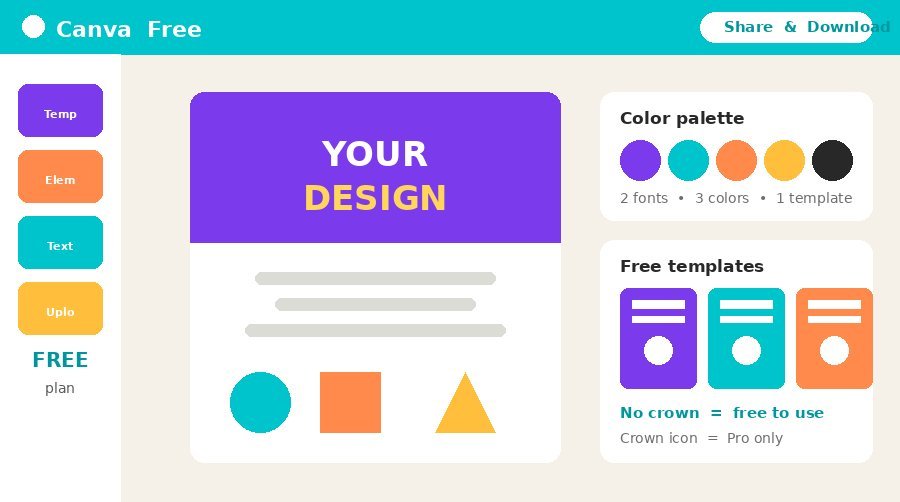
- Browse the templates and open one you like. Choose a template without a crown icon, because the crown marks Pro content that needs a paid plan.
- Double-click any text to replace it with your own words, and click a photo to replace it with one of your uploads or a free photo from Canva.
- Use the side panel to add more: Templates for new layouts, Elements for shapes, icons, and stickers, Text for new text boxes, and Uploads for your own files.
- Check the whole design once at full size, fix any text that runs off the edge or overlaps another element, then download it from the Share menu.
Learning the editor itself is mostly a matter of clicking around, and Canva’s own beginner guide covers the same ground with screenshots. If you get stuck on a tool, the fastest fix is to click the element and look at the toolbar that appears above the canvas, because the tools you need for that element, such as font, size, color, and position, always appear there. Press T on your keyboard to add a text box quickly, and use the Undo arrow at the top left whenever an experiment goes wrong, because nothing you do in Canva is permanent until you stop undoing.
How Do You Find Only Free Templates and Elements?
The difference between a smooth free session and a frustrating one is the filter. When you search templates or elements, look for the small crown icon on the thumbnail. Anything with a crown is Pro, and anything without it is free to use and download. If your design uses even one Pro element, Canva will ask you to upgrade or remove that element before you download, so check for crowns before you invest time in a layout, not after.
In the Elements tab, the search results mix free and Pro items together, so scroll past the top rows, which are often premium, and look for items without the crown. The same applies to photos: Canva’s free photo library is large, but the most polished results in a search are often Pro. A good habit is to pick your photos first from the free results, and only then build the layout around them, rather than falling in love with a Pro photo halfway through a design. If you find a free template you like, click it and check every page of it, because multi-page templates can hide a Pro element on a later page.
Your own uploads are always free to use, and they are often the best way to make a free design look original. Upload your own photos, your logo, and any brand images you own, and use them instead of the stock photos everyone else is using. If your iPhone photos will not upload, the file is probably in HEIC format, so convert HEIC photos to JPG first, then upload the converted file. Keep your uploads small where you can, because they count against your 5 GB of free storage.
How Do You Make a Free Design Look Professional?
A professional look on the free plan comes from restraint, not from premium assets. The designs that look amateur usually break the same few rules: too many fonts, too many colors, text crammed to the edges, and a different style on every page. Fix those four things and a free template can look like paid work. Use two fonts at most, one for headings and one for body text, and keep them the same across the whole design. Pick two or three colors and reuse them, rather than introducing a new color for every element.
Give every element room to breathe. Keep text and important details away from the edges of the canvas, because social apps and printers both crop the edges, and a headline that touches the border looks like a mistake. Use Canva’s alignment guides, which appear as thin lines when you drag an element into line with another one, and use them to line up text boxes, photos, and buttons rather than eyeballing the spacing. When two elements overlap, send the background one behind the text with the Position controls, so nothing sits on top of your headline by accident.
Consistency is what makes a set of designs look like they came from one person. If you make social posts every week, reuse the same template, the same two fonts, and the same colors, and only change the words and the photo. That repeatable setup is the free-plan version of a Brand Kit, which is a paid feature, and it saves more time than any premium template. Before you download, zoom out and look at the design as a whole for five seconds: if one element jumps out as wrong, fix that one thing before anything else, because the first thing a viewer notices is the first thing worth fixing.
How Do You Download and Share Your Design for Free?
Downloading is free, and Canva gives you the formats most people need. Click Share at the top right of the editor, then Download, and pick a file type. Use PNG for social posts and anything with text, because it stays sharp. Use JPG for photos and for files you want to keep small. Use PDF for anything you will print, such as a flyer or a resume, and choose PDF Print if you want the highest quality. Use MP4 for a video or an animated design. Canva saves your work as you go, so there is no separate save step before you download.
Two free-download limits are worth knowing before you need them. First, transparent backgrounds are a Pro feature, so a free PNG download always has a solid background, and if you need a logo with no background, you will need a paid plan or a different tool for that one job. Second, SVG files are Pro-only, so if a printer or a client asks for an SVG, a free account cannot produce one. For everything else, the free formats cover the job, and a PNG at the right size looks identical whether it came from a free account or a paid one.
Sharing from Canva is free too. The same Share menu lets you send a link to the design, invite someone to view or edit it, or post it directly to social media. If you share an edit link, anyone with the link can change your design, so share a view-only link when you only want feedback, and keep the edit link for people you trust to change the work. On the phone, the same options sit under the Share button, and the Canva app can post straight to Instagram or TikTok, which the desktop version cannot do directly. MakeUseOf walks through the phone version step by step in its guide to how to use the Canva app, which is useful if you design on the go.
When Is It Worth Paying for Canva Pro?
Most people never need to pay, and the honest test is whether a paid feature would save you real time every week. Canva Pro costs $18 per month if you pay month to month, or $144 per year, which works out to $12 per month billed yearly, and Canva offers a 30-day free trial of Pro. The features that justify it for regular creators are Magic Resize, which turns one design into copies at other sizes instead of rebuilding it each time, Background Remover, which cuts out a photo background in one click, the full Brand Kit for saving your logo, colors, and fonts, and the full premium library of templates, photos, and graphics. For the full list of what the paid plan adds, see the features of Canva Pro on this site.
Pay for Pro when you hit the same wall three times. If you rebuild the same post in three sizes every week, Magic Resize pays for itself. If you remove photo backgrounds by hand every day, Background Remover pays for itself. If you only need one premium template for a single project, do not subscribe: rebuild that layout with free elements instead, or finish the project during the 30-day trial and cancel before it ends, remembering to set a reminder so the trial does not roll into a paid month. If you design once a month or less, the free plan is the right plan, and the money is better spent elsewhere.
The Bottom Line
Using Canva for free like a pro means starting from a free template, using only elements without a crown, keeping your fonts and colors consistent, and downloading as a PNG, JPG, PDF, or MP4. The free plan costs $0, includes 5 GB of storage, and has no time limit, so the only real costs are your time and your storage. Magic Resize, Background Remover, Brand Kit, transparent PNG, and SVG stay behind the Pro paywall, and Pro costs $18 per month or $144 per year, so check the price on Canva’s pricing page before you upgrade, because Canva changes it from time to time. Build one good free template, reuse it, and you will get professional-looking designs without paying for a single month.
Frequently Asked Questions
Is Canva really free to use?
Yes, Canva Free costs $0 and has no time limit. You get the full editor, a large library of free templates, photos, and graphics, uploads, sharing, and downloads as PNG, JPG, PDF, or MP4. You only pay if you choose Canva Pro for premium content and tools.
What is not free in Canva?
Anything marked with a crown icon is Pro-only, including premium templates, photos, and graphics. Magic Resize, Background Remover, the full Brand Kit, transparent PNG downloads, and SVG downloads also need a paid plan. If your design uses a Pro element, Canva asks you to upgrade or remove it before you download.
Can I download my design from Canva for free?
Yes, free downloads cover PNG, JPG, PDF, and MP4, which are enough for social posts, flyers, resumes, presentations, and simple videos. Transparent PNG and SVG downloads are Pro-only, so a free PNG always has a solid background.
Can I use Canva for free on my phone?
Yes, the Canva app for iPhone and Android is free, and it signs in with the same free account as the website, so your designs sync across devices. The app has the same templates, editor, and export options, with the layout rearranged for a small screen.
Do I need Canva Pro to make professional designs?
No, professional-looking designs come from a good template, two fonts at most, a small set of colors, and careful alignment, and all of that works on the free plan. Pro saves time with Magic Resize, Background Remover, and Brand Kit, but it does not make a bad layout good.