
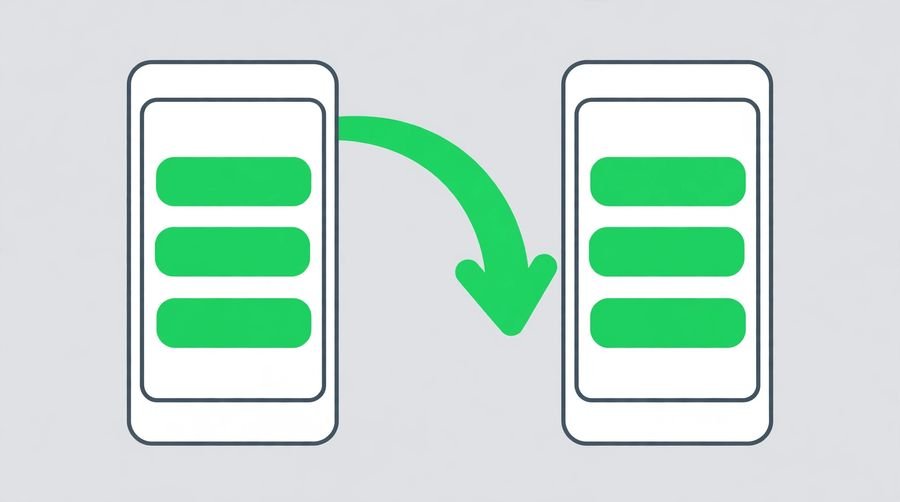
How to Transfer WhatsApp Chats to New Phone?
To transfer WhatsApp chats to a new phone, use WhatsApp’s own Chat Transfer feature, which moves your chats directly from the old phone to the new one with a QR code, and keep the same phone number on both phones. The exact steps depend on which phones you have, because Android to Android and iPhone to iPhone use a QR code inside WhatsApp, iPhone to Android starts in WhatsApp on the iPhone, and Android to iPhone uses WhatsApp’s own QR transfer or Apple’s Move to iOS app. Before you start anything, do not register WhatsApp on the new phone yet, because the transfer has to begin before WhatsApp is activated there, and old and new chats cannot be merged afterwards.
Losing years of WhatsApp chats is the fear that stops most people from enjoying a new phone, and the fear is fair, because a chat history holds family photos, work documents, and conversations you cannot recreate. The good news is that WhatsApp now handles every direction itself, without a paid app, and the transfer stays end-to-end encrypted while it runs. This guide puts all four directions in one place, with the official method for each, what moves across and what does not, and what to do when something goes wrong, so you can pick your phone pair from the table below and follow only the steps that apply to you.
Which WhatsApp Transfer Method Should You Use?
Your phone pair decides the route, and each route has its own requirements, so find your move in the table below before you touch either phone. Every route needs the same phone number on both phones, the latest version of WhatsApp on both phones, and both phones charged and close together.
| Your move | Official method | What you need | Backup fallback |
|---|---|---|---|
| Android to Android | Chat Transfer with a QR code inside WhatsApp | Android 6 or later on both phones, Wi-Fi turned on, new phone not registered on WhatsApp yet | Restore a Google account backup |
| iPhone to iPhone | Transfer Chats to iPhone with a QR code inside WhatsApp | Latest iOS and latest WhatsApp on both phones, Wi-Fi and internet, local network permission | Restore an iCloud backup |
| iPhone to Android | In WhatsApp: Chats, then Transfer chat history, then Transfer to Android | Android 6 or later, latest WhatsApp on both phones, stable Wi-Fi | None across platforms; a backup restores only on the same system |
| Android to iPhone | In WhatsApp: Chats, then Transfer chats, then Transfer to iPhone; or Move to iOS during iPhone setup | Android 10 or later, iOS 15.5 or later, latest WhatsApp, iPhone not registered on WhatsApp yet | None across platforms; a backup restores only on the same system |
A Google account backup restores only on an Android phone, and an iCloud backup restores only on an iPhone, so a backup is a safety net for a same-platform move, not a way to switch platforms. That is why the direct transfer matters so much when you change from iPhone to Android or the other way round, and why you should make a fresh backup before you start even when you plan to use the direct transfer.
What Do You Need Before You Start?
A failed transfer is almost always a missed requirement, not a broken phone, so run through this checklist on both phones before you begin. WhatsApp lists these requirements in its own help pages, and they apply to every direction.
- Use the same phone number on the new phone as on the old phone, because chats cannot move to a different number.
- Update WhatsApp to the latest version on both phones, and update the phones themselves if an update is waiting.
- Keep both phones close together, connected to a power source, and with Wi-Fi turned on.
- Do not register WhatsApp on the new phone until the transfer starts, because the move has to happen before WhatsApp is activated there.
- Make a backup first, even if you plan to use the direct transfer, so you have something to fall back on.
- Do not delete WhatsApp, reset, or wipe the old phone until you have confirmed that the chats arrived safely on the new phone.
If you are also changing your number, change it on the old phone first, because WhatsApp says it is not possible to transfer chats to a new phone number. If you are moving from an iPhone to an Android phone and want to move the rest of your data too, our guide on how to switch from iPhone to Android walks through the full move, and the WhatsApp steps below fit into it. Before an iPhone move of any kind, it is also worth reading our guide on how to back up iPhone, so your iCloud backup is current before you start.
How Do You Transfer WhatsApp Chats From Android to Android?
Android to Android is the simplest move, because WhatsApp’s Chat Transfer feature moves your full chat and media history directly between the two phones. WhatsApp says the transfer moves all account information, including personal messages, photos, videos, and documents, but you cannot transfer peer-to-peer payment messages or media received over WhatsApp Channels.
- On your old phone, open WhatsApp and tap More Options, then Settings, then Chats, then Transfer chats, then Start.
- Accept the permissions WhatsApp asks for, and get ready to scan the QR code that will appear on your new phone.
- On your new phone, download WhatsApp, open it, and tap Agree and continue.
- Verify your phone number and accept the permissions WhatsApp asks for.
- Under Restore or transfer chats, select Transfer from old phone.
- Tap Continue, then Start, and accept the permission to access nearby Wi-Fi devices.
- Use the camera on your old phone to scan the QR code shown on your new phone.
- Tap Accept on your new phone to link the two phones, then wait while the progress bar runs.
- When the import is complete, tap Next.
Keep both phones unlocked and stay inside WhatsApp while the transfer runs, because messaging is paused during the move and leaving the app can interrupt it. The phones only need Wi-Fi turned on, and they do not need to be connected to a network, but both should be plugged into power. If the transfer fails or gets stuck, WhatsApp suggests turning both phones off, waiting 30 seconds, turning them back on, and trying again. If the direct transfer will not work at all, restore a Google account backup instead, by installing WhatsApp on the new phone, verifying the same number, and tapping Restore when WhatsApp finds the backup.
How Do You Transfer WhatsApp Chats From iPhone to iPhone?
iPhone to iPhone also uses a direct transfer inside WhatsApp, and it needs no iCloud backup, although making one first is still wise. WhatsApp says the transfer moves your full chat and media history, but you cannot transfer peer-to-peer payment messages, your call history, or media received over WhatsApp Channels.
- On your old iPhone, open WhatsApp and tap your profile picture, then Chats, then Transfer Chats to iPhone, then Start.
- Tap Allow if WhatsApp asks for camera access, because you will use the old iPhone’s camera to scan a QR code.
- On your new iPhone, open WhatsApp, tap Agree and continue, and verify your phone number.
- Tap Continue on the Transfer chat history to iPhone screen and accept the local network permission.
- Use the WhatsApp camera on your old iPhone to scan the QR code on your new iPhone.
- Keep both phones near each other, unlocked, and inside WhatsApp while the percentage bar runs.
- When you see Transfer completed, tap Next, enter your name on the Setup Profile page, and you will see your Chats list.
Both iPhones need the latest iOS and the latest WhatsApp, and both need Wi-Fi with an internet connection plus local network permission. The transferred data does not go to cloud storage unless you create an iCloud backup afterwards, and WhatsApp cannot see the data you transfer. Your old iPhone keeps its data unless you delete WhatsApp or reset it, so leave it alone until you have checked the new phone. If the transfer will not start, update WhatsApp on both phones and check Settings, then Chats, again, because the transfer option only appears on the latest version.
How Do You Transfer WhatsApp Chats From iPhone to Android?
iPhone to Android is handled by WhatsApp itself, and the move stays end-to-end encrypted throughout. WhatsApp says you can transfer your account information, individual and group chats, communities, Channels updates, chat history, call history, media, and settings, but you cannot transfer your display name, status updates, media received over WhatsApp Channels, or peer-to-peer payment messages.
- On your iPhone, open WhatsApp and go to Chats, then Transfer chat history, then Transfer to Android.
- When your chats are prepared, tap Continue.
- If prompted, tap Allow to let WhatsApp use the camera.
- Keep your iPhone unlocked during the transfer.
- On your Android phone, open WhatsApp and verify your account with the same number you use on your iPhone.
- When prompted, tap Allow so your devices can connect, and a QR code appears.
- Use your iPhone camera to scan the QR code.
- When prompted, tap Join to connect to the Wi-Fi network and start the transfer.
- When the transfer completes, tap Next on your Android phone to see your chats.
You need an Android phone with Android 6 or above, the latest WhatsApp on both phones, the same phone number on both, and a stable Wi-Fi connection. The transfer only works before you have activated WhatsApp on the new Android phone, so if WhatsApp is already active there, uninstall it first and start again, because you cannot merge new chats from the new phone with old chats from the old phone. Uninstalling WhatsApp on the new phone deletes any chats already saved on it, so check that you have a backup first. The transfer runs over a local Wi-Fi connection, so the data does not go to cloud storage, although a separate iCloud backup you made earlier may still hold a copy.
How Do You Transfer WhatsApp Chats From Android to iPhone?
Android to iPhone now has its own direct transfer inside WhatsApp, so you no longer need a third-party app. WhatsApp says you can transfer your personal messages, account information, individual and group chats, communities, Channels updates, call history, media, and settings, but you cannot transfer your display name, peer-to-peer payment messages, or media received over WhatsApp Channels.
- On your Android phone, open WhatsApp and go to Settings, then Chats, then Transfer chats, then Transfer to iPhone.
- Tap Start and wait while your chats are prepared.
- On your iPhone, install the latest version of WhatsApp from the App Store.
- Open WhatsApp on your iPhone and verify your account with the same phone number you use on your Android phone.
- When prompted, grant network permissions on both phones.
- A QR code appears on your Android phone, so use the camera in WhatsApp on your iPhone to scan it.
- When prompted, tap Join to connect to the Wi-Fi network and start the transfer.
- Keep both phones unlocked and close to each other, and stay in WhatsApp while the progress bar runs.
- When the transfer completes, tap Next on your iPhone and finish the registration flow.
You need Android 10 or above on the Android phone, iOS 15.5 or above on the iPhone, the latest WhatsApp on both phones, the same phone number on both, and your iPhone not registered on WhatsApp until you start the transfer on the Android phone. Both phones need Wi-Fi turned on with a stable internet connection, and neither phone can be hosting a hotspot network. If the QR code will not scan, WhatsApp suggests turning your Android phone’s brightness to maximum, cleaning your iPhone’s camera, removing any screen protector from the Android phone, and checking that you are scanning the QR code shown in WhatsApp. There is also an older alternative route, Apple’s Move to iOS app, which works only while you are setting up a new or factory reset iPhone, and MakeUseOf’s walkthrough of the Move to iOS route shows those steps. The transferred data does not go to cloud storage until you create an iCloud backup, so make one as soon as the move is done.
What Transfers and What Does Not?
The exclusions catch people out, because the transfer moves almost everything but not quite everything, and the gaps are different in each direction. Peer-to-peer payment messages never transfer in any direction, and media received over WhatsApp Channels never transfers either. Call history transfers when you move between iPhone and Android in either direction, but it does not transfer from one iPhone to another. Your display name does not transfer when you move between iPhone and Android, and your status updates do not transfer from iPhone to Android, so check both on the new phone and set them again if they are blank. WhatsApp Business is the biggest exception of all, because WhatsApp says chat transfer is currently not possible on the WhatsApp Business app in any direction, so Business users should sort out a backup before they switch phones. Do not use third-party transfer apps, because WhatsApp does not support them and says they may cause chat loss.
What If WhatsApp Is Already Active on Your New Phone?
This is the most common mistake, and it happens when excitement wins and you open WhatsApp on the new phone before reading the steps. WhatsApp is clear on this point: you can only transfer your chats before you have activated WhatsApp on the new phone, and you cannot merge new chats from the new phone with old chats from the old phone. The fix is simple but final, so read it before you act. Uninstall WhatsApp from the new phone, which deletes any chats already saved on it, then start the transfer again from the old phone. If those new-phone chats matter to you, back them up first, because uninstalling removes them. Once the transfer is complete and you have checked that your old chats are all there, make a fresh backup on the new phone straight away, so the next move starts from a safe copy.
What If Your Old Phone Is Lost or Broken?
Every direct transfer route starts on the old phone, so a lost, broken, or already wiped old phone leaves you with only one option: a cloud backup you made before the phone was lost. On Android, install WhatsApp on the new phone, verify the same number, and tap Restore when WhatsApp finds your Google account backup. On iPhone, install WhatsApp, verify the same number, and restore from your iCloud backup when prompted. If you never made a backup and the old phone is gone, there is no transfer route left, because WhatsApp has no copy of your chats to send you. That is the real lesson of this guide, and it is worth acting on today even if you are not buying a new phone: open WhatsApp, go to Settings, then Chats, then Chat backup, and make a backup now, then turn on automatic backups so the next phone move is a restore, not a rescue.
What Should You Do After the Transfer?
Do not wipe the old phone the moment the progress bar finishes. Open the new phone and check that your most important chats, groups, photos, and documents are all there, then send a test message to a family member or a friend to confirm that sending and receiving both work. Make a fresh cloud backup on the new phone, because the transferred data does not sit in cloud storage until you create one. Then, and only then, delete WhatsApp from the old phone or reset it, especially if you are selling it or handing it to someone else. Once your chats are settled, a small comfort is worth setting up too, and our guide on WhatsApp dark mode shows how to switch the new phone to a darker screen that is easier on the eyes at night.
Frequently Asked Questions
Can I transfer WhatsApp chats to a new phone with a different number?
No, WhatsApp says it is not possible to transfer your chats to a new phone number, so change your number on the old phone first and then move your chats to the new phone.
Can I transfer WhatsApp chats if I already set up WhatsApp on my new phone?
No, you cannot merge chats from the new phone with chats from the old phone, so uninstall WhatsApp from the new phone and start the transfer again from the old phone.
Does WhatsApp transfer move my call history?
It depends on the direction, because WhatsApp lists call history as transferable when you move between iPhone and Android in either direction, but not when you move from one iPhone to another.
Can I transfer WhatsApp Business chats to a new phone?
No, WhatsApp says it is currently not possible to transfer chats on the WhatsApp Business app, so sort out a backup in the Business app before you switch phones.
Do I lose my chats on my old phone after the transfer?
No, your old phone keeps its data after the transfer unless you delete WhatsApp or wipe the phone, so leave it alone until you have confirmed that everything arrived on the new phone.