
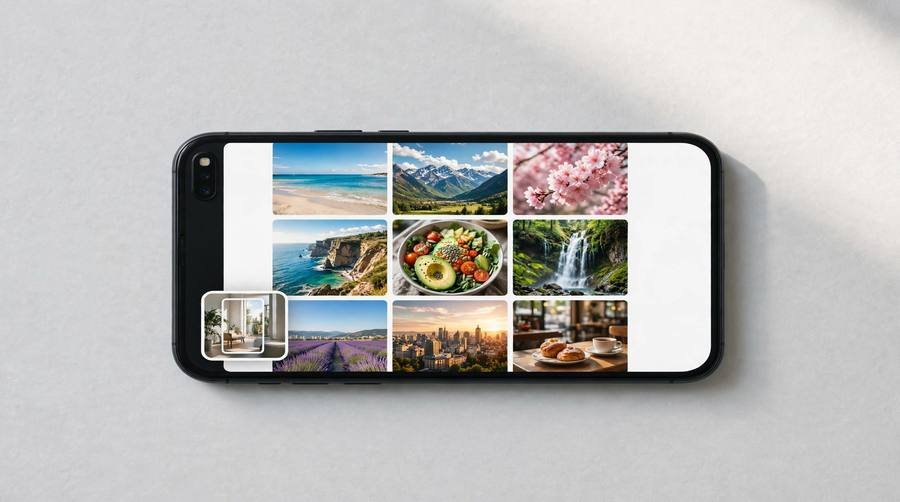
How to screenshot on iPhone?
To screenshot on iPhone, quickly press and release the side button and the volume up button at the same time if your iPhone has Face ID, or the side button and the Home button together if it has a Home button. The screen flashes, and a preview of the capture appears. On iOS 26 and later, the screenshot opens full screen with tools to crop, mark up, share, or save it, while older versions show a small thumbnail in the lower-left corner instead. Screenshots are saved automatically to the Photos app, in the Screenshots collection under Media Types. The steps below match iOS 27, released on 14 September 2026, with current build 27.2.1 released on 9 November 2026.
Which buttons take a screenshot on your iPhone?
Apple groups iPhones by their buttons, not by model number, so the fastest way to know your combination is to look at the front of the phone. If there is no round Home button under the screen, your iPhone uses Face ID. If there is a Home button, check whether the power button sits on the right edge or on the top edge. The table below covers every layout, including button-free methods for when pressing two buttons at once is awkward or a button is broken.
| Method | Best for | What to do |
|---|---|---|
| Side button + volume up | Any iPhone with Face ID | Press both together, then release right away |
| Side button + Home button | Home button iPhones with the power button on the right edge | Press both together, then release right away |
| Top button + Home button | Older Home button iPhones with the power button on the top edge | Press both together, then release right away |
| Back Tap | One-handed use, no buttons needed | Double or triple tap the back of the phone |
| AssistiveTouch | A broken or stiff button | Tap the floating on-screen button, then Screenshot |
| Full Page | A whole webpage in Safari | Take a screenshot, tap the preview, then tap Full Page |
The rule underneath the table is simple. No Home button means the power button plus volume up. A Home button means the power button plus the Home button. The button press itself has not changed in years; what changed is what you see right after the capture, because iOS 26 introduced the full-screen preview. The How-To Geek guide to taking a screenshot on iPhone covers the same three button layouts and the button-free alternatives.
How do you take a screenshot on an iPhone with Face ID?
Face ID iPhones have no Home button: iPhone X and every newer model without a Home button, including the iPhone 11 through iPhone 17 families, the iPhone Air, and the iPhone 16e. The button pair is the same on all of them.
- Open the screen you want to capture, such as a message thread, a map, or a receipt in an email, and close any menu you do not want in the picture.
- Rest one finger on the side button on the right edge and one finger on the volume up button, the upper of the two volume buttons on the left edge.
- Press both buttons at the same moment and release them right away. The screenshot is taken the instant you press; holding longer does not help.
- Watch the screen. On iOS 26 and later, the screenshot opens full screen with quick tools. On iOS 18 and earlier, a small thumbnail appears briefly in the lower-left corner instead.
Timing is the part that trips people up. Apple says to press and quickly release both buttons, so treat it as a tap of both buttons rather than a hold. If you press volume up a split second early, the volume changes instead. If you hold both buttons down, the iPhone shows the power-off slider and the Emergency SOS controls instead of a screenshot, and keeping them held runs the Emergency SOS countdown, which calls emergency services when it ends. If you see the power-off screen, cancel it and try again with a quicker press. Screenshots capture exactly what is on the screen, including the status bar and any open menus, so tidy the screen first if you plan to share the image.
How do you take a screenshot on an iPhone with a Home button?
Home button iPhones are the iPhone SE in all generations, the iPhone 8 and earlier, and the iPod touch. There is no swipe or gesture here, because the Home button does the job, and the steps after the capture are identical to Face ID models.
- Open the screen you want to capture.
- Press the side button and the Home button at the same time, or the top button and the Home button together on the oldest models, where the power button sits on the top edge.
- Release both buttons right away.
- Look for the flash and the preview. On iOS 26 and later, the screenshot opens full screen; on older versions, a thumbnail appears in the lower-left corner.
The same timing rule applies: a quick press and release. Press too slowly and the first press takes you to the Home Screen instead, and holding both buttons brings up the power-off slider. On an iPhone SE running iOS 27, everything after the capture works the same as on Face ID models, including the full-screen editor, Markup tools, and full-page captures in Safari.
How do you take a screenshot without pressing any buttons?
If a button is broken, stiff, or hard to press, or you need a screenshot with one hand, iOS offers three button-free methods. All three are set up once in Settings and then work every time, and none of them needs a third-party app.
Back Tap turns the back of the phone into a button. It works on iPhone 8 or later with iOS 14 or later. Open Settings, tap Accessibility, tap Touch, then tap Back Tap. Tap Double Tap or Triple Tap, then choose Screenshot from the list of actions. After that, tap the back of the iPhone two or three times, near the Apple logo, and the screenshot is captured. A thick or metal case can make Back Tap less reliable, so try it with the case on first and switch to a different method if taps are missed.
AssistiveTouch puts a floating button on the screen that can do the job of the hardware buttons. Open Settings, tap Accessibility, tap Touch, then tap AssistiveTouch and turn it on. A grey menu button appears on the screen, and you can drag it to any edge so it stays out of the way. In the same menu, you can assign Screenshot to a custom action, such as Single-Tap, Double-Tap, or Long Press, so one tap on the floating button takes the screenshot. If you do not set a custom action, tap the floating button, then tap Device, then More, then Screenshot. The button appears in every screenshot unless you move it, so drag it to a corner before capturing.
Siri is the fastest option when your hands are busy. Say “Hey Siri, take a screenshot” and the capture happens at once, with no buttons and no setup. It works on any iPhone running a recent iOS version, as long as Siri is turned on. Use it when the screen is showing exactly what you want to keep, since Siri captures the screen as it is, with no chance to tidy it first.
How do you take a full-page screenshot in Safari?
A normal screenshot captures only what is on the screen. A full-page screenshot captures content that runs longer than the screen, such as an entire webpage in Safari, and saves it as a PDF you can read, search, or print later.
- Open the webpage in Safari and take a screenshot with your button combination, Back Tap, AssistiveTouch, or Siri.
- Tap the screenshot preview to open the editor.
- Tap Full Page at the top of the screen. The editor switches from the visible screen to the whole page, with a thumbnail strip on the side showing how long it is.
- Tap Done, then choose Save to Photos to save it as an image, or Save PDF to Files to save the whole page as a PDF. If you choose the PDF, pick a folder in Files, then tap Save.
Full Page works in Safari and in some other apps that show long documents, but not everywhere. In apps that do not support it, the Full Page option simply does not appear, and the screenshot saves as a normal image instead. A full-page PDF keeps the text selectable, which makes it better than a long image for saving an article, a receipt, or a confirmation page. Save PDF to Files is the right choice when you want to find the page again later, since Files lets you search inside PDFs, while Photos does not.
How do you edit or mark up a screenshot?
On iOS 26 and later, the screenshot opens full screen right away, with buttons along the top for Close, Markup, Share, and Done. On older versions, tap the thumbnail in the lower-left corner before it disappears to open the same editor. Either way, the tools are the same, and the original is only changed when you choose to save.
Tap Markup, the pen icon, to draw on the screenshot. The toolbar offers a pen, a marker, a pencil, a highlighter, and an eraser, plus a ruler for straight lines and a colour picker. Tap the plus button for shapes, arrows, a magnifier, and a text box, so you can circle a button, point at a price, or add a caption. Drag the crop handles at the edges to keep only the part you need, which is the fastest way to cut out a notification bar or a stray menu before sharing. When the edit is done, tap Done, then choose Save to Photos, or tap Share to send it to a contact or an app such as Messages or Mail without saving a copy first. To throw the screenshot away, tap the trash icon or tap Close and choose Delete Screenshot, and it is gone without ever reaching Photos.
If the full-screen editor slows you down when you take several screenshots in a row, you can switch back to the old corner thumbnail. Open Settings, tap General, tap Screen Capture, then turn off Full-Screen Previews. With the toggle off, screenshots appear as a small thumbnail in the lower-left corner again, and you tap it only when you want to edit. The same Screen Capture screen is where Apple groups the other screenshot options, so it is worth a look if you take screenshots often.
Where do screenshots go on iPhone?
Screenshots are saved automatically to your photo library in the Photos app. To see all of them in one place, open Photos, scroll down to Media Types, tap Media Types, then tap Screenshots. The collection gathers every screenshot in one album, newest first, so you can find a capture from weeks ago without scrolling through your whole camera roll.
Screenshots can pile up fast, and each one takes storage, so check the album now and then and delete the ones you no longer need. If the album is large, our guide to check your iPhone storage shows how much space screenshots and other files are using and how to free it. Screenshots also sync to iCloud Photos if that is turned on, which means a capture on your iPhone appears on your Mac and iPad too, and deleting it in one place deletes it everywhere. If a screenshot is missing, check the Recently Deleted album in Photos, where deleted screenshots sit for 30 days before they are removed for good.
Why is my screenshot not working?
Most screenshot failures come down to timing. Press the two buttons at the same moment and release them right away, and treat the press as a quick tap. If you press one button a moment before the other, the iPhone treats it as a single press and locks the screen or changes the volume instead. If you hold both buttons, you get the power-off slider and the Emergency SOS controls, not a screenshot. Practice the press a few times on a screen you do not care about, and the timing becomes automatic.
If the buttons work but nothing is saved, check that you are not inside an app that blocks captures. Banking apps, streaming apps, and some messaging apps block screenshots for privacy or copyright, and show a black screen or a warning instead. The iPhone is working fine in that case; the app is refusing the capture. If the app is frozen rather than blocking the capture, our guide to close apps on iPhone explains how to force-close it and open it again fresh. If Back Tap stops working, check the case first, then check the setting is still on in Settings, under Accessibility, then Touch, then Back Tap. A thick case absorbs the taps, and a software update can reset the assignment.
If the whole screen is unresponsive and no button combination does anything, restart the iPhone. On a Face ID iPhone, press and hold the Side button and either Volume button until the power-off slider appears, drag the slider, wait 30 seconds, then hold the Side button until the Apple logo appears. Our guide to turn off your iPhone covers the restart steps for every model. If the screen is still dead after a restart, the fault is deeper than a screenshot setting, and the buttons themselves may need checking.
Frequently asked questions about screenshots on iPhone
How do I take a screenshot on iPhone 17?
Quickly press and release the side button and the volume up button at the same time. The iPhone 17 has no Home button, so it uses the same Face ID combination as every iPhone X and later. On iOS 27, the screenshot opens full screen, where you can crop, mark up, share, or save it.
Can I take a screenshot on iPhone without pressing buttons?
Yes. Turn on Back Tap in Settings, under Accessibility, then Touch, then Back Tap, and assign Screenshot to a double or triple tap on the back of the phone. You can also use AssistiveTouch, or say “Hey Siri, take a screenshot” with no setup at all.
How do I take a full-page screenshot on iPhone?
Open the webpage in Safari, take a screenshot, tap the preview, then tap Full Page at the top of the editor. Tap Done, then choose Save PDF to Files to save the whole page as a PDF, or Save to Photos to save it as an image.
Where are my screenshots saved on iPhone?
Screenshots save automatically to the Photos app. Open Photos, scroll down to Media Types, tap Media Types, then tap Screenshots to see every screenshot in one collection, newest first.
Why does my iPhone show the power-off screen instead of taking a screenshot?
You are holding the buttons too long. Press the side button and the volume up button together and release them right away, as a quick tap. Holding them brings up the power-off slider and the Emergency SOS controls instead, so cancel that screen and try again with a faster press.