
How to disable autocorrect on my iPhone?
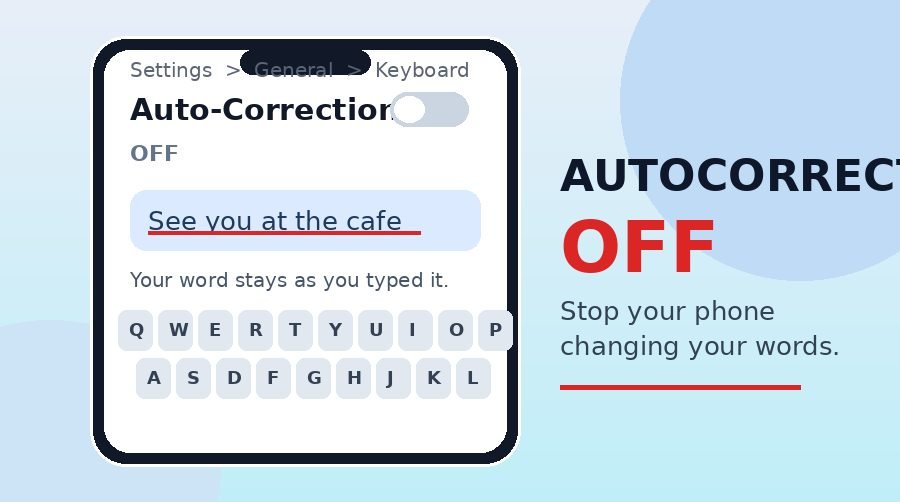
To learn how to disable autocorrect on your iPhone, open Settings, tap General, tap Keyboard, and turn off Auto-Correction. The switch is under the All Keyboards section, and the change takes effect straight away in every app that uses the Apple keyboard, with no restart and no Save button to press. Your iPhone will stop replacing words as you type, although it can still underline words it thinks are misspelled if you leave Check Spelling turned on. If only one name, place, or slang word keeps getting changed, you do not need to turn the whole feature off, because Text Replacement on the same screen can protect that one word instead.
The steps in this guide follow iOS 27, which was released on 14 September 2026, with the current build 27.2.1. If your iPhone looks slightly different, check your software version first, because older versions use slightly different labels for some of the same switches. You can update your iPhone to iOS 27 before you follow the steps, and the rest of this guide will then match what you see.
How do I turn off autocorrect on iPhone in iOS 27?
Turning off autocorrect on an iPhone takes less than a minute, and you only need to change one switch. The setting applies to the Apple keyboard in every app at once. There is no per-app autocorrect switch on iPhone, so you cannot turn it off in Messages and leave it on in Mail.
- Open the Settings app on your iPhone.
- Tap General.
- Tap Keyboard.
- Scroll down to the All Keyboards section.
- Turn off Auto-Correction. The switch turns grey when it is off and green when it is on.
That is all there is to it. Open Notes or Messages and type a word that used to get changed, then press the space bar. The word should stay exactly as you typed it. If it still changes, check that you turned off Auto-Correction and not a different switch on the same screen, and check that you are using the Apple keyboard, because a third-party keyboard has its own settings.
What does each keyboard switch do?
The Keyboard screen holds several switches that are easy to confuse, and each one controls a different kind of help. Turning off Auto-Correction does not turn off predictive text, and turning off predictive text does not turn off autocorrect.
| Setting | What it does | Turn it off if | What still happens |
|---|---|---|---|
| Auto-Correction | Replaces words it thinks are misspelled as you type | Your iPhone keeps changing correct words | Predictive suggestions, spell underlines, and Text Replacement shortcuts still work |
| Predictive Text | Shows suggested words above the keyboard | You never tap the suggestions | Words are still corrected if Auto-Correction is on, and nothing changes unless you tap a suggestion |
| Show Predictions Inline | Completes the word you are typing in grey text inside the message | Grey completions distract you while you type | The suggestion strip above the keyboard can still appear if Predictive Text is on |
| Check Spelling | Underlines possible mistakes in red without changing them | Red underlines distract you | Autocorrect can still replace words if Auto-Correction is on |
| Text Replacement | Expands a shortcut you created into a longer phrase | A shortcut you saved is firing when you do not want it | Autocorrect, predictive text, and spell-check are not affected |
A practical combination for many people is Auto-Correction off and Check Spelling on. That way, your iPhone stops changing your words, but it still underlines a word it thinks is misspelled, so you can spot a real typo before you send a message. If you type in two languages, add both keyboards under Settings, then General, then Keyboard, then Keyboards, then Add New Keyboard.
How do I turn off autocorrect without leaving the app I am typing in?
You do not have to close the app you are typing in to change the setting. Apple provides a shortcut from the keyboard itself, which is useful when a correction annoys you in the middle of a message.
While the keyboard is open, touch and hold the emoji key or the globe key in the bottom-left corner of the keyboard. Tap Keyboard Settings in the menu that appears, turn off Auto-Correction, then swipe back to your app and keep typing. The change applies at once.
There is one more habit worth learning. In iOS 17 and later, Auto-Correction temporarily underlines a word it has just corrected. Tap the underlined word and a small menu appears, showing the word you originally typed. Tap your original word to put it back, without changing any setting and without retyping the whole sentence.
How do I stop autocorrect changing just one word?
If autocorrect only gets one word wrong, turning off the whole feature is more than you need. A surname, a place name, a brand name, or a technical term can be protected on its own, while autocorrect keeps helping with ordinary typos everywhere else.
Go to Settings, tap General, tap Keyboard, and tap Text Replacement. Tap the Add button, which is the plus sign at the top of the screen. Type the word exactly as you want it in the Phrase field, leave the Shortcut field blank, then tap Save. With no shortcut, your iPhone treats the entry as a word to accept rather than as a shortcut to expand.
How is autocorrect different from spell-check and predictive text?
Autocorrect, spell-check, and predictive text sound similar, but they do three different things. Autocorrect changes a word for you, without asking. Spell-check only points at a word it thinks is wrong, by underlining it in red, and leaves the word as you typed it. Predictive text shows a row of suggested words above the keyboard, and nothing happens unless you tap one of them.
Predictive text is based on your past conversations, your writing style, and even websites you visit in Safari, according to Apple. You can accept a suggestion by tapping it, or reject one by tapping your original word, which appears in quotation marks among the suggestions. Inline predictions complete the word you are typing in grey text inside the message itself, and you accept the completion by pressing the space bar.
The distinction matters most when you are deciding what to turn off. Many people turn off predictive text hoping to stop autocorrect, then wonder why their words still change. The change came from Auto-Correction, which sits on the same screen but is a separate switch, so turn off Auto-Correction to stop the changes and Predictive Text to stop the suggestions.
How do I turn off autocorrect on Android?
Android does not have one universal autocorrect switch, because the setting lives inside the keyboard app rather than in one place in the phone settings. On most Android phones, the keyboard is Gboard, which is Google’s keyboard app. On a Samsung Galaxy phone, the keyboard is Samsung Keyboard, and the setting has a different name.
For Gboard, open any app where you can type, such as Messages or Gmail, and tap the text field so the keyboard appears. Tap the settings gear on the keyboard toolbar, or touch and hold the comma key and slide to the settings gear. Tap Text correction, then turn off Auto-correction under the Corrections heading. Some newer versions of Gboard label the same menu Corrections and suggestions instead of Text correction.
For a Samsung Galaxy phone, open Settings, tap General management, tap Samsung Keyboard settings, and tap Auto replace. Turn off Auto replace for your language. Samsung calls the feature Auto replace rather than Auto-Correction, and you may need to turn it off for each language you type in. If you use a third-party keyboard such as SwiftKey, look in that keyboard’s own settings, because changing the Gboard setting will not affect it.
Android also has a simple way to undo one correction without changing a setting. Right after Gboard changes a word, tap Backspace once to undo the correction and put back what you typed. To teach Gboard a word, type it, tap it when it is underlined in red, and choose Add to dictionary. For a fuller comparison of keyboard apps, see our guide to the best free apps for Android and iOS.
How do I turn autocorrect back on if I change my mind?
Turning autocorrect back on is the same one-switch change in reverse. Go to Settings, tap General, tap Keyboard, and turn on Auto-Correction. The switch turns green, and the change applies at once. You do not need to restart your iPhone, and you do not lose any words you taught the keyboard while the feature was off.
A week is a fair trial. The first day without autocorrect can feel slower, because every typo stays on the screen until you fix it yourself. By the third or fourth day, most people find they type more carefully and catch their own mistakes. If you type quickly and rarely check what you wrote, you may find that you miss the safety net, and turning it back on is the right call.
If your keyboard has learned bad words over the years, turning autocorrect off and on again will not fix the learning. To clear it, go to Settings, tap General, tap Transfer or Reset iPhone, tap Reset, and choose Reset Keyboard Dictionary. This deletes the custom words the keyboard has learned, including your Text Replacement shortcuts, so save any shortcuts you want to keep before you reset.
What should I do if autocorrect still changes words after I turn it off?
If words still change after you turn off Auto-Correction, work through the causes in order. First, check that you are using the Apple keyboard, because a third-party keyboard has its own autocorrect setting. Second, check Text Replacement, because a saved shortcut can expand a word even when autocorrect is off. Third, check whether the change is coming from the app itself, because some apps have their own spell-check settings.
Fourth, check your keyboard language. If you are typing in English on a keyboard set to another language, the keyboard will keep correcting words that are correct in the language you are actually using. Go to Settings, then General, then Keyboard, then Keyboards, and make sure the right languages are listed. Fifth, restart your iPhone, then check for a software update. If you are moving text between apps while you test this, remember that copy and paste on iPhone keeps the text exactly as it was copied, so a word that changes when you paste it is being changed by the app you paste into, not by the keyboard.
One more cause is worth checking. If you use a hardware keyboard with your iPhone or iPad, that keyboard has its own settings under Settings, then General, then Keyboard, then Hardware Keyboard. The Auto-Correction switch there is separate from the on-screen keyboard switch, so a hardware keyboard can keep correcting words even after you turn off the on-screen switch.
Which setup works best for most people?
The best setup is not the strictest setup. It is the one you will actually keep using. Turning off every keyboard feature at once can feel clean for a day, then frustrating when you have to fix every typo by hand. A setup that stops the unwanted changes, but keeps a light safety net, will last for months.
Live with that setup for a week and notice what still bothers you. If the suggestions above the keyboard distract you, turn off Predictive Text. If the red underlines distract you, turn off Check Spelling. If one word still changes, protect it with Text Replacement instead of turning the whole feature back on.
For a second opinion on the Android steps, see the MakeUseOf guide at How to Turn On or Off Autocorrect for Android and Samsung Devices. Apple’s own guidance is the authority for the exact menu names, so check How to use Auto-Correction and predictive text on your iPhone, iPad, or iPod touch on Apple Support before you change a setting you are unsure about. Your words should sound like you, not like your keyboard’s best guess at you.
Frequently asked questions
How do I turn off autocorrect on iPhone in iOS 27?
Open Settings, tap General, tap Keyboard, and turn off Auto-Correction under All Keyboards, which stops your iPhone from replacing words as you type in every app that uses the Apple keyboard.
Does turning off autocorrect also turn off spell-check on iPhone?
No, turning off autocorrect does not turn off spell-check, because Check Spelling is a separate switch on the same Keyboard screen that only underlines possible mistakes in red without changing them.
How do I stop autocorrect changing one name or word?
Go to Settings, tap General, tap Keyboard, tap Text Replacement, tap the plus sign, type the word exactly as you want it in the Phrase field, leave Shortcut blank, and tap Save.
How do I turn off autocorrect on Android?
For Gboard, open the keyboard settings, tap Text correction, and turn off Auto-correction, while on a Samsung Galaxy phone, go to Settings, tap General management, tap Samsung Keyboard settings, and turn off Auto replace.
Can I turn autocorrect back on after turning it off?
Yes, you can turn autocorrect back on at any time by going to Settings, tapping General, tapping Keyboard, and turning Auto-Correction back on, with no restart needed and no learned words lost.