
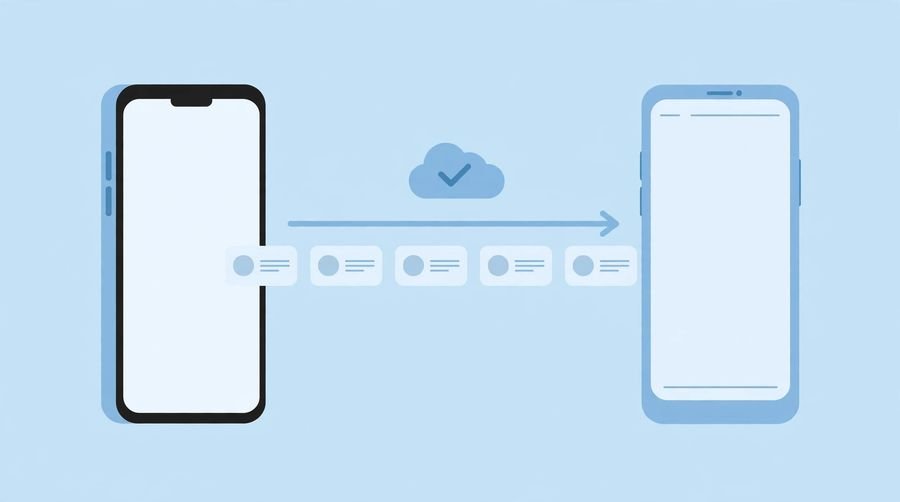
How to Transfer Contacts to New Phone?
If your contacts are saved to iCloud or your Google account, they move to your new phone by themselves the moment you sign in with the same account and turn on contacts syncing. Contacts saved only on the old phone or on a SIM card do not move on their own, so check where yours live first, then follow the steps for your direction below.
Where Are Your Contacts Stored Right Now?
Most contacts that seem lost were never lost in the transfer at all. They were sitting in a place the new phone never looked: on the old handset itself, on a SIM card, or in an account you forgot you used. Your contacts can live in four places, and each one moves differently. On an iPhone, open the Contacts app and tap Lists at the top left to see which accounts hold your contacts. On Android, open Settings, tap Accounts, tap your Google account, and check whether Contacts sync is turned on.
If a contact appears under iCloud on an iPhone or under your Google account on Android, it is already backed up online and will follow you. If it appears under On My iPhone or Device only, it lives on that handset alone. A contact on a SIM card usually holds only a name and one phone number, with no email addresses, photos, or notes attached.
iCloud vs Google Contacts: Which One Moves Your Contacts?
This is the part that confuses almost everyone, because the two systems do the same job and never talk to each other. iCloud moves contacts between iPhones, and your Google account moves contacts between Android phones and onto iPhones that sign in to Google. Neither one moves contacts to the other system by itself, so a switch between iPhone and Android always needs one extra step: either signing the Google account in on the iPhone first, or exporting a contacts file from iCloud and importing it into Google.
The rule to remember is simple. The account your contacts are saved in decides where they can go, not the phone you bought. Sign in to the same account on the new phone and your contacts arrive. Sign in to a different account and they stay behind.
| Where your contacts live | Moves to a new iPhone | Moves to a new Android phone |
|---|---|---|
| iCloud | Yes, sign in with the same Apple Account | Only after exporting a vCard file to Google |
| Google account | Yes, add the Google account and turn on Contacts | Yes, sign in with the same Google account |
| On My iPhone or device only | Only with Quick Start or a backup restore | Only after exporting them to a file or an account |
| SIM card | Only after importing the SIM contacts | Only after importing the SIM contacts |
How Do I Transfer Contacts From iPhone to iPhone?
This is the easiest direction, because iCloud and Quick Start both do the work for you. Start with iCloud, and use Quick Start when you are setting the new phone up next to the old one.
- On your old iPhone, go to Settings, tap your name, tap iCloud, tap See All next to Saved to iCloud, and make sure Contacts is turned on.
- If your iPhone asks what to do with the contacts already on the phone, tap Merge so they upload to iCloud.
- Check the result on a computer at icloud.com/contacts before you switch, so you know every contact you need is actually there.
- On your new iPhone, sign in with the same Apple Account and make sure Contacts is turned on in the same iCloud screen.
If both phones are in your hands, Quick Start is faster. Turn on the new iPhone, hold it next to the old one, tap Continue on the old phone, and choose Transfer from iPhone when asked. Keep both phones close together and plugged in until the transfer finishes. Quick Start only works while you are setting up the new iPhone, so if you already finished setup, use iCloud sync instead.
For the full walkthrough with backup and restore options, see our guide to transferring an iPhone to an iPhone.
How Do I Transfer Contacts From Android to Android?
Your Google account does this job. Contacts saved to Google appear on the new phone as soon as you sign in, and the setup copy step brings over the ones stored on the handset or SIM.
- On your old phone, open Settings, tap Accounts, tap your Google account, tap Account sync, and make sure Contacts is turned on.
- If your phone offers a backup for device-only and SIM contacts, turn it on so nothing is left on the handset alone.
- Turn on the new phone, connect to Wi-Fi, sign in with the same Google account, and tap Copy when it asks about copying apps and data.
- Follow the prompts to copy from your old phone, with a cable if one fits both phones, or wirelessly if it does not.
If the old phone is already gone or some contacts are missing, open Settings on the new phone, tap Google, tap Set up and restore, then tap Restore contacts. Pick the account and the old phone, then tap Restore. Restoring onto a phone with an older Android version than the old one can leave the transfer incomplete, so update the new phone first if it offers an update.
How Do I Transfer Contacts From iPhone to Android?
There are two reliable routes, and the Google account route is the one to try first because your contacts keep syncing afterwards instead of moving once. The vCard route works when you would rather move the contacts once and be done.
- On your iPhone, go to Settings, tap Contacts, tap Accounts, tap Add Account, choose Google, and sign in with the Google account you will use on your new Android phone.
- Turn on Contacts for that Google account and give it a few minutes to upload.
- On your new Android phone, sign in with the same Google account during setup and make sure Contacts sync is turned on.
If you would rather not add Google to your iPhone, export a file instead. On a computer, go to icloud.com/contacts, sign in with the same Apple Account, select all your contacts, and choose Export vCard to download a .vcf file. Then open Google Contacts on the same computer and import that file, so the contacts land in the Google account your new phone uses. How-To Geek walks through the same iCloud export and Google import in its guide to transferring contacts from an iPhone to another phone. For the wider switch, including apps and messages, see our guide to switching from iPhone to Android.
How Do I Transfer Contacts From Android to iPhone?
The Google account route works in this direction too, and it is the best choice if you already live in Google services. The Move to iOS app is the best choice when you are setting up a brand-new iPhone and want everything moved at once.
- On your old Android phone, open Settings, tap Accounts, tap your Google account, and make sure Contacts sync is turned on.
- On your iPhone, go to Settings, tap Contacts, tap Accounts, tap Add Account, choose Google, and sign in with the same account.
- Turn on Contacts and wait a minute or two for the contacts to appear.
For a full move during setup, install the Move to iOS app from the Google Play Store on your Android phone. During iPhone setup, tap Move Data from Android, enter the code shown on the iPhone into the app, select Contacts, and tap Continue. Move to iOS only works while you are setting up the iPhone. If you already finished setup, use the Google account route above instead.
What If Some Contacts Are Missing After the Transfer?
Do not erase the old phone yet. Missing contacts almost always have one of three causes, and each one has a fix.
- Check the accounts on the new phone first, because a contact saved to a second Google account, Outlook, or another service will not appear until you sign in to that account too and turn on its Contacts sync.
- Look for duplicates next, because a transfer often leaves two copies of the same person, one from iCloud and one from Google.
- Check the SIM last, because contacts stored on the SIM will not appear until you import them.
To clean up duplicates, open Google Contacts on the web, open Fix and manage, and tap Merge duplicates. On iPhone, the Merge prompt that appears when you turn on iCloud Contacts does the same job for the iCloud side.
To recover SIM contacts on an iPhone, open Settings, tap Contacts, and tap Import SIM Contacts. On Android, use Import from SIM in the Contacts app. Remember that SIM contacts carry only a name and one number, so any missing email addresses or notes were never on the SIM to begin with.
What Should You Do Before You Hand Over Your Old Phone?
Wait until the new phone proves the transfer worked. Open the Contacts app on the new phone, search for a few people you call often, and open one contact to check that the number, email address, and photo are all there. Compare the contact count with the old phone if you can. Only when the numbers match should you erase or trade in the old phone. If you want a safety net first, back up the old phone completely — see our guide to backing up an iPhone — and keep a copy of your contacts in the account they belong to, not only on a handset.
What Else Do People Ask About Transferring Contacts to a New Phone?
Do contacts transfer automatically to a new phone?
Yes, if they are saved to iCloud or your Google account. Sign in with the same account on the new phone, turn on contacts syncing, and they download by themselves. Contacts stored only on the old phone or on a SIM card do not move automatically.
Can I transfer contacts from iPhone to Android without a computer?
Yes. Add your Google account on your iPhone under Settings, Contacts, Accounts, turn on Contacts sync, and then sign in with the same Google account on your new Android phone. Your contacts sync over without any file or computer.
Does Move to iOS transfer contacts?
Yes. During iPhone setup, tap Move Data from Android, enter the code in the Move to iOS app on your Android phone, select Contacts, and tap Continue. It only works while you are setting up the iPhone, so use the Google account method if setup is already finished.
Why are some contacts missing on my new phone?
The missing contacts are usually saved somewhere the new phone has not signed in to yet: another Google or Outlook account, the old phone itself, or a SIM card. Sign in to every account you used, turn on Contacts sync for each one, and import any SIM contacts.
Can I move contacts with a SIM card?
Yes, but a SIM card is the weakest option. It stores only a name and one phone number per contact, with no email addresses, photos, or notes. Use it only as a last resort, and move your contacts into iCloud or your Google account afterwards.