
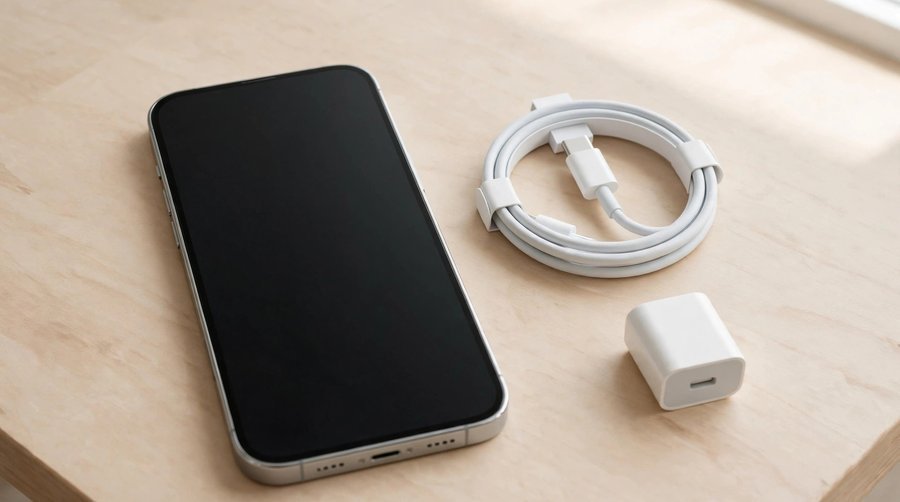
How to fix iPhone not charging?
In most cases, you can fix an iPhone that is not charging by testing a different cable, adapter, and wall outlet, cleaning lint out of the charging port the safe way, restarting the phone, and updating to the latest iOS, because the cause is usually a worn cable, a blocked port, or a software glitch rather than a dead battery. Work through the nine fixes below in order, and try charging again after each one, since the first few steps solve the problem for most people.
A phone that will not charge is stressful because it cuts you off from calls, maps, and messages, and the battery icon never seems to move. Before you spend money on a repair, it is worth ruling out the cheap causes first, because a frayed cable or a pocket full of lint in the port looks exactly like a broken phone. The steps below follow Apple Support guidance, so nothing here risks damage to your iPhone.
What are the 9 fixes for an iPhone that will not charge?
These nine fixes are ordered from the most common cause to the least common, so start at the top and stop as soon as your iPhone starts charging again.
- Plug your iPhone into a different wall outlet.
- Test your iPhone with a different charging cable.
- Test your iPhone with a different USB wall adapter.
- Clean the charging port safely, without metal tools or compressed air.
- Restart your iPhone, then force restart it if a normal restart does not help.
- Check whether Optimized Battery Charging or a charge limit is holding the charge at 80 percent.
- Update your iPhone to the latest version of iOS.
- Try wireless charging to find out whether the port itself is the problem.
- Check the liquid-detection alert if your iPhone got wet, and let the port dry fully before trying again.
If none of these nine fixes works, the problem is most likely the battery or the charging port hardware, and the last section of this guide explains when to book service.
How do I test my cable, adapter, and outlet?
Start with the power source, because a dead outlet or a weak USB port can look like a phone problem. Plug your iPhone charger into a wall outlet you know works, such as one that powers a lamp, and make sure the cable, the adapter, and the wall plug are all pushed in firmly. Apple also suggests trying a computer USB port or a different power accessory, but a wall outlet is the strongest test, because some computer USB ports do not supply enough power to charge an iPhone.
Next, test the cable itself, because cables fail far more often than phones do. Look along the whole cable for fraying, kinks, bent connectors, or exposed wires, and do not use a damaged cable, since Apple warns against using damaged accessories. Then borrow a cable you know works, or try your cable with a different iPhone, because that swap tells you in seconds whether the cable is the fault.
Do the same swap test with the wall adapter, since adapters wear out and their prongs loosen over time. If your iPhone charges with a different adapter but not with yours, the adapter is the problem, not the phone. Use a certified cable and adapter when you replace either one, because uncertified accessories can cause charging alerts and may not deliver enough power.
How do I clean my iPhone charging port safely?
Pocket lint is one of the most common reasons an iPhone stops charging, because it packs down inside the port and stops the cable from seating fully. You can often feel this yourself, because the cable plug does not click in as firmly as it used to, or it falls out with the slightest tug.
Apple says to remove debris from the charging port, but it also sets clear limits on how to do it. Unplug all cables and turn your iPhone off first, then hold the phone with the port facing down and tap it gently against your palm to shake out loose lint. Wipe the cable connector with a soft, dry, lint-free cloth, and if debris is still stuck, use only a small, clean, dry, soft-bristled, non-metallic brush, twisting the bristles gently to lift the lint out.
Never push a toothpick, pin, SIM tool, or any other metal object into the port, and never use compressed air, cotton swabs, paper towels, liquids, or cleaning products inside it. Apple warns against putting foreign objects into the connector, and a metal tool can scratch the pins or short the connection. If lint is packed in so tightly that gentle tapping and a soft brush cannot move it, stop and book service instead of forcing it.
Which cable does my iPhone use, Lightning or USB-C?
Using the wrong cable is an easy mistake, especially in a house with several iPhones, because a Lightning plug will not fit a USB-C port and a USB-C plug will not fit a Lightning port. Check your model first, then use the cable that matches it.
| Your iPhone | Port | Cable to use | Wireless charging |
|---|---|---|---|
| iPhone 15 and later | USB-C | USB-C to USB-C | Qi and MagSafe |
| iPhone 12, 13, and 14 | Lightning | USB-C to Lightning | Qi and MagSafe |
| iPhone 8, 9, 10, and 11 | Lightning | USB-C to Lightning | Qi only, no MagSafe magnets |
For fast charging, pair the right cable with a USB-C power adapter rated at 20 watts or higher. MagSafe magnetic wireless charging arrived with the iPhone 12, while standard Qi wireless charging works on the iPhone 8 and later, so an older iPhone can still charge on a flat Qi pad even though it has no magnets to hold it in place.
What does liquid detected mean, and what should I do?
If your iPhone shows a liquid-detection alert, it has sensed moisture in the Lightning or USB-C connector, or on the cable or accessory, and it has blocked charging to protect the pins from corrosion. This safety feature works on the iPhone XS, iPhone XS Max, iPhone XR, and later models, and charging stays unavailable until the connector, the cable ends, and the accessory are all dry.
Unplug the cable from your iPhone first, then unplug the other end from the power adapter or accessory, and do not plug anything back in until everything is completely dry. Tap your iPhone gently against your hand with the connector facing down to remove excess liquid, then leave it in a dry area with some airflow. Apple says to wait at least 30 minutes before trying again, and if the alert returns, leave the phone to dry for up to a day, because full drying can take up to 24 hours.
Do not dry your iPhone with an external heat source or compressed air, do not insert a cotton swab or a paper towel into the connector, and do not put your iPhone in a bag of rice, because small rice particles can damage it. You can still use a Qi-certified wireless charger while the port dries, as long as the back of your iPhone is dry. If the alert appears every time you connect the same cable, that cable or accessory may be damaged, and if it appears with every Apple cable you try, your iPhone may need service.
Why does my iPhone stop charging at 80%?
An iPhone that stops at 80 percent is usually not broken, because iOS is deliberately holding the charge there to protect the battery. Since iOS 13, Optimized Battery Charging has learned your daily routine and waited to finish charging past 80 percent until shortly before you normally unplug, which slows battery aging. Your iPhone may also charge more slowly above 80 percent if it gets warm, and it will resume normal charging once it cools down, so try moving the phone and charger to a cooler spot.
On the iPhone 15 and later, there is also a charge limit setting that can stop charging at a set level. Go to Settings, then Battery, then Charging Optimization, and check whether a limit is turned on. If you need a full charge right away, change the limit or turn it off for now, and if Optimized Battery Charging is the cause, you can switch it off temporarily in the same place.
To check the battery itself, go to Settings, then Battery, then Battery Health, and look at the maximum capacity figure. Apple designs iPhone batteries to retain up to 80 percent of their original capacity after 500 full charge cycles, so a battery well below that level will drain fast and may struggle to hold a charge at all.
How do I restart my iPhone to fix charging?
A restart clears temporary software glitches that can stop charging, and Apple lists it as one of the first steps to try. On an iPhone with Face ID, press and hold the side button and either volume button until the power-off slider appears, drag the slider, wait for the screen to go black, then press and hold the side button until the Apple logo appears. On an iPhone with a Home button, press and hold the side or top button until the slider appears, then drag it and turn the phone back on the same way.
If a normal restart does not help, force restart your iPhone instead. On the iPhone 8 and later, including the iPhone SE (2nd generation and later), press and quickly release the volume up button, press and quickly release the volume down button, then press and hold the side button until the Apple logo appears. On the iPhone 7 and 7 Plus, press and hold the side button and the volume down button together until the Apple logo appears. On the iPhone 6s and earlier, press and hold the side or top button and the Home button together until the Apple logo appears.
After the restart, plug your iPhone in and leave it charging for at least 30 minutes before deciding whether the fix worked. Apple gives the same advice, because a deeply discharged iPhone can take 20 to 30 minutes of charging before it turns on at all, and the charging icon may not appear for the first couple of minutes.
Will updating iOS fix my iPhone not charging?
Updating iOS can fix charging problems caused by software bugs, because Apple regularly fixes charging and battery issues in software updates. Go to Settings, then General, then Software Update, and install any update that is available. The current version is iOS 27.2.1, released on 9 November 2026 for the iPhone 11 and later, and it contains bug fixes and security updates, so it is worth installing even if your iPhone seems fine otherwise. If you need a refresher on the update steps, our guide to how to install iOS 27 walks through the whole process.
If the update will not download, a full iPhone can be the blocker, so check how much free space you have before trying again. Our guide to how to check iPhone storage shows where to look and what to delete first. Once the update is installed, try charging again, and if an app keeps misbehaving after the update, updating your iPhone apps can clear up app problems that drain the battery or interfere with charging.
Can wireless charging help when the cable will not work?
Wireless charging is a useful test, because it bypasses the charging port completely. If your iPhone charges on a wireless pad but not with a cable, the port, the cable, or the adapter is the problem, not the battery. Place the iPhone face up in the centre of the pad, remove any thick case if it will not connect, and make sure the pad itself is plugged into a wall outlet, not a low-power computer USB port.
On the iPhone 12 and later, a MagSafe charger snaps into place with magnets, which makes alignment easy. On the iPhone 8 and later without MagSafe, a standard Qi pad works, but you may need to shift the phone slightly until the charging sound plays. If wireless charging works, you can keep using it as a temporary fix while you arrange a port repair, but do not treat it as a permanent solution if the port is damaged, because the damage can get worse.
When should I get my iPhone serviced?
Book service with Apple or an Apple Authorized Service Provider if your iPhone still will not charge after you have tried a known-good cable, adapter, and outlet, cleaned the port, restarted the phone, and updated iOS. The same applies if the cable feels loose in the port, charging starts and stops when you wiggle the cable, the port looks bent or damaged, the battery drains very fast, or the liquid-detection alert appears with every Apple cable you try.
Do not open your iPhone yourself, and stop using it and seek service right away if the battery is swollen, the back of the phone feels hot for a long time, or you smell anything unusual. For a second independent walkthrough of the same checks, MakeUseOf covers what to do when an iPhone will not charge, and its steps line up with the Apple guidance in this guide.
Frequently asked questions about iPhone charging problems
Why is my iPhone not charging when plugged in?
Your iPhone is not charging when plugged in most often because the cable or adapter is damaged, the charging port is blocked with lint, the power source is too weak, or a software setting has paused charging, so test a different cable, adapter, and outlet first, then clean the port safely, restart the phone, and update iOS before assuming the battery or port is broken.
How do I clean my iPhone charging port?
Turn your iPhone off and unplug everything, hold it with the port facing down and tap it gently against your palm to shake out loose lint, wipe the cable connector with a soft, dry, lint-free cloth, and if debris is still stuck, use only a small, clean, dry, soft-bristled, non-metallic brush, never a toothpick, pin, cotton swab, or compressed air.
What does liquid detected mean on my iPhone?
Liquid detected means your iPhone has sensed moisture in the Lightning or USB-C connector and has blocked charging to protect the pins from corrosion, so unplug the cable, tap the phone gently with the connector facing down, leave it in a dry place with airflow for at least 30 minutes, and allow up to 24 hours to dry fully if the alert returns.
Why does my iPhone stop charging at 80 percent?
Your iPhone stops charging at 80 percent because Optimized Battery Charging is holding the charge there to slow battery aging, or because a charge limit is set on an iPhone 15 or later, so go to Settings, then Battery, then Charging Optimization to check the setting and change it if you need a full charge now.
How do I know if my iPhone battery or charging port is broken?
Your iPhone battery or charging port is likely broken if the phone still will not charge after you have tried a known-good cable, adapter, and outlet, cleaned the port, restarted the phone, and updated iOS, or if the cable feels loose in the port, charging stops and starts when you wiggle it, or the battery drains very fast, and in that case book service with Apple or an Apple Authorized Service Provider.