
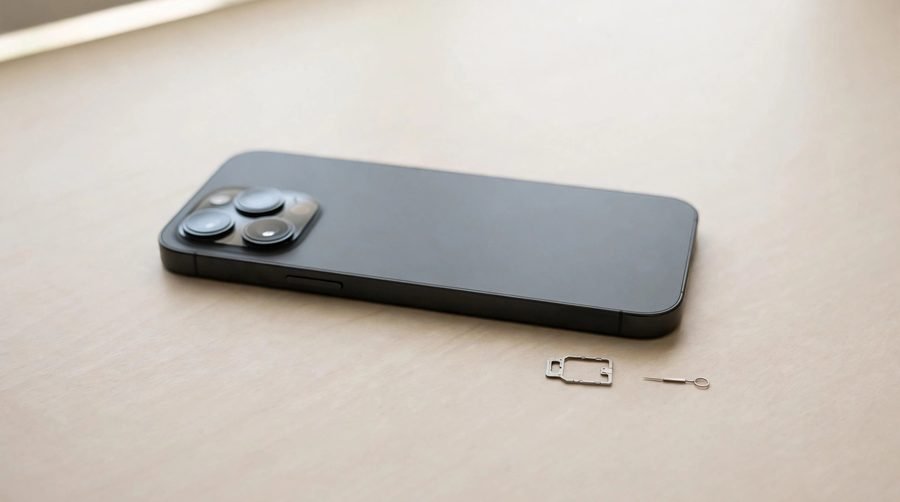
How to find IMEI on iPhone?
To find IMEI on iPhone, open Settings, tap General, then tap About, and scroll down to the IMEI line. The IMEI is the 15-digit number listed there, and you can touch and hold it to copy it. If you need it faster, open the Phone app and dial *#06# on the keypad, and the IMEI appears on screen without placing a call. Both methods work in iOS 27, and if the phone is lost, broken, or not set up yet, the same number is also on your Apple account page, on the original box, and, on many older models, on the SIM tray. The steps below match iOS 27, released on 14 September 2026, with current build 27.2.1 released on 9 November 2026.
An IMEI identifies one specific iPhone on a mobile network, much like a fingerprint identifies one person. Your carrier, Apple Support, and a buyer checking a used phone all use this one number to tell your phone apart from every other iPhone. That is why it is worth knowing where to find it before you need it in a hurry, for example when a carrier asks for it during an unlock request or when you are reporting a phone as lost.
Which method should you use first?
The best method depends on whether the phone is in your hand, whether it turns on, and whether you can sign in to your Apple account. If the phone works, Settings is the best choice because you can copy the number exactly instead of writing down 15 digits by hand. If the phone is lost or will not turn on, skip the on-phone methods and go straight to your Apple account or the original box. The table below matches each situation to the fastest place to look.
| Your situation | Fastest place to look | What you need |
|---|---|---|
| The iPhone works and is unlocked | Settings, then General, then About | Just the iPhone |
| You want the number in seconds | Dial *#06# in the Phone app | Just the iPhone |
| The iPhone is new or not set up yet | Info button on the Hello screen | Just the iPhone |
| The screen is broken or Settings will not open | SIM tray, or a computer with Finder or the Apple Devices app | SIM ejector tool or a USB cable and a computer |
| The iPhone is lost or stolen | Your Apple account page | Another device and your Apple Account sign-in |
| You have the box but not the phone | Barcode label on the original box | The original iPhone box |
| You have an older iPhone | Back of the phone, or the SIM tray | Just the iPhone, and good light |
How do I find the IMEI in Settings on iOS 27?
Settings is the method Apple lists first, and it is the most reliable one because it shows the number clearly and lets you copy it without typing. It works on every iPhone that runs iOS 27, including eSIM-only models with no SIM tray at all.
- Open the Settings app on your iPhone.
- Tap General.
- Tap About at the top of the General screen.
- Look near the top for the model name and serial number, then scroll down to the cellular identifiers.
- Find the IMEI line and read the 15-digit number beside it.
- Touch and hold the number, then tap Copy to paste it into a carrier form, a support chat, or a note.
On the same screen you will also see the EID and the ICCID near the IMEI, and on some models an IMEI2 line as well. Do not confuse these with the IMEI, because a carrier form that asks for the IMEI wants the 15-digit number on the IMEI line itself. If you need the number again later, a screenshot of the About screen saves the IMEI, the serial number, and the model name in one image, but keep that screenshot private because it contains identifiers tied to your phone.
How do I find the IMEI by dialling *#06#?
Dialling *#06# is the fastest way to see the IMEI, and it works on almost any mobile phone, not just iPhones. It is the method to use when you are on the phone with your carrier and they ask for the number on the spot.
- Open the Phone app on your iPhone.
- Tap Keypad at the bottom of the screen.
- Type *#06# exactly as shown, with no spaces.
- As soon as you type the last character, a screen appears showing your device information, including the IMEI.
You do not need to press the green call button, because the code is not a phone call and it does not contact your carrier. The number appears on screen straight away. The one drawback is that you cannot copy it from this screen, so you have to write it down or read it out, which is easy to get wrong across 15 digits. If accuracy matters, use the Settings method above instead, where you can copy and paste. On a dual-SIM iPhone, this screen may show two numbers, labelled IMEI1 and IMEI2, one for each SIM slot or eSIM.
Where is the IMEI on the SIM tray?
If your iPhone has a SIM tray, Apple engraved the IMEI on the tray of many models, so this method works even when the phone will not turn on. Apple lists the SIM tray as the place to find the IMEI/MEID on iPhone 13, iPhone 12, iPhone 11, iPhone XS, iPhone XR, iPhone X, iPhone 8, iPhone 7, iPhone 6s, and iPhone SE (2nd and 3rd generation), among others.
- Find the small hole on the side edge of your iPhone, next to the SIM tray.
- Push the SIM ejector tool that came with the iPhone, or a straightened paper clip, gently into the hole until the tray pops out.
- Pull the tray out carefully and take out the SIM card if one is fitted.
- Turn the tray over and look for the small engraved IMEI number on its underside.
The engraving is very small, so hold the tray under a bright light or take a close-up photo with another phone and zoom in. There are two limits to know. First, iPhone 14 models and later have no IMEI/MEID engraving, so do not waste time hunting for one on a newer phone. Second, iPhones sold in the United States from iPhone 14 onward are eSIM-only and have no SIM tray at all, so this method does not exist on those phones.
Is the IMEI printed on the back of the iPhone?
On older iPhones, yes. Apple printed the IMEI on the back of the original iPhone, iPhone 5, iPhone 5c, iPhone 5s, iPhone 6, iPhone 6 Plus, and iPhone SE (1st generation), in small text near the bottom, alongside the model number and regulatory markings. If you own one of these models, turn the phone over and look for the number labelled IMEI in the fine print.
Apple stopped this practice with iPhone 6s. From iPhone 6s onward, the back of the phone carries only the model number and a few regulatory marks, and later models carry even less than that, so there is no IMEI to find on the back of any recent iPhone. The print is also tiny on the models that do have it, so a magnifying glass or a close-up photo with another phone helps. This method is a useful fallback for an old phone with a dead battery, but it is not a method that works on a current iPhone.
How do I find the IMEI from a computer?
A computer can show the IMEI even when the iPhone screen is broken or Settings will not open, as long as the phone can still connect over USB. The app you need depends on your computer, and Apple documents all three options on the same support page.
- Connect the iPhone to the computer with a USB cable, unlock the iPhone, and tap Trust on the phone if it asks whether to trust this computer.
- On a Mac running macOS Catalina 10.15 or later, open Finder and select your iPhone in the sidebar, staying on the General tab.
- On a Mac running macOS Mojave or earlier, open iTunes instead and select your iPhone there.
- On a Windows PC, open the latest Apple Devices app, or iTunes if you do not have the Apple Devices app.
- Click the model name under your device name to show the serial number.
- Click Phone Number under the device name or model to show the EID, IMEI/MEID, and ICCID.
To copy the serial number from Finder, choose Edit, then Copy Serial Number. The IMEI itself is shown on screen, so write it down carefully or take a screenshot of the Finder window. If the computer has never been trusted by this iPhone and the screen is too damaged to tap Trust, this method will not work, and the Apple account page below is the better route.
How do I find the IMEI without the phone?
If the phone is lost, stolen, or already sold, your Apple account still holds its IMEI, as long as the phone was signed in to your Apple Account. You do not need the phone in your hand, and you do not need Find My to have been turned on for the device to appear in your account.
- On any web browser, go to account.apple.com.
- Sign in with the Apple Account you use on the iPhone.
- Choose the Devices section.
- Select the iPhone from the list to see its serial number, EID, and IMEI/MEID.
You can also find the same information on another Apple device signed in to the same account. Open Settings, tap your name at the top, scroll down to the list of devices signed in to your Apple Account, and tap the iPhone name to see its details. This is the number to give your carrier when you report a phone lost or stolen, because the carrier can block the IMEI so the phone cannot be used on mobile networks. If the phone is lost, also check Find My before anything else, and read our guide on how to turn off Find My iPhone only when you are sure you want to remove the lock, for example before handing the phone to a new owner.
Where is the IMEI on the box or receipt?
If you kept the original box, the IMEI is printed on its barcode label, together with the serial number and the EID. Look for the sticker on the outside of the box, usually on the back or the bottom, and find the line labelled IMEI under or beside the barcode. This works even if the phone itself is gone, broken, or already sold, which makes the box worth keeping in a drawer for exactly this reason.
Your purchase receipt is worth checking too. Many carrier receipts and Apple purchase receipts list the IMEI of the phone that was sold, so search your email for the order confirmation or the carrier agreement if you bought the phone online. If you bought the phone second-hand and have neither the box nor a receipt, the seller or the carrier that sold the phone may still have the number on file, but they will usually ask you to prove the phone is yours before they share it. Before you sell or give away an iPhone, factory reset your iPhone so your data is wiped, and when you transfer everything to a new iPhone first, you will not lose photos, messages, and settings in the move.
What if the iPhone is not set up yet?
A new iPhone, or one that has just been erased, shows a Hello screen in many languages before setup begins. You can find its identifiers right there without going through setup. Turn the phone on, press and hold the power button until the Apple logo appears and the Hello screen shows, then tap the Info button, the small letter i in a circle, in the bottom-right corner of the screen. The serial number, EID, and IMEI appear on the information screen. This is the method to use when you are checking a phone you have just bought, or when a support agent asks for the number before the phone has been activated.
What do IMEI, MEID, and EID mean?
IMEI stands for International Mobile Equipment Identity. It is a 15-digit number that identifies one specific mobile device to the networks it connects to, and no two phones share the same IMEI. MEID stands for Mobile Equipment Identifier, and on an iPhone it is simply the first 14 digits of the IMEI, which is why Apple lists them together as IMEI/MEID. Some older networks and forms ask for the MEID instead of the IMEI, but on an iPhone they come from the same number. EID stands for Embedded Identity Document, and it identifies the eSIM chip inside the phone rather than the phone as a whole. You will see the EID on the same About screen as the IMEI, and your carrier may ask for it when you set up or transfer an eSIM. The ICCID, which sits nearby on the same screen, is different again: it identifies the SIM card or eSIM profile in use, not the phone, so a new SIM means a new ICCID while the IMEI stays the same.
Why would you need your IMEI?
Most people only need the IMEI a few times in the life of a phone, but when it is needed, nothing else will do. The three most common reasons are carrier unlocks, lost or stolen reports, and support or warranty checks. A carrier asks for the IMEI when you request a carrier unlock, because the unlock is tied to that one device, and the carrier checks the number against its records before approving it. If the phone is lost or stolen, the carrier can add the IMEI to a block list shared with other carriers, which stops the phone from working on mobile networks even with a different SIM card inside. That block does not erase your data and does not find the phone, so it works alongside Find My rather than replacing it. Apple Support and your carrier also use the IMEI to identify the exact model when you ask for help, and to confirm what support options apply to that device. The same number matters when you buy a used iPhone: ask the seller for the IMEI before you pay, then check it with the carrier to confirm the phone is not blocked, not still tied to an unpaid contract, and not reported lost or stolen. A seller who will not share the IMEI before a sale is a warning sign.
If you want a second opinion on the methods above, the team at MakeUseOf lists nine ways to find the IMEI number on your iPhone or iPad, including the carrier website as a last resort, which is a useful fallback when you have no box, no computer, and no Apple account access.
What should you do before sharing your IMEI?
Your IMEI is not a password, and sharing it with your carrier or Apple Support is normal and safe, but do not post it publicly. Never put your IMEI in a for-sale listing, a social media post, or a public forum, because it is tied to your specific phone and can be misused in scams, including false lost-phone reports that get a working phone blocked. Share it only with the carrier, Apple, or a buyer you are dealing with directly, and only when there is a real reason they need it. When you write it down, copy it from Settings rather than from memory, and check the number twice: a single wrong digit sends the carrier or the checker looking at a different phone. Save a copy somewhere safe, such as in your password manager or with your phone records, so the next time someone asks for it, you already have it.
Frequently asked questions
Can I find the IMEI if my iPhone is lost?
Yes. Sign in at account.apple.com with the Apple Account used on the iPhone, open the Devices section, and select the iPhone to see its serial number, EID, and IMEI. You can also see the same details on another Apple device signed in to the same account by opening Settings, tapping your name, and tapping the iPhone in the device list.
Is the IMEI the same as the serial number?
No. The IMEI is a 15-digit number that identifies the phone to mobile networks, while the serial number identifies the phone to Apple for manufacturing and support. Both appear on the same About screen in Settings, under General and then About, and both appear on the original box, but they are different numbers and they are used for different checks.
Does dialling *#06# cost anything or call anyone?
No. Dialling *#06# does not place a call, does not contact your carrier, and does not cost anything. The code runs on the phone itself, and the IMEI appears on screen as soon as you type the last character, without you pressing the green call button.
Why does my iPhone show two IMEIs?
Dual-SIM iPhones show two IMEIs, usually labelled IMEI1 and IMEI2, because each SIM slot or eSIM has its own identifier. Use the one that matches the line or SIM you are asking about, and if a form asks for just one IMEI, use IMEI1 unless your carrier tells you otherwise.
Can someone use my IMEI to track my iPhone?
No, the IMEI alone does not let a stranger track your live location, because location tracking needs access to your account, your carrier, or Find My. Even so, do not post your IMEI publicly, because it can be misused in scams or false lost-phone reports that get a working phone blocked, so share it only with your carrier, Apple, or a buyer you are dealing with directly.