
How to Silence Apple Watch?
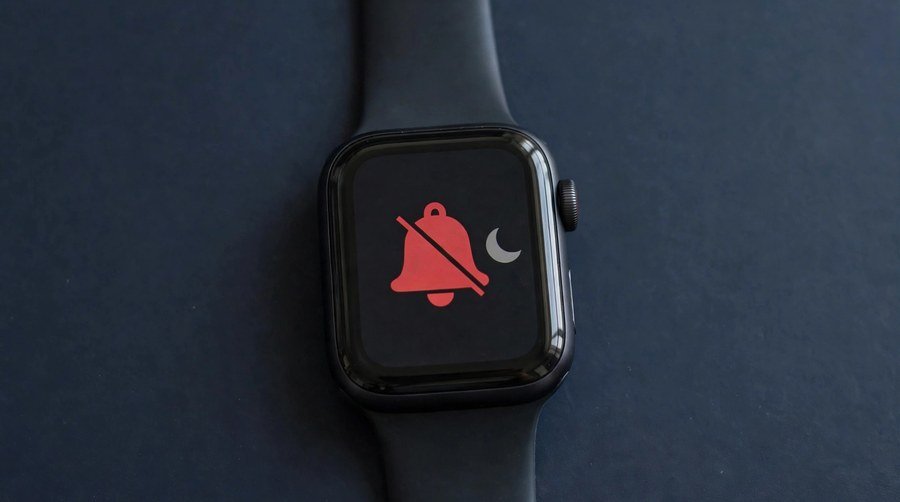
To silence your Apple Watch, press the side button to open Control Center, then tap the bell icon to turn on Silent Mode. The bell turns red with a line through it, and your watch stops making sounds for alerts, notifications, and sound effects, while still tapping your wrist so you can feel what arrives. To turn the sound back on, open Control Center again and tap the same bell.
This guide is about silencing the watch itself, the device on your wrist, not about silencing your iPhone. If your iPhone is the noisy one, our guide on how to silence notifications on iPhone covers that side of the problem, while everything below covers the watch: Silent Mode, Do Not Disturb, Theater Mode, and the palm gesture that mutes a single ringing call. The steps match watchOS 27, released 14 September 2026 (current build 27.2.1, 9 November 2026), and apply to Apple Watch Series 9 and later, Apple Watch SE 3 and later, and Apple Watch Ultra 2 and later.
What Is the Difference Between Silent Mode, Do Not Disturb, and Theater Mode?
Apple gives your watch four ways to stay quiet for a while, and they switch off different things. Your watch gets your attention in three ways: a sound, a tap on your wrist, which Apple calls haptics, and the screen lighting up. Apple publishes this comparison in its own Apple Watch User Guide for watchOS 27, and the table below follows it.
| Mode | Sounds | Wrist taps | Screen | Best for |
|---|---|---|---|---|
| Silent Mode | Off | On, if you allow haptics | Lights up for alerts as usual | Meetings and quiet rooms |
| Theater Mode | Off, because it also turns on Silent Mode | On, if you allow haptics | Stays dark when you raise your wrist | Movies and dark venues |
| Do Not Disturb | Off | Off | Calls and alerts do not light it up | Meetings, when total quiet is needed |
| Focus, such as Sleep or Work | Off, except for people and apps you allow | Off, except for people and apps you allow | Hidden, except for allowed notifications | Sleep and work routines |
Read the wrist-taps row twice, because it is the distinction that catches almost everyone. Only Do Not Disturb and a Focus stop the tap on your wrist. Silent Mode and Theater Mode both leave it on, which is what you want in a quiet office, where a silent tap still tells you something arrived, and what you do not want in a cinema seat, where even a buzz can be felt by the person next to you. Turning the watch off is different again: it stops everything, including alarms. For a second walkthrough of the same settings from a general tech site, see the MakeUseOf guide on how to minimize Apple Watch notifications, which covers Silent Mode, Theater Mode, Focus, and per-app notification controls in one place.
How Do I Turn On Silent Mode From Control Center?
Control Center is the fastest way to silence your Apple Watch, and it is the method Apple documents first in its watchOS 27 user guide. You can do it from the watch face without opening any app.
- Press the side button, the flat button below the Digital Crown, to open Control Center. On older versions of watchOS, you opened Control Center by swiping up from the bottom of the watch face instead.
- Find the Silent Mode button, which looks like a bell. If you do not see it at first, scroll down with the Digital Crown, because Control Center holds more buttons than fit on one screen.
- Tap the bell. It turns red with a line through it, and a small crossed-out bell appears at the top of the watch face to show Silent Mode is on.
- Press the side button again to close Control Center.
Silent Mode mutes all alerts, notifications, and sound effects, and you still receive haptic notifications, which is Apple’s own description of what it does. If the bell button is missing, scroll to the bottom of Control Center, tap Edit, tap the add button, choose Silent Mode, and tap Done.
How Do I Turn On Silent Mode in Settings or From My iPhone?
Control Center is the quick route, but the same switch lives in two other places, and both are useful when the bell has been removed from Control Center or when your hands are already on your iPhone.
On the watch itself, press the Digital Crown to open the app list, open the Settings app, scroll down, and tap Sounds and Haptics. At the top of that screen, turn on the Silent Mode switch, and it turns green. From your iPhone, open the Watch app, tap My Watch, tap Sounds and Haptics, and turn on Silent Mode there. The change takes effect at once. The same screen manages haptics: set the tap strength to Default or Prominent, or turn haptics off entirely to stop the taps too.
How Do I Silence One Call or Alert Right Now?
Sometimes you do not want the watch silent all evening. You just want the one call that is ringing right now to stop, without changing any setting and without declining the call. Apple built two gestures for exactly that moment, and both are on by default.
The first is Cover to Mute. When an alert sounds, such as an incoming phone call or a timer going off, rest the palm of your hand on the watch display for at least three seconds. You will feel a tap to confirm that the mute is on, and the sound stops. Cover to Mute is on by default; turn it off under Settings, then Gestures. One exception matters: Apple says wake-up alarms are not silenced with the cover to mute gesture, so do not count on your palm to stop your morning alarm.
The second gesture is the wrist flick. Turn your wrist over and back, quickly, and the watch mutes an incoming call, stops a timer, dismisses a notification, and returns to the watch face. It works even when your hands are full. Like Cover to Mute, it is on by default and can be turned off under Settings, then Gestures.
How Do I Use Theater Mode to Keep the Screen Dark Too?
Silent Mode stops the sound, but it does nothing about the screen. In a cinema, that glow is more disruptive than a ringtone. Theater Mode exists for that problem, and it is Silent Mode with the screen held dark as well.
To turn it on, press the side button to open Control Center, then tap the Theater Mode button, which shows two theater masks. When Theater Mode is on, its icon appears at the top of the screen. Apple says Theater Mode prevents the display from turning on when you raise your wrist, also turns on Silent Mode, and makes your Walkie-Talkie status unavailable, while you still receive haptic notifications. To wake the watch on purpose, tap the display, press the side button, or turn or press the Digital Crown. To turn Theater Mode off, open Control Center again and tap the masks button.
How Do I Use Do Not Disturb or a Focus to Stop the Taps Too?
If Silent Mode is quiet but not still, Do Not Disturb is the next step up. It is the only built-in mode, along with the other Focus modes, that stops both the sound and the tap on your wrist, and it also keeps calls and alerts from lighting up the screen. Use it when even a vibration would be a problem, such as during an exam or a job interview.
To turn it on, press the side button to open Control Center, tap the Focus button, which shows a crescent moon, then choose Do Not Disturb or one of your other Focus modes, such as Sleep, Work, or Personal. Then tap On, or choose an ending point, such as On for 1 hour, On until this evening, or On until I leave. The timed options are the safest habit: the watch returns to normal on its own. To turn it off early, open Control Center, tap the Focus button again, and tap the mode that is on. For the full walkthrough of the iPhone side, including schedules and allowed people, see our guide on how to turn off Do Not Disturb.
By default, your watch mirrors your iPhone, so turning Do Not Disturb on for one turns it on for the other. That can surprise you: silencing your phone before a flight also silences your watch. If you want the two devices to behave independently, open the Watch app on your iPhone, tap General, then tap Focus, and turn off Mirror my iPhone. Set up Focus modes on your iPhone under Settings, then Focus, choosing allowed people and apps and schedules; those choices appear on your watch as well.
How Do I Silence My Apple Watch at Night Without Missing My Alarm?
Night is the one time when silencing the watch feels risky, because the same device that wakes you up is the one you are trying to quiet. Apple designed the alarm to survive silencing, but the details depend on which mode you use.
With Silent Mode on, an alarm set on the watch taps your wrist and makes no sound. Apple offers Silent Mode as the way to create an alarm that taps your wrist but does not make a sound. With Do Not Disturb on, alarms still go off: Apple says Do Not Disturb keeps calls and alerts, except for alarms and heart rate notifications, from making sounds or lighting up the screen. The Sleep Focus works the same way, and our guide on how to track sleep on Apple Watch covers the sleep schedule that drives it. Two exceptions can still make a silent watch sound at night. First, while your Apple Watch is charging, alarms and timers still sound, even in Silent Mode, according to Apple. Second, if you turn on Break Through Silent Mode for an alarm, that alarm will play its sound as well as tapping your wrist. To set it, open the Alarms app on your watch, tap the alarm, and turn on Break Through Silent Mode.
Why Is My Apple Watch Still Making Noise?
If your watch keeps ringing after you have silenced it, work through the causes below in order. First, check which mode is actually on. A crossed-out bell at the top of the watch face means Silent Mode, and a crescent moon means Do Not Disturb or a Focus. If neither icon is there, the watch is not silenced at all, and the likely cause is that you tapped the bell twice, or silenced your iPhone instead of your watch. Second, check whether the sound is coming from your iPhone rather than your watch, because silencing the watch does nothing to the phone.
Third, check whether the watch is on its charger, because alarms and timers still sound while it charges, even in Silent Mode. Fourth, check the alarm that is sounding: if Break Through Silent Mode is on for it, it will play its sound on purpose. Fifth, check whether a Focus on your iPhone has turned itself off on the watch because Mirror my iPhone is off, so the two devices are no longer following each other. Sixth, check whether the noise is music, a podcast, or Siri, which Silent Mode does not control. If none of those explains it, restart the watch, and check for a software update in the Watch app on your iPhone under General, then Software Update.
Frequently Asked Questions About Silencing an Apple Watch
How do I silence my Apple Watch quickly?
Press the side button to open Control Center, then tap the bell icon to turn on Silent Mode. The bell turns red with a line through it, and your watch stops making sounds for alerts, notifications, and sound effects, while still tapping your wrist. To silence a single ringing call instead, rest your palm on the display for at least three seconds until you feel a tap.
Does Silent Mode turn off vibrations on Apple Watch?
No, Silent Mode does not turn off vibrations on Apple Watch. It mutes the sounds and leaves haptic taps on, so you still feel calls, messages, and timers on your wrist. To stop the taps as well, turn on Do Not Disturb or a Focus, or open Settings, then Sounds and Haptics, and set Haptics to Off.
Do alarms still go off when my Apple Watch is silenced?
Yes, alarms still go off when your Apple Watch is silenced. In Silent Mode, an alarm taps your wrist without sound, unless the watch is on its charger or Break Through Silent Mode is on for that alarm, in which case it sounds as well. With Do Not Disturb on, alarms still go off, and wake-up alarms are not silenced by covering the display with your palm.
How do I silence my Apple Watch without silencing my iPhone?
Turn on Silent Mode on the watch itself, and turn off Focus mirroring so the two devices stop following each other. Open the Watch app on your iPhone, tap General, then tap Focus, and turn off Mirror my iPhone. From then on, Silent Mode on the watch affects only the watch, and silencing your iPhone does not silence your watch.
Why does my Apple Watch still light up after I silence it?
Your Apple Watch still lights up because Silent Mode only turns off sounds, not the screen. The display still wakes when you raise your wrist and when alerts arrive. To keep the screen dark as well, turn on Theater Mode from Control Center by tapping the two-masks icon, which also turns on Silent Mode and keeps the display dark until you tap it.