
How to reset network settings on iPhone?
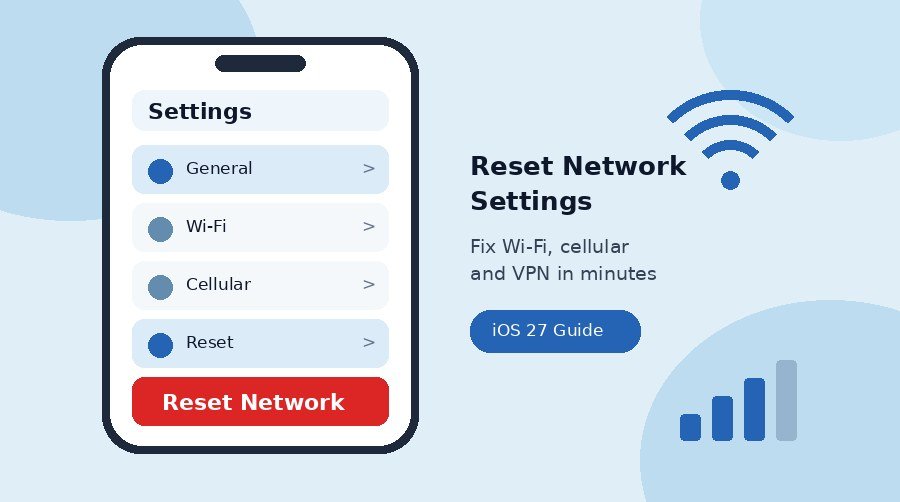
To reset network settings on iPhone, open Settings, tap General, tap Transfer or Reset iPhone, tap Reset, then tap Reset Network Settings, enter your passcode if asked, and tap Reset Network Settings again to confirm. Your iPhone will turn Wi-Fi off and back on, disconnect you from the network you are on, and restart. When it comes back, you will need to join your Wi-Fi networks again with their passwords. Your photos, messages, apps, and accounts stay exactly where they are, because this reset only removes network settings, not your content.
The steps below match iOS 27, released on 14 September 2026, and the current build, iOS 27.2.1, released on 9 November 2026 with bug fixes and security updates. The menu path has been the same since iOS 15, including on phones that came up through how to get iOS 26 on your iPhone. If your iPhone is still on an older version, our guide to how to install iOS 27 walks through the update first. Apple calls this reset a last resort for Wi-Fi trouble, so this guide also covers what to try first and what to save before you tap anything.
What does resetting network settings actually do?
Resetting network settings returns every network-related setting on your iPhone to its factory default, and nothing else. Apple describes it in the iPhone User Guide for iOS 27 as removing all network settings. Its Wi-Fi troubleshooting page adds the detail that matters most: the reset removes all Wi-Fi networks and passwords, cellular settings, and VPN and APN settings. APN settings are the small carrier details your iPhone uses for mobile data, and VPN settings are the details of any virtual private network you added yourself.
Two smaller effects catch people by surprise. First, the device name you gave your iPhone in Settings, under General, then About, is reset to the plain name iPhone. Second, cellular data roaming may be turned off by the reset, so check that setting again if you travel. The Wi-Fi switch itself, and the Ask to Join Networks setting, stay turned on, according to Apple.
What the reset does not do is just as important. It does not delete your photos, videos, messages, contacts, apps, or accounts. It does not remove your Apple Pay cards, your keyboard dictionary, your location and privacy settings, or your home screen layout. Those belong to the broader Reset All Settings option on the same menu. It also does not erase your iPhone or delete your eSIM, so read each option before you tap it.
When should you reset your network settings?
Reset your network settings when a connection problem follows your iPhone everywhere and survives a restart. Your iPhone shows full Wi-Fi signal yet pages will not load, or it connects to Wi-Fi at home but not at work. It keeps dropping the same network, or it refuses to join a network other devices connect to without trouble. Calls fail or drop, mobile data works in one place and not in another, or a VPN that used to connect now fails every time.
A reset is also worth considering after a move, a change of mobile carrier, a software update that went wrong, or a VPN app you installed and then deleted. In each case the iPhone may be holding on to an old network name, password, or carrier setting, and clearing the whole set is faster than hunting for the one bad entry. But if only one Wi-Fi network fails while all the others work, the fault is almost certainly in that network, so restart the router first. If a school or business configures your network, Apple advises consulting its IT team before you reset.
What should you try before you reset your network settings?
Apple is clear on this point: reset network settings only if other solutions fail, because the reset wipes every saved Wi-Fi password at once. Work through the smaller fixes in order, testing your connection after each one, and stop as soon as the problem goes away.
Start with the simplest checks. Open Settings and make sure Wi-Fi is turned on, then tap the network you want and check that your iPhone actually joins it. Make sure Airplane Mode is off, because it switches off Wi-Fi and cellular together and is easy to turn on by accident from Control Center. In Settings, under Wi-Fi, check that Connectivity Assist is off while you troubleshoot, because it can steer your iPhone away from weak Wi-Fi and onto mobile data. If the Wi-Fi switch looks dimmed and will not move, restart your iPhone before doing anything else.
Next, restart both ends of the connection. Turn your iPhone off and back on, and restart your router and modem by unplugging them, waiting about thirty seconds, and plugging them back in. While you wait, check whether other devices can connect, because that tells you at once whether the fault is in the network or in your phone. If other devices fail too, the router or the internet service is the problem, and no iPhone reset will fix it.
Then try forgetting just the one troublesome network. In Settings, under Wi-Fi, tap the More Info button, the small letter i in a circle, next to the network name, tap Forget This Network, and join it again with its password. For a cellular problem, open Settings, tap General, then About, while connected to Wi-Fi or cellular, because your iPhone will offer a carrier settings update there if one is available. If you use a VPN or a security app, try removing it before you reset, because a VPN profile can block traffic even when the VPN app itself is closed.
How do you save your Wi-Fi passwords before the reset?
The one preparation that matters is collecting the Wi-Fi passwords you will need again, because the reset removes them all and there is no undo. Start with the networks you use most: home, work, school, and any cafe or gym where you connect regularly. If a password is printed on a sticker on the router, that is the easiest place to find it.
On iOS 27 you can read most saved Wi-Fi passwords straight off your iPhone. Open the Passwords app, unlock it with Face ID, Touch ID, or your passcode, tap Wi-Fi, tap the name of a network, then tap the Password field to reveal it. Apple explains this in its guide to finding saved Wi-Fi passwords on iPhone. Write each password down, and check it against the network name so you can match them up again afterwards.
How to reset network settings on iPhone in iOS 27
With your passwords saved and the smaller fixes tried, the reset itself takes less than a minute to start. Read each screen before you tap, because the Reset menu holds several options with similar names. The path below is the same one Apple gives in its Wi-Fi troubleshooting page and in the iPhone User Guide for iOS 27.
- Open the Settings app on your iPhone and tap General.
- Scroll to the bottom of the General screen and tap Transfer or Reset iPhone.
- Tap Reset at the bottom of the screen, and a menu of reset options will appear.
- Tap Reset Network Settings in that menu, and read the option carefully before you tap it.
- Enter your iPhone passcode if your iPhone asks for it, and enter your Screen Time passcode too if it asks for that as well.
- Tap Reset Network Settings again in the confirmation that appears, and wait while your iPhone restarts on its own.
When your iPhone powers back on, Wi-Fi will have turned off and back on, and the phone will be using fresh default network settings. Do not tap Erase All Content and Settings on the same menu, because Apple warns that option removes all your content. Do not tap Delete All eSIMs either, because that option deletes every eSIM stored on your iPhone. Do not tap Reset All Settings unless you mean to, because that option also removes your Apple Pay cards. The same steps work on an iPad, where the third step reads Transfer or Reset iPad instead.
What should you do after the reset?
After the reset, your first job is to rejoin your Wi-Fi networks, starting with the one you use most. Open Settings, tap Wi-Fi, tap the name of your network, and enter its password. A blue checkmark next to the name means you are connected. Open a web page to confirm that data actually flows, not only that the checkmark appears. Join your other regular networks the same way, while you still have the passwords in front of you.
Next, give your iPhone its name back. Open Settings, tap General, then About, tap Name, type the name you used before, and tap Done. This matters because the device name is what appears when you use AirDrop and in Find My. Then open Settings, tap Cellular, and check that cellular data is on and that data roaming is set the way you want it. If you use a VPN, set it up again now, either by opening the VPN app and signing in, or by entering the details your work IT team gave you.
What if the problem is still there after the reset?
If the problem survives a network reset, the cause is probably outside your iPhone’s saved settings. Test the same connection on another device first, because if a laptop or another phone fails on the same network, the router, the broadband line, or the carrier is at fault. Restart the router again, and check for a broadband or carrier outage. If Wi-Fi fails everywhere but mobile data works, or the reverse, tell your provider exactly that.
For a cellular problem that survives the reset, contact your carrier next. Ask whether there is an outage in your area, and whether your SIM or eSIM is still active on their side. Do not erase an eSIM as a troubleshooting step unless your carrier tells you to, because deleting it without a replacement ready leaves you with no cellular service at all. For a Wi-Fi problem, contact Apple Support next, and use the Apple Support app if you have it, because on iOS 18 and later it can run extra diagnostics. If your iPhone is still under warranty or covered by AppleCare, a hardware fault in the Wi-Fi or cellular radio is possible, and a reset cannot fix a hardware fault.
How do the reset options compare?
The Reset menu holds several options that sound alike, and choosing the wrong one is the most common mistake in this process. The table below compares the three options people confuse most often.
| Reset option | What it removes | Photos, messages, and apps | When to use it |
|---|---|---|---|
| Reset Network Settings | Saved Wi-Fi networks and passwords, cellular settings, VPN and APN settings, device name, manually trusted certificates | Kept | Wi-Fi, cellular, or VPN trouble that survives a restart |
| Reset All Settings | All settings, including network settings, keyboard dictionary, location and privacy settings, and Apple Pay cards | Kept | Several unrelated settings problems at once |
| Erase All Content and Settings | All content and settings, returning the iPhone to factory state | Deleted | Only when selling, giving away, or fully wiping the iPhone |
Reset Network Settings is the narrowest tool of the three, and that is its strength. It fixes connection problems without touching your personal data or your other settings. Reset All Settings is the wider tool, but it costs you your Apple Pay cards and a long list of preferences. Erase All Content and Settings is not a troubleshooting step at all, and it should only be used when you are selling or giving away the iPhone. For a second walkthrough of the same menu, see the MakeUseOf guide to resetting the network settings on your iPhone, and for the apps you will want to set up again afterwards, our roundup of the best free apps for Android and iOS is a useful starting point.
Frequently asked questions
Will resetting network settings on iPhone delete my photos?
No, resetting network settings on iPhone will not delete your photos, messages, contacts, apps, or accounts. Apple says you can return your iPhone settings to their defaults without erasing your content, and this reset only removes network settings.
How do I reset network settings on iPhone without losing Wi-Fi passwords?
You cannot keep your Wi-Fi passwords through a network reset, because removing them is part of what the reset does. Save them first: open the Passwords app on iOS 18 or later, tap Wi-Fi, tap each network, and tap the Password field to reveal it, then write each password down before you start.
Does resetting network settings remove my eSIM?
No, resetting network settings does not remove your eSIM. Deleting eSIMs is a separate option on the same Reset menu, called Delete All eSIMs, and Apple warns that it deletes every eSIM stored on your iPhone. Tap only Reset Network Settings, and do not tap Delete All eSIMs unless your carrier tells you to.
Why is my iPhone still not connecting to Wi-Fi after a network reset?
If your iPhone still will not connect to Wi-Fi after a network reset, the fault is likely in the network, the router, or the iPhone hardware rather than in your saved settings. Test another device on the same network, restart the router, check for an iOS update, and contact Apple Support if the failure happens on every network you try.
How long does it take to reset network settings on iPhone?
The reset itself takes less than a minute to start, and your iPhone restarts on its own as part of the process. Allow a few minutes in total, then allow extra time afterwards to rejoin your Wi-Fi networks with their passwords, restore your device name, and set up any VPN you use again.